5
Lock or Unlock Your Phone
Use your phone's screen lock features to keep your
phone secure. By default, your phone locks automati-
cally when the screen times out.
To lock your phone, press the Power button.
To unlock your phone, press the Power button.
If you set a password, it will prompt you to enter your
password.
To set a screen lock, you can use a screen lock
function such as swipe, pattern, PIN, or password. Go
to Settings > Security > Screen Lock.
Use the Setup Wizard
The first time you turn your phone on, the setup
wizard guides you through how to set up your phone.
Follow the prompts to choose a default language,
connect to a Wi-Fi network, set up accounts, and
more.
Touch Buttons
• The button moves back one step to the previous
menu/page.
• The button returns immediately to the main
screen.
• The button displays a menu of recently opened
apps. You can also Clear All
in this view.
Home Screen
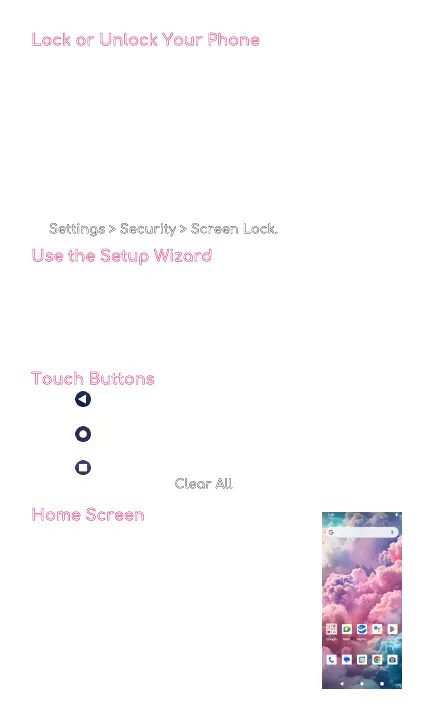
The home screen will look similar
to the picture to the right.
• To switch between screens, simply slide
your finger across the touch screen.
• The home screen contains shortcuts to
your most-used apps and widgets.
• The status bar displays system
information, such as current time,
wireless connectivity and phone battery.



 To Next Page