41
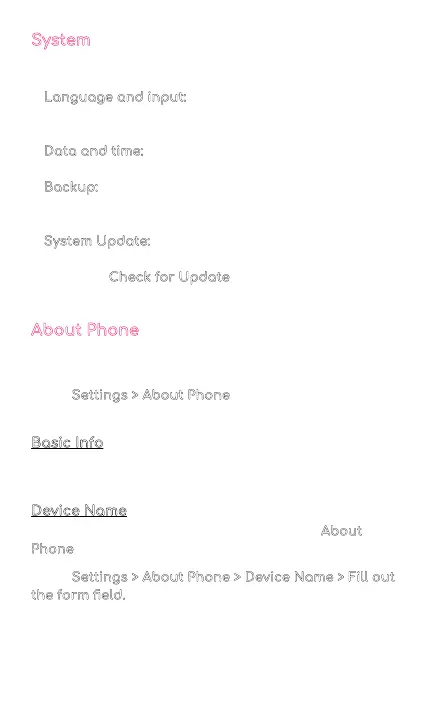
System
Customize your phone’s system settings or reset the
device.
• Language and input:
Select device languages and
change settings such as keyboards and voice input
types
• Data and time:
Access the settings to control how
the device displays the date and time
• Backup:
Easily restore your data or switch devices at
any time by backing up your data to your Google
Account via Google Drive
• System Update:
View the phone’s software version
and check for updates
Tap on the Check for Update
button to check for
needed updates
About Phone
Access your phone’s information, view your device
details, and read the legal disclaimers.
Go to Settings > About Phone
to access all your
phone’s information listed below.
Basic Info
View or change your Device Name and the phone
numbers in your SIM slots (1 or 2).
Device Name
You can rename your device’s name in the About
Phone section.
Go to Settings > About Phone > Device Name > Fill out
the form field.
DuraSpeed
DuraSpeed helps boost the foreground app by
restricting background apps.
NOTE
Notifications may be postponed or not
received.
To enable an app to run in the background, tap
for any of the following apps:
• Android Auto
• AOVTestApp
• Assistant
• Calculator
• Calendar
• Camera
• Chrome
• Clock
• Contacts
• Digital Wellbeing
• Drive
• Files
• Files by Google
• Find My Device
• FM Radio
• Gboard
• Gmail
• Google
• Google Play services
• Google Play Store
• Google TV
• Maps
• Meet
• Messages
• MyTruConnect
• Personal Safety
• Phone
• Photos
• Settings
• SIM Toolkit
• Sound Recorder
• Wireless emergency alerts
• YouTube
• YouTube Music



 To Next Page