6
Navigation
The touch screen responds best to a light touch. Do
not use excessive force or other objects on the
touchscreen.
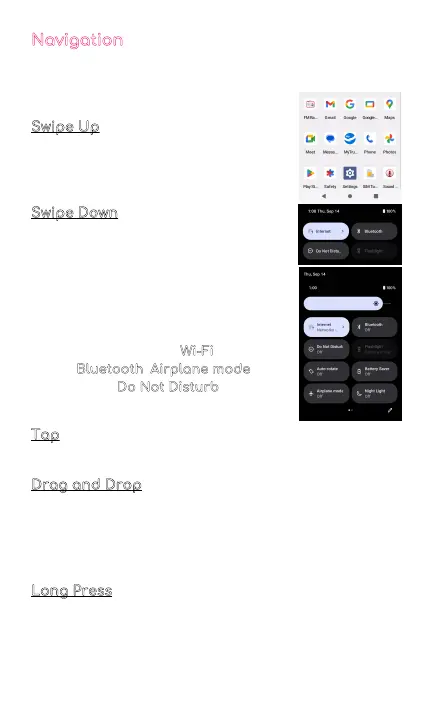
Swipe Up
When you swipe up, all your apps will
appear. Here, you can see all your
available apps.
Swipe Down
When you swipe in a downwards
motion on your screen, you can
quickly review your notifications
in the Notification Panel.
Swipe down again to display the fast
access menu, where you can modify
the functions such as Wi-Fi
, Battery
Saver, Bluetooth
, Airplane mode,
Auto-rotate, Do Not Disturb
, and
brightness.
Tap
Lightly tap on apps to select or launch them.
Drag and Drop
Tap and hold on an app and then move it to a new
location. You can:
1. Drag an app shortcut to add it to a home screen
2. Drag an app to place it in a new location
Long Press
Press and hold on an app to delete, uninstall, or move.



 To Next Page