BALBOA WI-FI MODULE
With the Balboa Wi-Fi Module installed in your spa follow the
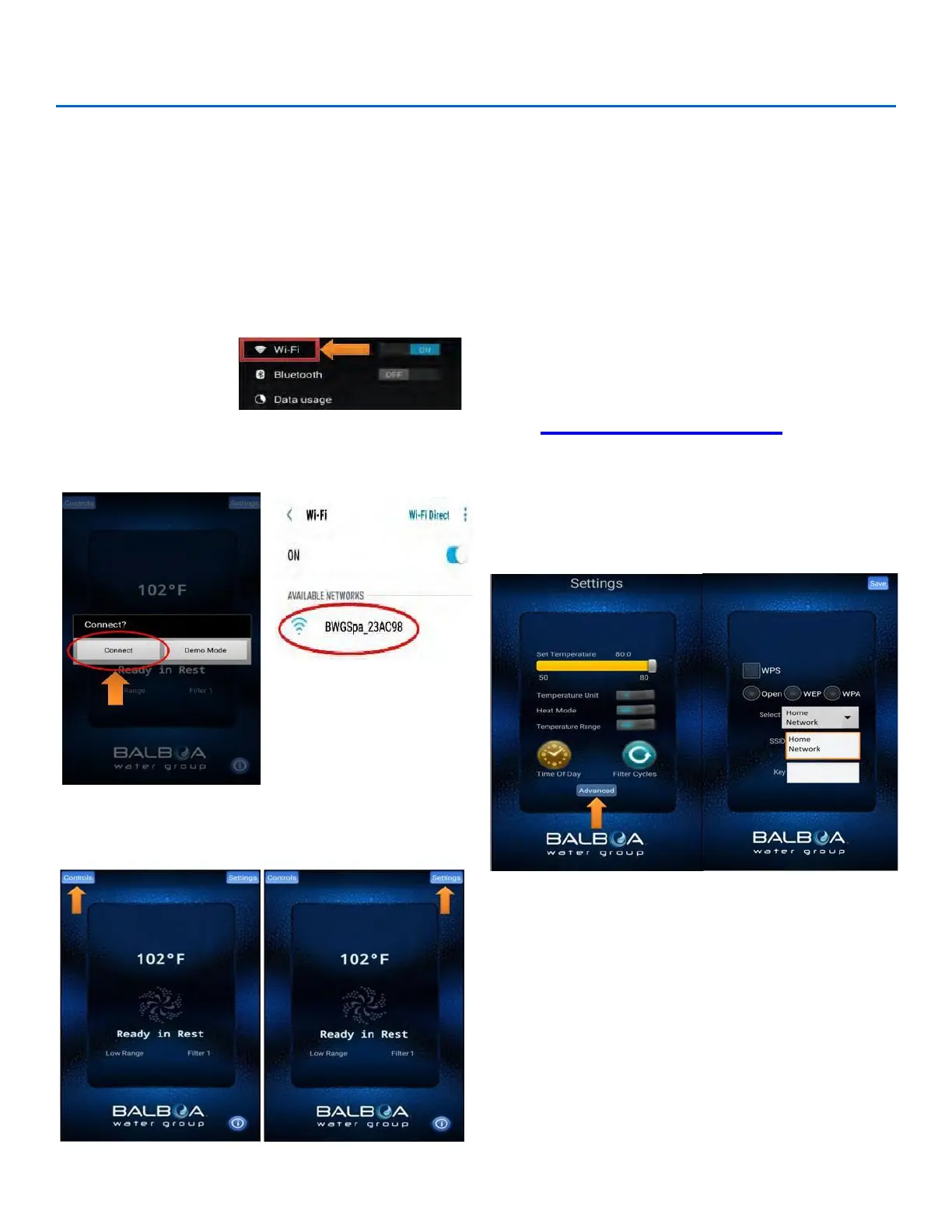
steps below to setup/configure the device.
Step 1: Download the app from the Google Play store or the
iTunes store. The app will be titled “Coast Spas—Spa
Remote” (Google) or Coast Spas—Remote Spa Control (iTunes).
Step 2: Make sure your Wi-Fi on your device is enabled. Check
your device’s instructions on how to access Wi-Fi Settings.
Step 3: While standing at the spa select the Wi-Fi Module from
the list of available devices from your device’s Wi-Fi menu. The
Wi-Fi device will appear as BWGSpa_XXXXX in the list.
Step 4: Once connected to the Wi-Fi Module, directly open the
Coast Spas app. The Coast Spas app will allow you to control
and interact with the spa while you are still within range.
Selecting “Controls” will open a list of installed components like
pump(s), blower, lights, etc.
Note: This screen will vary depending on installed components.
Selecting “Settings” will open the settings menu. While connected
to the spa will be able to set the temperature, change the
degrees between °F or °C, alter the heat mode (Ready/Rest),
select the temperature range (low or high), set the time of day,
input filter cycles (time start and duration) and have access to the
advanced menu.
For more information on the various settings please refer to
the selection in the owner’s manual for your topside control.
Connecting to the Home Network
Note: You can only connect the Wi-Fi app to the house network
when connected directly to the Wi-Fi Module. See “Getting
Started” to connect directly to the Wi-Fi Module.
Once connected to the Wi-Fi Module navigate to:
Settings ► Advanced ► Wi-Fi Settings
Step 5: Select your router’s security setting. This will vary and
if the wrong setting is selected the app will not be able to
access the spa.
Step 6: Set up your home network. Each router will have its
own unique SSID (Service Set Identifier).
Step 7: Enter your key. The key will be the pass key used
to sign in on your network.
Note: If you do not know or need assistance locating any of
the information above, please contact your local service provider.




 To Next Page