Chapter 5: Configuration with web interface
98-169085-B Multiple data connections 56
To set up dedicated connections
You can set up dedicated connections for the EXPLORER 323, e.g. for M2M equipment.
1. From the Dashboard, click New connection package to create a new connection
package, or
click
in the right side of the tile with the connection package that you want to change
and click Properties.
2. Under Type, select the connection type you want.
• Shared connection. This is the default setting, a shared background data connection.
ACA is disabled and there are no dedicated connections.
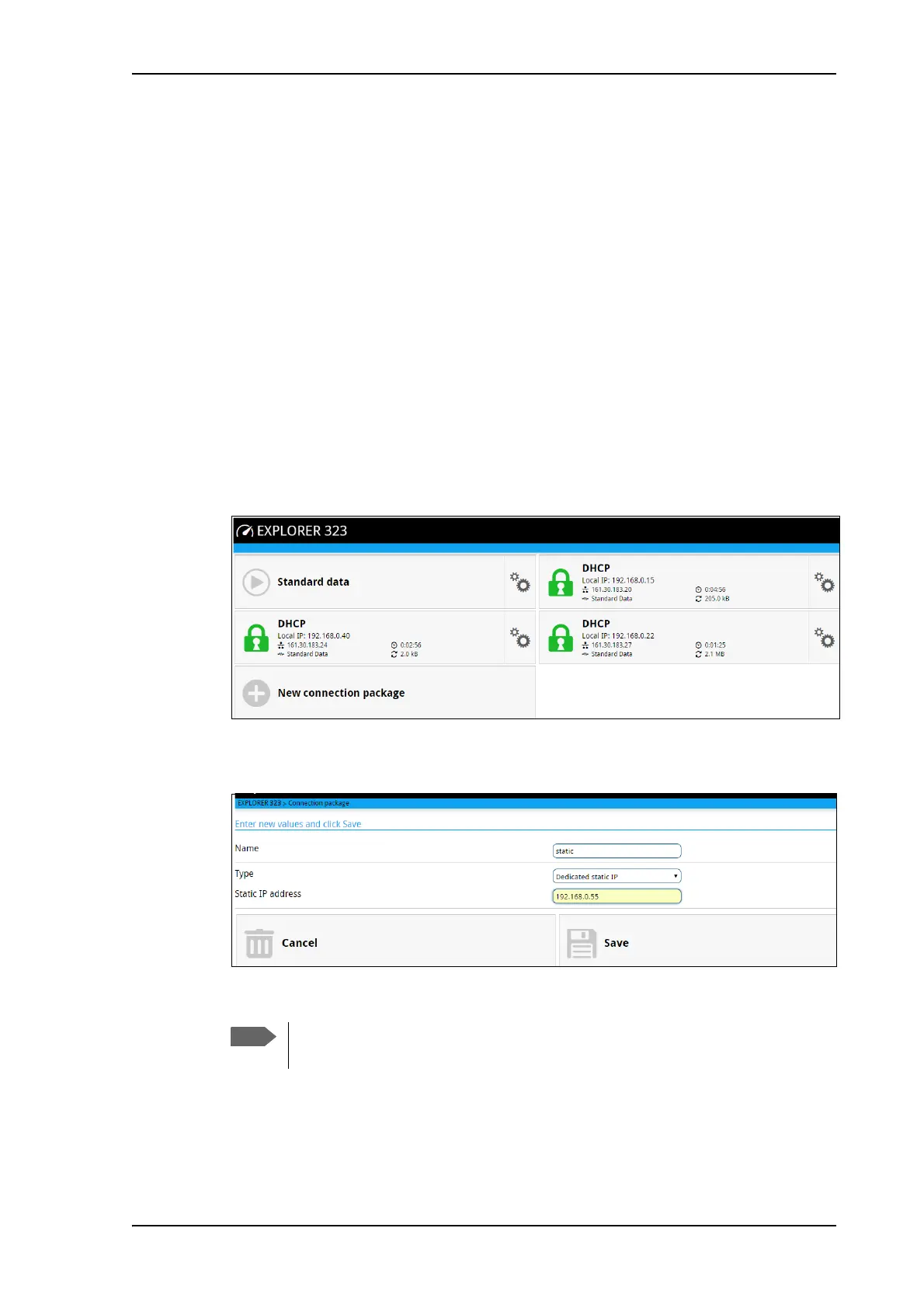
• Dedicated DHCP. This is a dedicated connection using DHCP. With this type, any
DHCP-enabled unit you connect to the EXPLORER 323 will get a new dedicated
connection used only for that unit. When you disconnect the unit, the connection is
removed after a few minutes. Each new connection gets its own tile on the Dashboard
as long as it is running. In the example below, three units are connected using Dedicated
DHCP. ACA is enabled for all Dedicated DHCP connections and cannot be disabled,
unless you delete the connection package.
• Dedicated static IP. This is a dedicated connection using a static IP address. Set up
the connected unit to use a static IP address and type in this IP address under Static IP
address.
If Automatic Context Activation (ACA) is enabled, the connection is established
automatically. Only the unit with the configured static IP address can use this connection.
3. Click Save.
You can only start and stop a dedicated static IP connection by enabling and
disabling ACA under Parameters or using SMS commands.



 To Next Page