9
BLUETOOTH
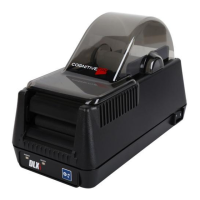
Make sure Bluetooth is enabled on the PC, and that the DLXi is powered on.
WINDOWS 7
Click the Bluetooth icon on the taskbar and select “Add a Device.”
If icon isn’t visible in the taskbar, click the arrow to show hidden icons.
Choose the printer once it is discovered and click “Next.”
Click “Next” again to accept the pairing code given, and the printer should connect briey.
No number will appear on the printer, just selecting “Next” should pair the printer without
issue.
Open “Devices and Printers” from the Start Menu and locate the printer.
Right click the printer and select “Properties”, then “Hardware.”
Find the COM port number in the “Device Function” eld.
This information will be used later to help connect the printer.
Download and install the printer driver, running the PrnInst.exe.
Drivers can be found on our website at http://www.cognitivetpg.com/product/DLXi/
downloads
Click “Next,” then select the proper printer and click “Next” again.
Select the COM port number associated with the printer.
Once the driver has loaded, the printer will be added.
Open “Devices and Printers” from the Start Menu and right click the new printer.
Choose “Printer Properties” and print a test page.
The printer should be successfully installed.
To change any Bluetooth congurations, please refer to the CPL Programmer’s Guide.
iOS
Open Settings and select Bluetooth, making sure it is turned on.
Scan for devices.
Select the printer that appears in the Device list.
Select “Pair” when the Pairing Request pops up.
No number will appear on the printer, just selecting “Pair” should pair the printer without
issue.
Once the printer is connected, open the CognitiveTPG Label Printer application and select
“Printer Setup”.
Select the printer and press “Connect.”
Return to the previous screen by selecting “Done” and select “Sample Printing.”
The printer should be successfully connected.
ANDROID
Open Settings and select Bluetooth, making sure it is turned on.
Scan for devices.
Select the printer that appears in the Device list.
Select “Pair” when the Pairing Request pops up.
No number will appear on the printer, just selecting “Pair” should pair the printer without
issue.
Once the printer is connected, open the CognitiveTPG Label Printer application and select
“Printer Setup”.
Select the printer’s MAC Address to connect.
Return to the previous screen and select “Sample Printing.”
The printer should be successfully connected.


 To Next Page