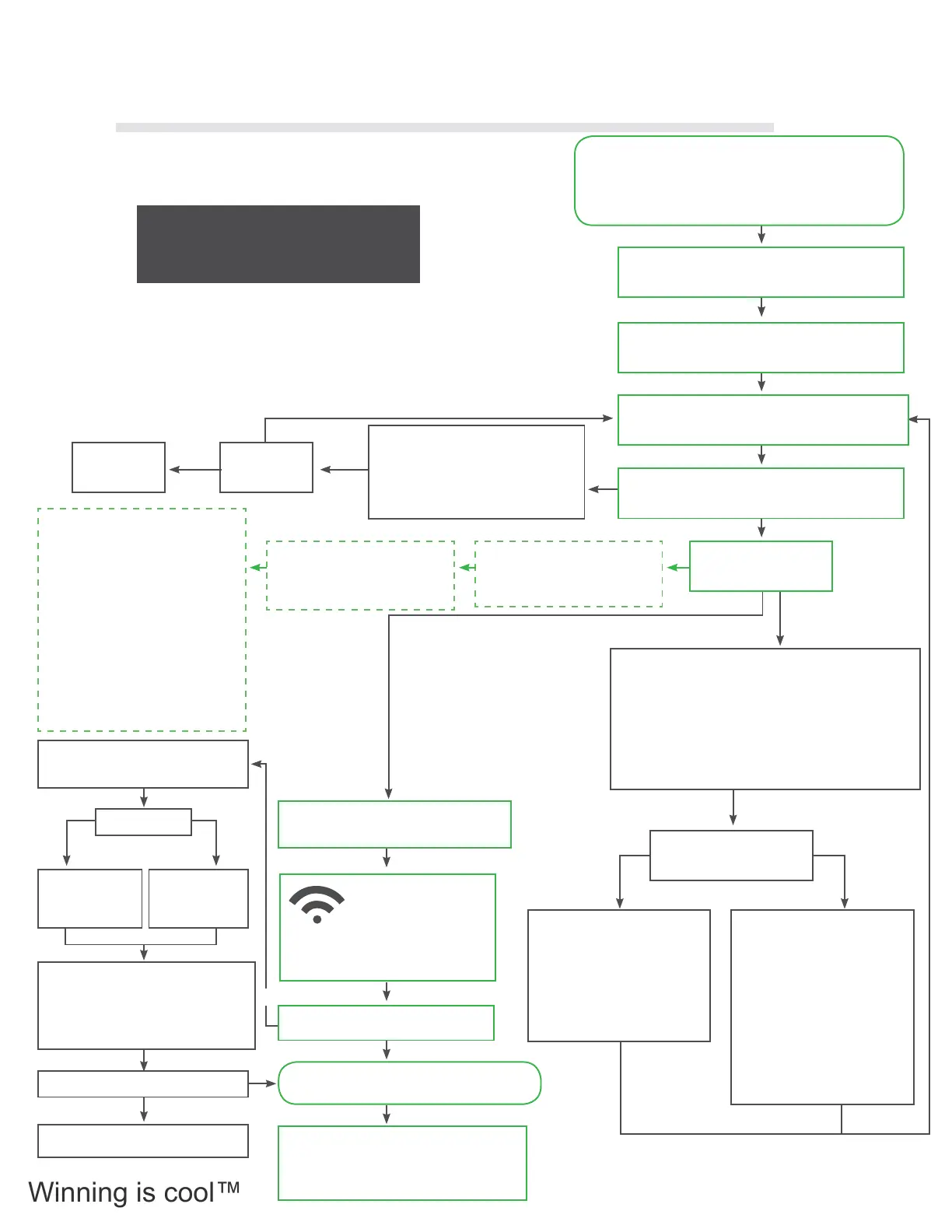
2.9 COLDTUB App QRC Through WIFI
Extender Flowchart
The following owchart shows how to connect COLDTUB App
through WIFI Extender.
How to Connect Your Tub To Your Network With WIFI Extender
Quick Reference Guide
If your Tub Was ordered with a WIFI Extender the WIFI Ex-
tender will be Connected to the Motherboard & Processor
Card in the Tub Pack of your Tub and your Tubs Low Level
Programming (LLP) settings will be factory set to Dynamic.
Set up to have a Dynamic Internet Protocol (IP) address.
Watch the Video that demonstrates How to Connect
Your Tenda Wireless Range Extender to Your Net-
work(WIFI Extender ordered with your Tub)
Following the directions in the Video, connect the
WIFI Extender to your Network
Using your smart phone or tablet go to Settings/WIFI.
Connect to Tenda _XXXXX (Open)
Do you see the WIFI Extender?
Illuminated?
Try another
WIFI Extender
Are all lights illuminated?
Remove the Tubs PAK cover, lo-
cate the WIFI Extender check and
con rm WIFI Extender power light
is illuminated.If not illuminated
ensure the power cable is correctly
installed.
Check home router rewall settings for
restrictions. The router may be set to
Block devices “scanning” the network.
Contact your Dealer for assistance.
Connect to the Tub using the LAN
button on the App.
Note: It can take up to 6-8 times for the
App to nd The Tub on your Network,
if need be keep pressing the reconnect
button.
Scroll through the Tubs Low
Level Programming (LLP) check
to ensure the Tubs Internet
Protocol (IP) address.
Access the Tubs Low Level
Programming (LLP) through the
Topside Controller by holding
the FILTER button down until LLP
is displayed.
• Scroll through the LLP settings by
pressing the FILTER button, each
time you press the lter button you
move to the next LLP setting, scroll
through until IP is displayed.
•St or dy will be displayed, if St
is displayed press the Up Arrow
button to change to dy Dynamic.
• Press the FILTER button again to
display the Tubs IP address (Last
Octec should appear).
• Continue to press the FILTER
button until you have exited the
LLP settings. At this time the Pack
will save the settings.
Doyou have an IP
address?
Blocked?
Connected?
Try connecting
to the Tub with
another device.
Unblock router
settings.
Remove the Tubs PAK cover, locate the WIFI Extend-
er check and con rm:
• Power light on WIFI extender is illuminated.
• Ethernet cable is plugged into the RJ45 plug on the
WIFI Extender and light is illuminated.
• Ethernet cable is plugged into the RJ45 plug on the
Processor Card and light directly under the RJ45
plug is illuminated.
If WIFI light is Orange home
WIFI signal may be weak, try
the following:
• Relocate WIFI Extender.
• Relocate home router.
Note: If the above does not
correct the problem, contact
your Dealer for assistance.
Try the following one at a time
in the bellow order:
• Different Ethernet cable.
• Reset the WIFI Extender by
holding down
the factory reset button for
10 seconds
with a pen.
• New WIFI Extender.
• New Processor Card.
Note: If the above does not
correct the problem, contact
your Dealer for assistance.
YES
YES NO
YES
NO
YESNO
NO
YES
NO
YES
YES
Connected?
Connect to the Tub Usingthe
LAN bbutton on the App.
Note: It can take up to 6-8
times for the App to nd the
Tub on your Network, if need be keep
pressing the reconnect button.
Go to the myarcticTubs.com webpage to
create an account for your Tub and to register
you Tub. Refer Flowchart How to Connect
Your Tub to the Myarctic Tubs Server.
Open the Arctic Tubs App on your de-
vice such as your Smart Phone or tablet.
Your Tub is now connected to your Network
and you can control your Tub through the App.
NO
NO
The following Supportive Video Link may
also assist you with this process:
http://www.ColdTub.com/support/how-to-videos/
how-to-connect-with-a-tenda-wi -extender/
How to Connect Your Tub To Your Network With WIFI Extender
Quick Reference Guide
If your Tub Was ordered with a WIFI Extender the WIFI Ex-
tender will be Connected to the Motherboard & Processor
Card in the Tub Pack of your Tub and your Tubs Low Level
Programming (LLP) settings will be factory set to Dynamic.
Set up to have a Dynamic Internet Protocol (IP) address.
Watch the Video that demonstrates How to Connect
Your Tenda Wireless Range Extender to Your Net-
work(WIFI Extender ordered with your Tub)
Following the directions in the Video, connect the
WIFI Extender to your Network
Using your smart phone or tablet go to Settings/WIFI.
Connect to Tenda _XXXXX (Open)
Do you see the WIFI Extender?
Illuminated?
Try another
WIFI Extender
Are all lights illuminated?
Remove the Tubs PAK cover, lo-
cate the WIFI Extender check and
con rm WIFI Extender power light
is illuminated.If not illuminated
ensure the power cable is correctly
installed.
Check home router rewall settings for
restrictions. The router may be set to
Block devices “scanning” the network.
Contact your Dealer for assistance.
Connect to the Tub using the LAN
button on the App.
Note: It can take up to 6-8 times for the
App to nd The Tub on your Network,
if need be keep pressing the reconnect
button.
Scroll through the Tubs Low
Level Programming (LLP) check
to ensure the Tubs Internet
Protocol (IP) address.
Access the Tubs Low Level
Programming (LLP) through the
Topside Controller by holding
the FILTER button down until LLP
is displayed.
• Scroll through the LLP settings by
pressing the FILTER button, each
time you press the lter button you
move to the next LLP setting, scroll
through until IP is displayed.
•St or dy will be displayed, if St
is displayed press the Up Arrow
button to change to dy Dynamic.
• Press the FILTER button again to
display the Tubs IP address (Last
Octec should appear).
• Continue to press the FILTER
button until you have exited the
LLP settings. At this time the Pack
will save the settings.
Doyou have an IP
address?
Blocked?
Connected?
Try connecting
to the Tub with
another device.
Unblock router
settings.
Remove the Tubs PAK cover, locate the WIFI Extend-
er check and con rm:
• Power light on WIFI extender is illuminated.
• Ethernet cable is plugged into the RJ45 plug on the
WIFI Extender and light is illuminated.
• Ethernet cable is plugged into the RJ45 plug on the
Processor Card and light directly under the RJ45
plug is illuminated.
If WIFI light is Orange home
WIFI signal may be weak, try
the following:
• Relocate WIFI Extender.
• Relocate home router.
Note: If the above does not
correct the problem, contact
your Dealer for assistance.
Try the following one at a time
in the bellow order:
• Different Ethernet cable.
• Reset the WIFI Extender by
holding down
the factory reset button for
10 seconds
with a pen.
• New WIFI Extender.
• New Processor Card.
Note: If the above does not
correct the problem, contact
your Dealer for assistance.
YES
YES NO
YES
NO
YESNO
NO
YES
NO
YES
YES
Connected?
Connect to the Tub Usingthe
LAN bbutton on the App.
Note: It can take up to 6-8
times for the App to nd the
Tub on your Network, if need be keep
pressing the reconnect button.
Go to the myarcticTubs.com webpage to
create an account for your Tub and to register
you Tub. Refer Flowchart How to Connect
Your Tub to the Myarctic Tubs Server.
Open the Arctic Tubs App on your de-
vice such as your Smart Phone or tablet.
Your Tub is now connected to your Network
and you can control your Tub through the App.
NO
NO
The following Supportive Video Link may
also assist you with this process:
http://www.ColdTub.com/support/how-to-videos/
how-to-connect-with-a-tenda-wi -extender/
30



 To Next Page