2
1
3
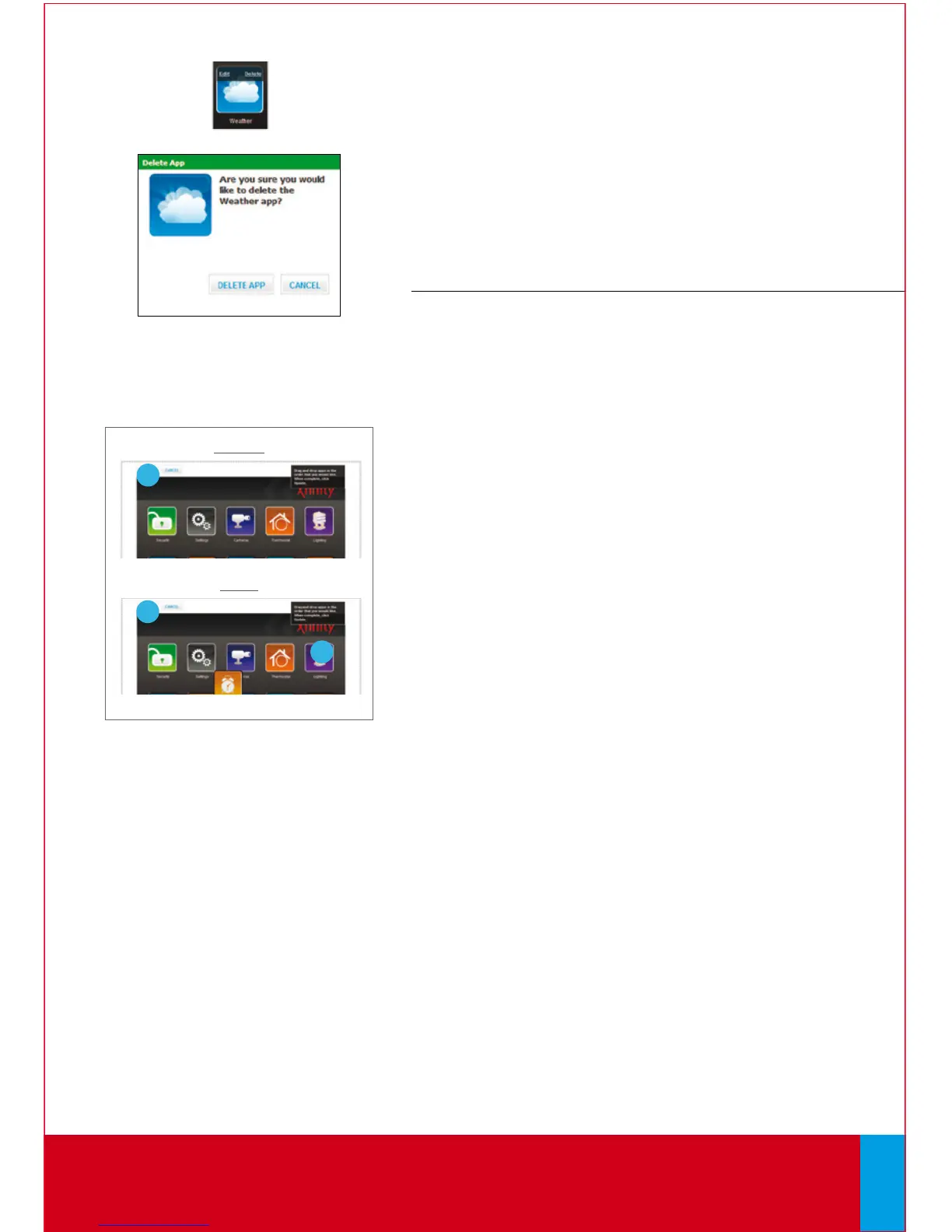
Before
After
Deleting Touch Screen Controller apps
1. From the Manage Apps screen, hover your
cursor over the app. A label is displayed over
the app.
2. C l i c k [Delete].
A confirmation dialog is displayed.
3. C l i c k [Delete App].
Repositioning Touch Screen Controller apps
You can change the order in which apps are
displayed on the Touch Screen Controller.
All apps, except the Security, Settings and
Camera apps, can be moved to your
preferred location.
1. C l i c k [Reposition Apps] to rearrange the apps.
2. Drag and drop the apps to the preferred location
on the Touch Screen Controller.
3. When all the apps are repositioned to your
satisfaction, click [Update].
The apps have been updated and the new app
locations have been pushed to the Touch
Screen Controller.
QUESTIONS? comcast.com/XFINITYHomeSupport
End of Web Access.
QUESTIONS?
Learn more and watch How-To Videos at comcast.com/XFINITYHomeSupport
27



 To Next Page