14
Energy Savings
Energy Savings feature is currently a feature requirement for the State of
California. Enrolling into the energy saving program will allow your utility
company to control your thermostat during peak energy events. An icon on the
home page will indicate when the system is in an active energy savings event.
Enrollment is a two-step process for consumers. The rst step requires the
consumer to register with their utility provider before the thermostat settings
can be enabled to take advantage of the Energy Savings feature
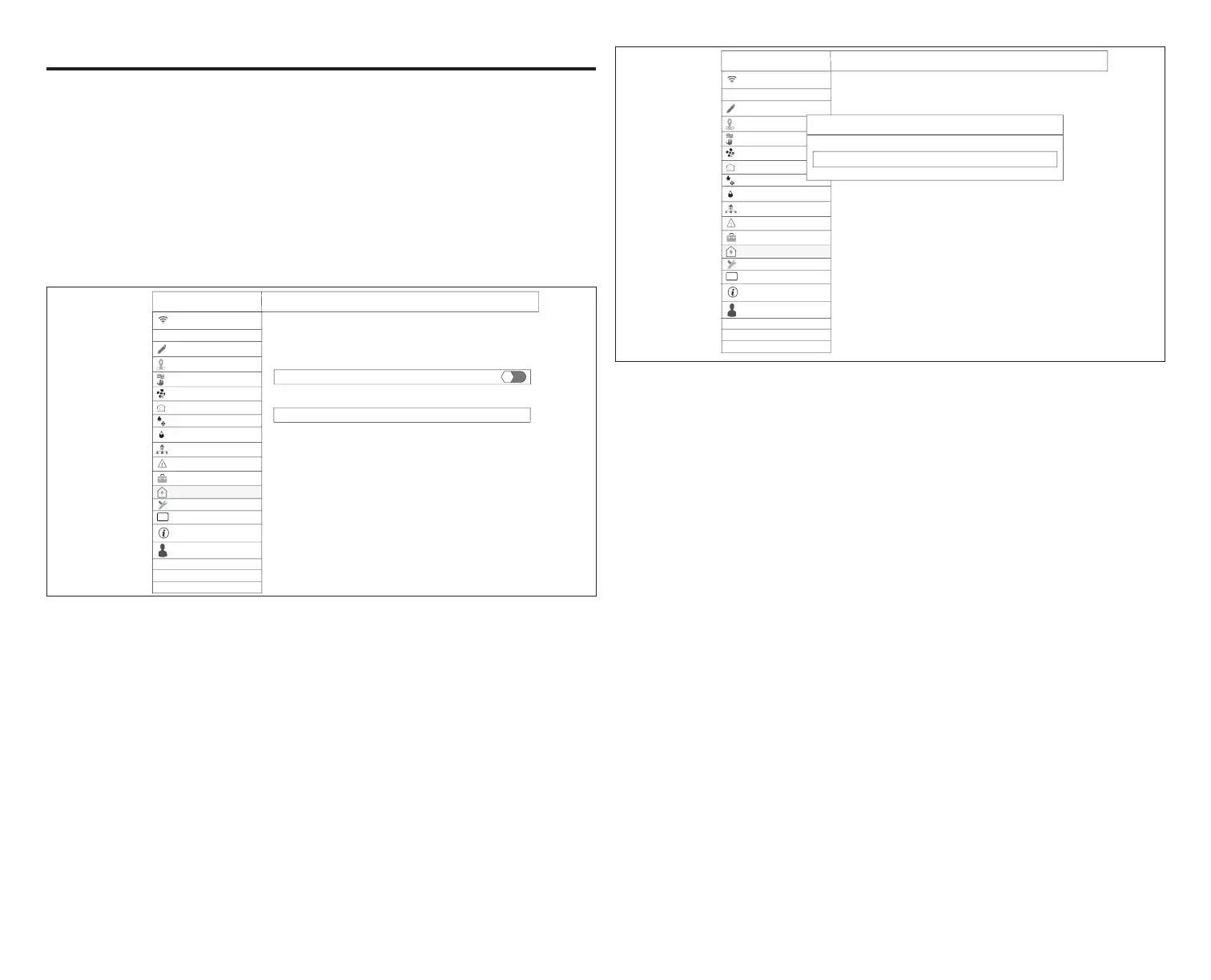
Enable Energy Savings
Go to Menu > Settings > Energy Settings and turn on enable energy savings.
This will automatically get the required certication for your thermostat.
away on
auto
True Temp
fan
heat & cool
humidity
Comfort Sync zoning
general
display
settings
notifications
home info
name
account
System
advanced settings
on
autoventilation
energy savings
energy savings
In order to enroll for energy savings with your provider,
you must enable this feature first, one time only.
enable energy savings
energy savings settings
>
upstairs
wi-fi local
Figure 13. Enabling Energy Savings
If enabling energy savings is successful or not successful a pop-up screen will
appear indicating either.
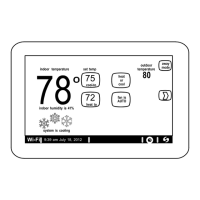
Enroll in Energy Savings
The next screen will allow you to enroll in energy savings. Follow the on-screen
prompts to continue. Detail on-screen instructions are provided.
1. Select enroll energy savings.
2. Type in the web address for your energy savings provider, for example
https://vtn.com and select done. A progress pop-up screen will appear.
3. If enrollment is successful, the next screen will indicate enrollment status
as enrolled and connection status as connected.
away on
auto
True Temp
fan
heat & cool
humidity
Comfort Sync zoning
general
display
settings
notifications
home info
name
account
System
advanced settings
on
autoventilation
energy savings
energy savings
Please visit your energy provider website to get a registration URL,
and then press enroll. You may be asked to provide a registration code.
upstairs
wi-fi local
cancel
energy savings enrollment done
https://vtn.com
The above URL is an example,
contact your energy provider
for the correct address.
Figure 14. Enrollment URL
Energy Savings Settings
This screen will allow you to use your energy provider’s default temperature or
pricing set points. You can also customize these settings by selecting
1. Peak load event active set-points with the following options:
• Default
• Offset.
• Custom set-points
• Peak Price event Threshold
2. Peak Price Event Active Set-points with the following options:
• Default
• Offset.
• Custom set-points
• Energy Savings Events Filter
3. Energy Savings Settings Factory Reset
Canceling Energy Savings Event
The option to cancel will appear along the right side of the home screen.
When in an active energy savings event and you attempt to update any of the
following settings, a pop-up window will appear conrming you wish to exit the
active energy savings event which could result in higher energy consumption
during the event period:
• Adjusting the temperature set point manually,
• Selecting a schedule


 To Next Page