3
IMPORTANT
Due to Allied’s ongoing commitment to quality, features and options are
subject to change without notice and without incurring liability.
Improper installation, adjustment, alteration, service or maintenance can
cause property damage or personal injury. Installation and service must be
performed by a qualied installer or servicing agency.
Home Screen
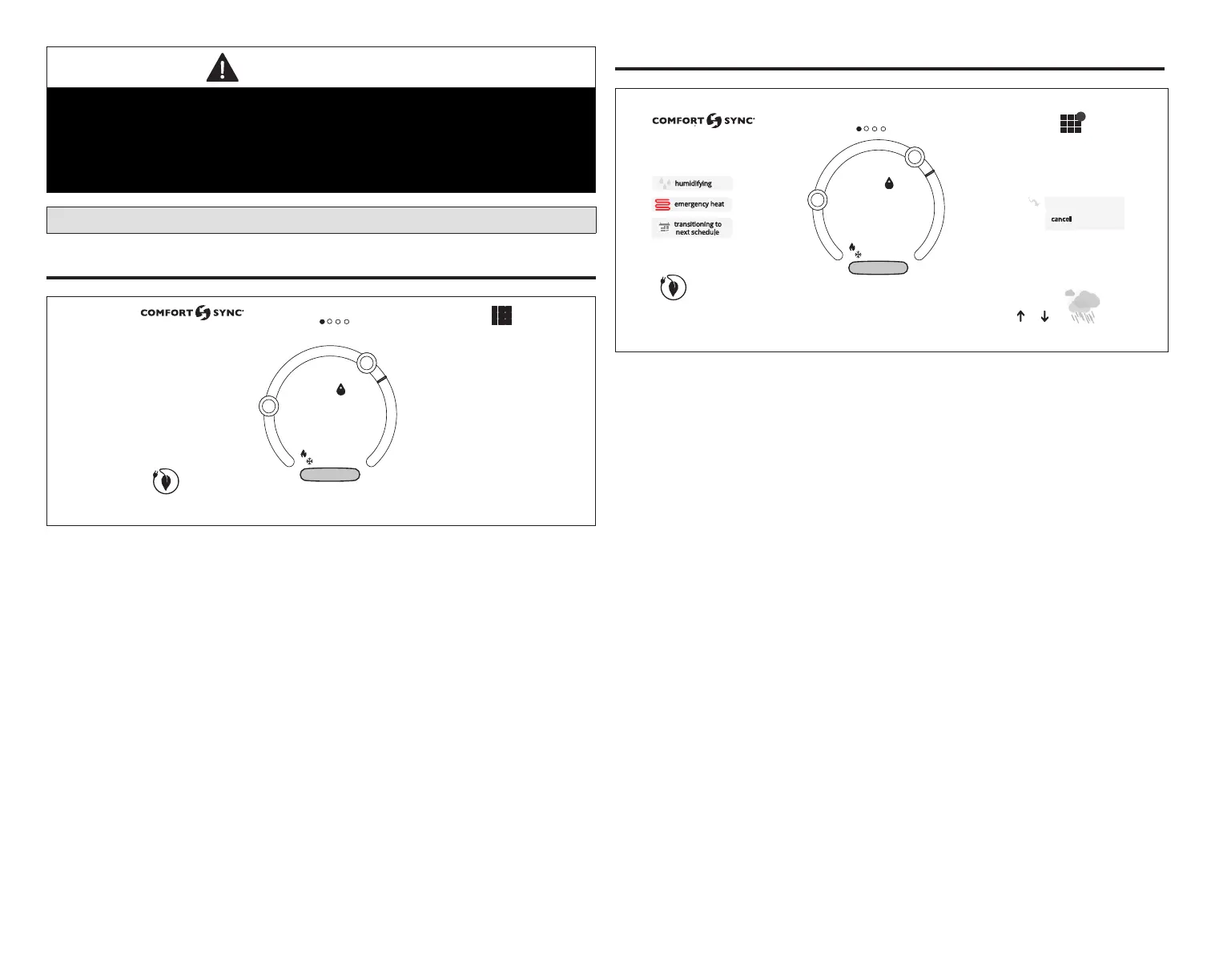
Temperature Dial Feature
2:31 am
heat−to
cool−to
80
inside
57%
heat/cool
away
0
Ⓒ
Ⓑ
Ⓐ
Ⓔ
Ⓓ
Ⓕ
modes /schedules
78
75
tue | Mar 31, 2015
Figure 1. Temperature Dial Feature
A. This is the maximum heat position indicator on the dial. This object will
be red/white in color. Selecting this object will bring up the temperature
adjustment dial for the heat-to setting adjustment.
B. This is the maximum cool position indicator on the dial. This object will
be blue/white in color. Selecting this object will bring up the temperature
adjustment dial for the cool-to setting adjustment.
C. This is the location where no system demand will be active. For example, in
gure 1, the system would be off between A and B locations.
NOTE: By default, the system is congured not to allow the heating and
cooling settings to be any closer than three degrees when the system
is running in Heat • Cool mode (auto-changeover).
D. When there is an active call for heating, this area of the dial will have a red
background with yellow and dark red ames animation.
E. When there is an active call for cooling, this area of the dial will have a blue
background with snow akes animation.
F. The yellow line indicates the actual room temperature on the temperature
dial indicator.
Screen Elements
2:31 am
heat−to
cool−to
80
inside
57%
heat/cool
away
0
Ⓐ
Ⓔ
Ⓓ
Ⓕ
modes /schedules
78
75
tue | Mar 31, 2015
living room
ⒼⒽ
Ⓘ
Ⓙ
outside
88
o
99
78
o
o
9
Ⓚ
Ⓛ
Ⓜ
Ⓝ
coast to
Temp Hold
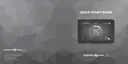
Figure 2. Screen Elements
A. The MENU button is for accessing following options:
• Settings (see “System Settings” on page 7.)
• Notications (also reminders) (see “Notications (Critical, Warnings
and Reminders)” on page 18.)
B. A circle with a number indicates new notications. Touch menu >
notications to display active notications. Types of notications include:
critical, warnings, reminders and general information. This can also be
sorted by last 24 hours, last 30 days, last 12 months or all notications.
C. This is the current time, day of the week and date (month/day/year). This
information can be adjusted from menu > settings > general > date &
time screen.
D. For information on home screen zone navigation, go to “Home Screen Zone
Navigation” on page 19.
E. System Status - Left Side of Screen: This area displays various functions
that are either pending or currently active. Indicators are humidifying,
dehumidifying, cooling, heating, ambient lockout, emergency heat, cleaning
air, transitioning to next schedule, load shedding and fan is running.
Indicators are:


 To Next Page