7
System Settings
The system setting screen will allow the homeowner to connect to their home
Wi-Fi router and give their system a name.
All of the reference functions in this section are also available using the:
• Consumer Portal (https://www.comfortsync.com).
• Allied Comfort Sync A3 mobile app (on Android or iOS mobile devices).
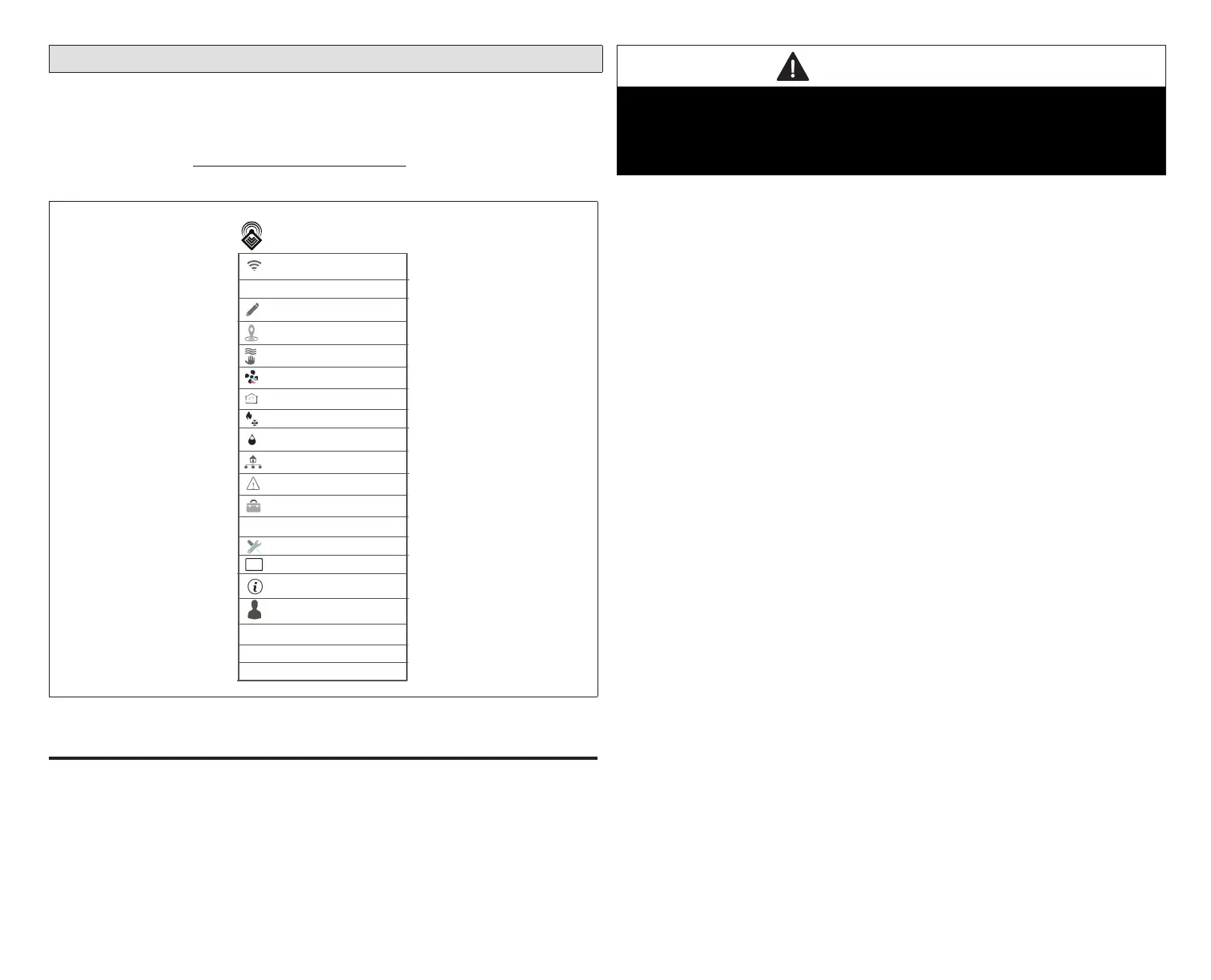
wi−fi local
away
on
auto
True Temp
fan
heat & cool
humidity
Comfort Sync zoning
general
display
settings
notifications
home info
wi−fi local
name upstairs
account
System
advanced settings
on
autoventilation
Figure 5. User Setting Menu
Wi-Fi
The following information is for connecting the thermostat to a secure home
wireless network that has Internet access.
NOTE: A router with Bonjour capabilities is required for this function. Check the
router functions if the Smart Hub will not connect. Apple Bonjour
®
is an
implementation of zero-conguration networking (Zeroconf), a group
of technologies that includes service discovery, address assignment,
and host name resolution.
IMPORTANT
Never use a home guest account.
Never use an open router connection (non-secure).
Always use a secure connection physically located in the home where the
thermostat is located.
Visible Access Point
1. Slide the option to ON to enable Wi-Fi.
2. Wi-Fi network will show not connected. Press on not connected.
3. Select a network will be displayed listing all detected networks within
range. Select your home network by pressing on the network name.
NOTE: The thermostat can connect to a home wireless router that uses up to
32 characters in the access point name (visible or hidden).
4. When connecting to a secure home Wi-Fi network, a password will be
requested. Enter your home Wi-Fi network password and press join to
continue.
NOTE: If you wish to see the characters you are typing, check show password.
The thermostat will support up to a 63 character password.
Hidden Access Point
1. Slide the option to ON to enable Wi-Fi.
2. Wi-Fi network will show not connected. Press on not connected.
3. Select other.
4. The “enter new network information” screen will appear. Enter the name
of the hidden network.
NOTE: The thermostat can connect to a home wireless outer that uses up to
32 characters in the access point name (visible or hidden).
5. Select Security. Options are: none, WEP, WPA and WPA2. If your home
Wi-Fi connection is unsecured, then Wi-FI security must be enabled using
WEP, WPA or WPA2 via the router before proceeding. Consult your router
documentation on how to enable Wi-Fi security.
6. Once security encryption is selected, a password eld will appear. Enter
the password to access your home Wi-Fi network.
NOTE: If you wish to see the characters you are typing, check show password.
The thermostat will support up to a 63 character password.
7. Press join.
Whether connecting to a visible or hidden network, if successful, a check mark
will appear above both the router and Internet icons.


 To Next Page