Hayetsira St. 17, Yokneam, Israel
Tel: +972-48-290-168 | Fax: +972-48-325-251 | www.fit-iot.com
Connecting fitlet3
1. Before connecting fitlet3 please ensure that RAM and storage device are installed as detailed in the
above sections.
2. Connect the display to fitlet3 using HDMI or mini-DP cable.
3. Connect to fitlet3 USB keyboard and mouse.
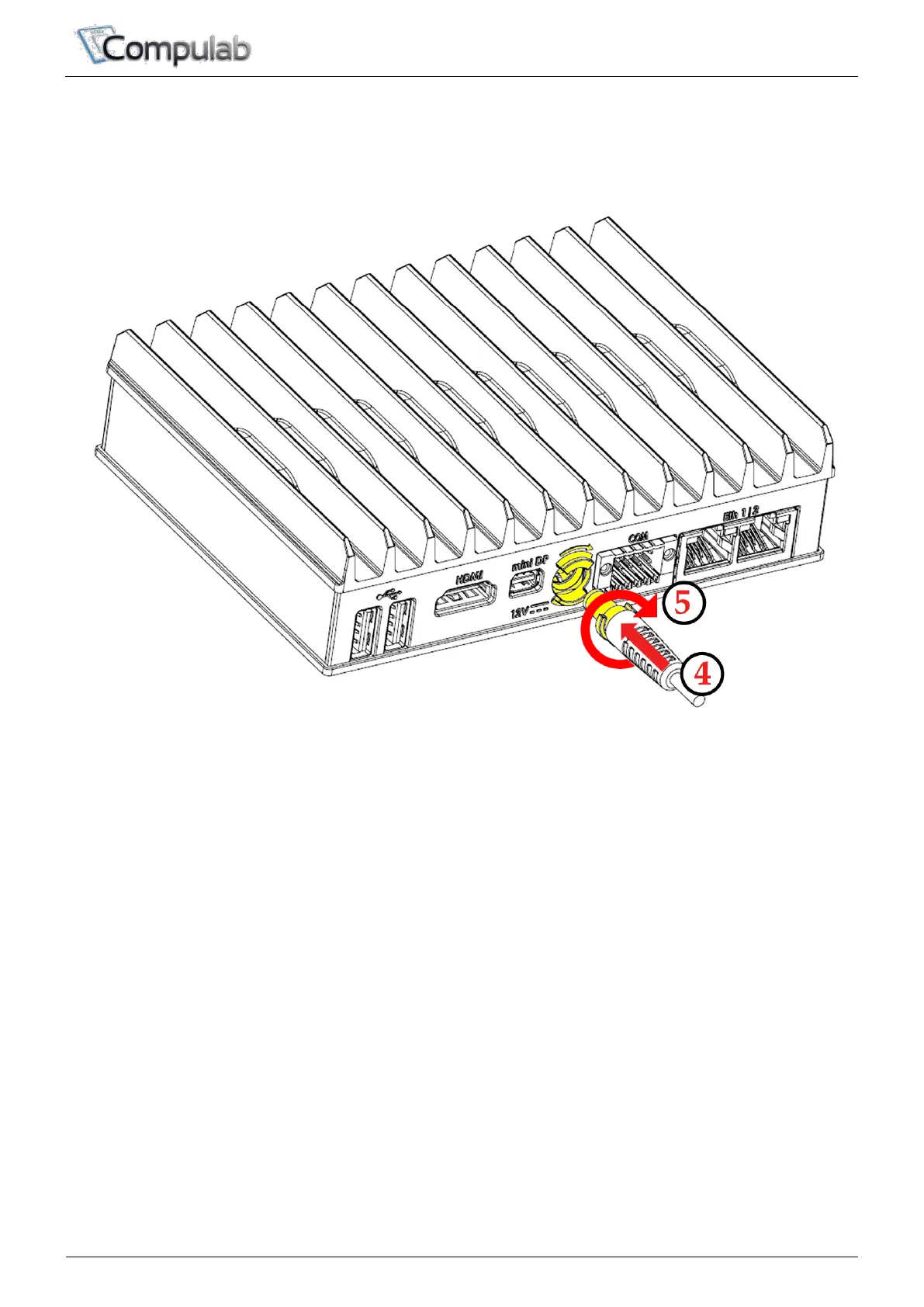
4. Insert the DC plug into the fitlet3 DC-in jack.
5. Rotate clockwise 90° to secure.
6. Slide into the power-supply the AC blade correct to your country and plug the power-supply into an AC-
outlet. The power button on fitlet3 should turn green, in a few seconds an image should appear on the
display.
7. Connect Ethernet cable as needed. When link is established, the link LED on RJ45 should light.
8. If fitlet3 has WiFi adapter installed you will observe two SMA connectors (gold color screws) on the
side panel. Connect the included antennas by screwing them clockwise onto the SMA connectors to enable
WiFi communication.


 To Next Page