IP CAMERA QUICK START GUIDE
FINDING THE CAMERA’S IP ADDRESS
USING UPNP IN WINDOWS® 7.
NOTE: To use this method, your router must support UPnP and the
camera and computer must be on the same network. UPnP is enabled
in the camera by default, and can be enabled/disabled using NVMS
(Check the NVMS manual for details).
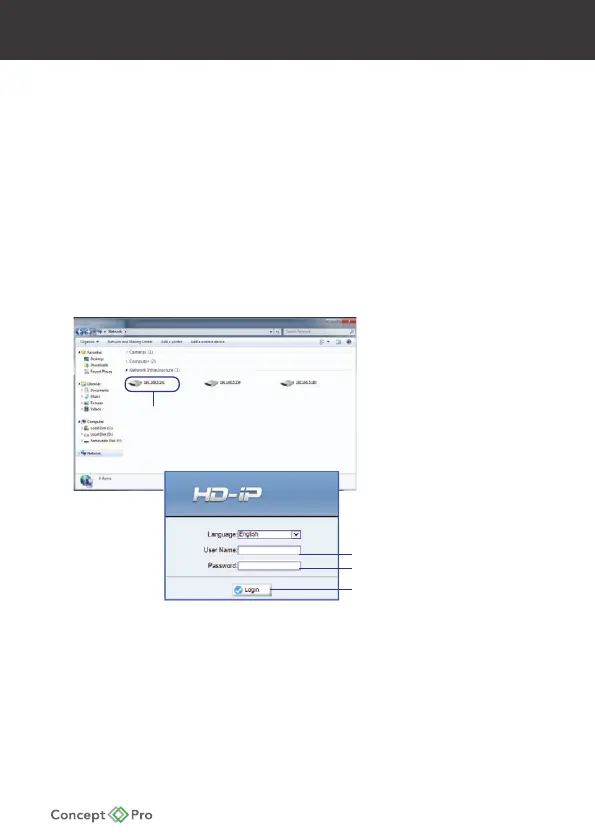
1. Click Start>Computer>Network. The camera’s IP address appears under Network
infrastructure.
-Double click to open
the camera
)
Enter Camera User Name (default: admin
Enter Camera Password (default: admin
Click Login
2. Double-click the camera to open it in your default browser.
3. Under User Name and Password, enter the camera’s User Name
(default: admin) and Password (default: admin) and click Login



 To Next Page