IP CAMERA QUICK START GUIDE
FINDING THE CAMERA’S IP ADDRESS
1. Finding the camera IP using BNC Test Cable
When the BNC test cable is connected to the camera, the IP address is
shown on the test monitor. The camera must be connected to power to
use the BNC test cable.
NOTE: The default IP address of 192.168.0.120 is shown if the camera
cannot obtain an IP address from the router. Check the Ethernet/power
connections and router conguration.
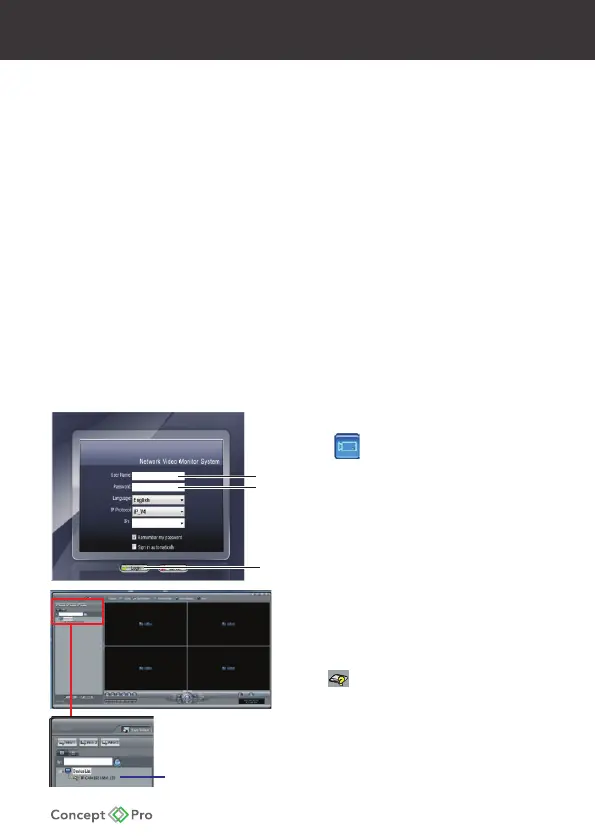
2. Finding the camera’s IP address Using NVMS
1. Install NVMS from the CD.
Now Double-click the NVMS
icon on the Desktop.
The log in screen appears.
2. Under User Name and Password,
enter the default NVMS user name
(admin) and password (admin).
Click Login
3. NVMS opens and scans the local
network for connected cameras.
Detected camera IP addresses on
the LAN appear in the Device List
on the left side of the screen with a
icon.
Use the steps below to nd the camera’s IP address and connect to
the camera over the local area network (LAN) using NVMS, UPnP on
Windows®7 or Bonjour in Mac OS®
admin
admin
Logi
Found
camera IP addre



 To Next Page