38
INSTALLING SOFTWARE
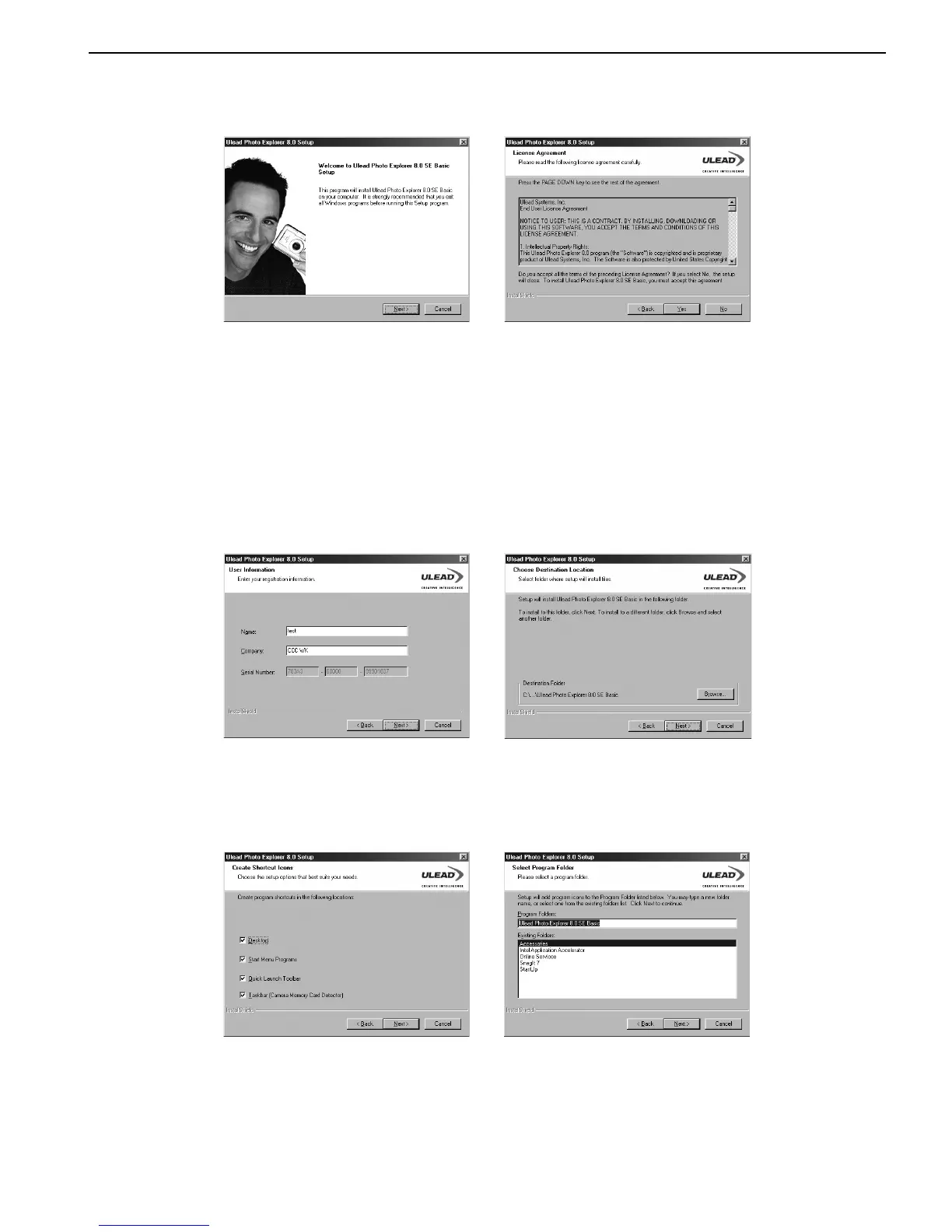
2. Click Ulead Photo Explorer 8 SE Basic on the model selection screen. (Fig. 1.1) Choose a
language from the menu and click Next. (Fig. 1.2)
Fig. 1.3 Fig. 1.4
3. When the welcome window appears, click Next to continue with the installation. (Fig. 1.3)
4. When the Software License Agreement window appears, click Yes to accept the license and to
continue. If you disagree with the terms of the license, click No to exit the installation. (Fig. 1.4)
5. When the User Information appears, click Next. (Fig. 1.5)
6. Select a destination folder in which the software will be installed and the click Next. For most
users, C:\Program files\ is the most appropriate choice. (Fig. 1.6)
Fig. 1.5 Fig. 1.6
7. Choose the Shortcut options then click Next. (Fig. 1.7)
8. Click Next to begin copying files from the CD-ROM to the computer hard drive. (Fig. 1.8)
Fig. 1.7 Fig. 1.8
9. When the TV System window appears, select a country or video standard, then click Next to
continue. (Fig. 1.9)




 To Next Page