- 18 -
Design and Printing Labels
The instructions covered in this section will help you design and print a label from your
LightScribe Standalone Duplication system.
Please note that you must install the supplied LightScribe software in order to
proceed with the instructions below. If you have any difficulties installing the
software, please contact Tech Support for assistance.
Section 1: Design your labels with LightScribe Template Labeler and create a
LightScribe Label CD
Step 1: Launch the LightScribe Template Labeler
¾ By clicking the shortcut icon
on your desktop.
¾ Or you can find the program launch shortcut in Start > All Programs > LightScribe
Direct Disc Labeling > LightScribe Template Labeler.
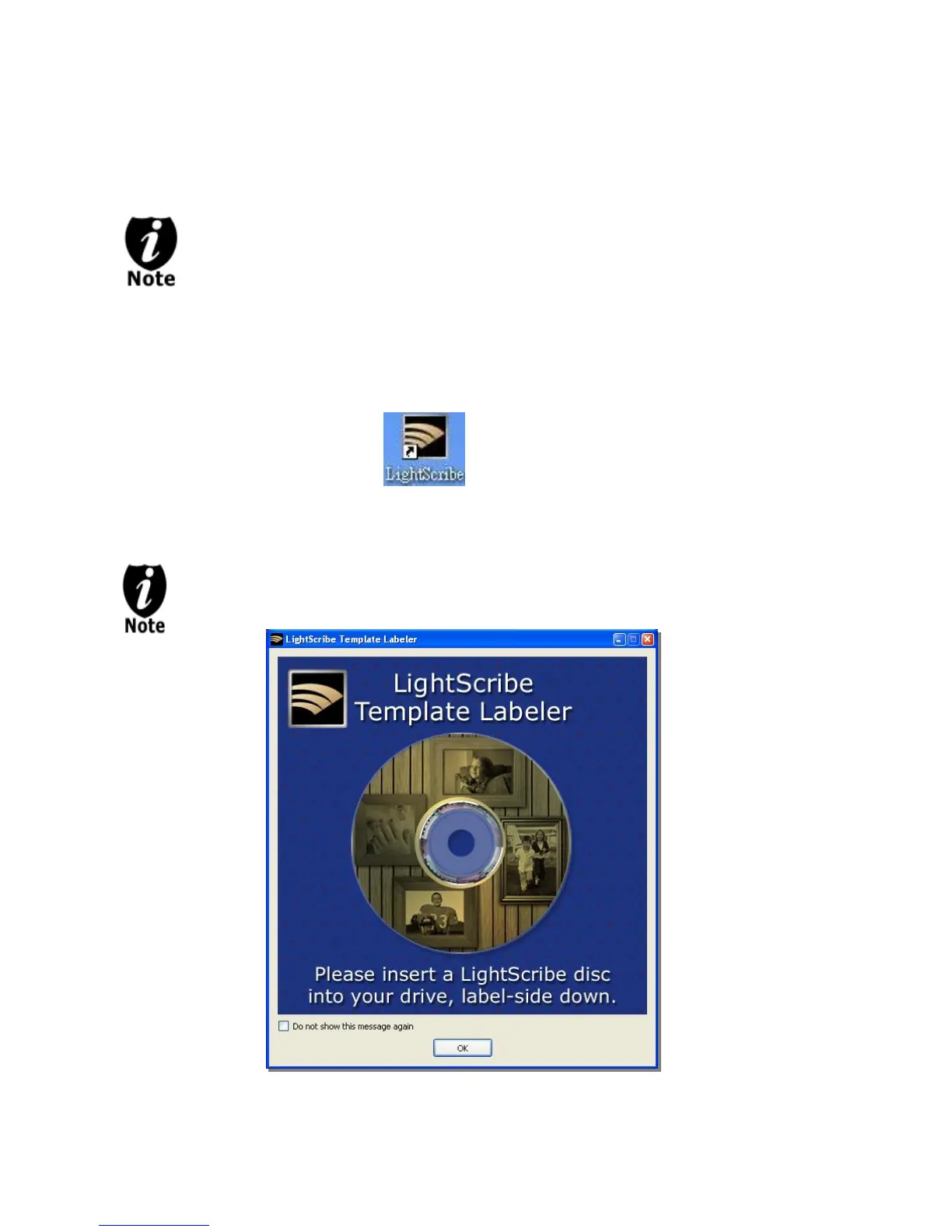
Since we use this software for design and layout purpose, please ignore the
“LightScribe Disc Insertion” prompt below by pressing the OK button.



 To Next Page