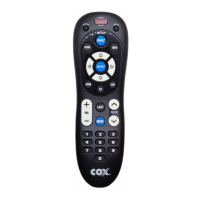
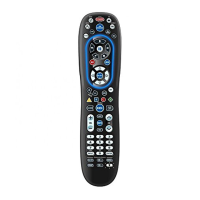
The Cox remote can power on and off all of your programmed devices with the press of one key as
follows:
1. Aim the remote at your devices.
2. Press in and hold the POWER key for 2 seconds.
3. Continue to aim the remote at your devices until all of the devices turn on or off.
Activate Back Lighting Feature
The new Cox remote is fully backlit to allow for ease of use in low light conditions. To instantly activate
the back light feature, press and release the LIGHT key.
Note: The black lighting will turn off after 10 seconds of inactive, to reactivate the back lighting, press
and release the light key.
Trouble Shooting
Problem: Device keys do not blink when a key is pressed.
Solution: Replace batteries.
Problem: Device keys blink but remote does not control my equipment.
Solution: Press correct device key and point remote at equipment you need to control.
Problem: Tried all codes for my brand of device and none work.
Solution: Try Searching for Your Code method or go to remotes.cox.com for model-based search.
Problem: I want to switch volume control from AUX back to TV.
Solution: Repeat steps in Setting Volume Control to Audio Device but in step 4, press and release the
TV key instead.
Problem: My TV power turns off when my cable power turns on.
Solution: Manually press the power button on the front of the cable box to get back in sync.
Cox Custom 4 Device Remote Control User Manual – Optimized PDF
Cox Custom 4 Device Remote Control User Manual – Original PDF
Related Manuals:
1. Cox Custom 4 Device Remote Control User Manual Cox Custom 4 Device Remote Control User
Manual – Optimized...
2. Cox URC-3220-R Remote Control User Manual Cox URC-3220-R Remote Control User Manual –
Optimized PDF Cox...
3. Cox URC-2220-R Remote Control User Manual Cox URC-2220-R Remote Control User Manual –
Optimized PDF Cox...
4. Cox Universal Remote Control Codes Cox Universal Remote Control Codes – Optimized PDF Cox
Universal...
5. COX Big EZ Contour Remote Setup Guide and Codes COX Big EZ Contour Remote Setup Guide and
Codes Setting...



 To Next Page