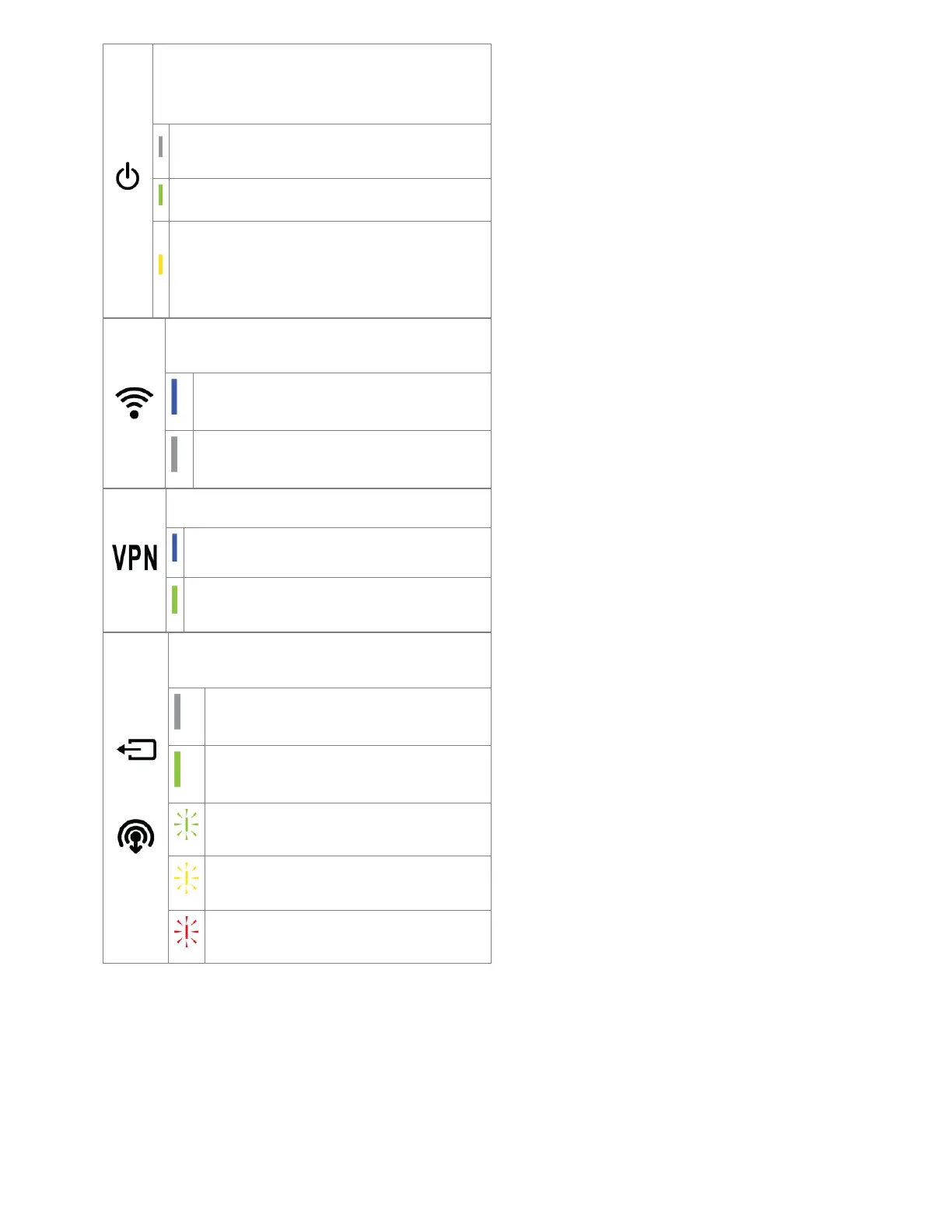
POWER: Detects that the unit has power
NOTE: The router must be powered using an approved 12 VDC
power source.
No Light = Not receiving power. Check the power switch and the
power source connection.
Green = Powered on.
Yellow = Attention. Log into NetCloud Manager and troubleshoot
connection issues.
NOTE: Upon initial installation, the light will be yellow until the
device is registered in NetCloud Manager.
Wi-Fi: Indicates activity on the Wi-Fi broadcast for both 2.4 GHz
and 5 GHz bands.
Blue - Wi-Fi is on and operating normally.
No Light - Wi-Fi is not operating.
VPN: Indicates the status of the VPN connection.
Blue - Connected to an active VPN.
Green - Router is connected to a remote modem via WAN
(captive modem).
OR
MC400 MODEM STATE: Indicates information about the optional
MC400 modem
No Light = No removable modem detected.
Green = Modem has established an active connection.
Blinking Green = Modem is connecting.
Blinking Yellow = Data connection error. No modem
connection possible.
Blinking Red = Modem is in the process of resetting.





 To Next Page