Effect channel - effect mode
效果1
音量源
效果1
均衡器
20k
12
5k
10k
0
6
2k
-6
1k
-12
500200
-18
100
-24
5020
增益:
频率:
带宽:
类型:
LOW LOW -MID MID HI-M ID HI
0.0 dB
80H z
250 Hz 100 0Hz 2 000Hz
0.6 0.6
PEQ PEQ PEQ
0.6 0.6 0.6
120 00Hz
0.0 dB 0.0 dB 0.0 dB 0.0 dB 2 0Hz
Bwo rth-1 2dB
200 00Hz
Bwo rth-1 2dB
PEQ PEQ
高通频率 :
高通类型 :
低通频率 :
低通类型 :
1
2 3
4
5
效果1
发送
开
-24 .0
-24 .0 -24 .0 -24 .0 -24 .0 -24 .0 -24 .0 -24 .0 -24 .0
-24 .0 - 24.0 -24. 0 -2 4.0 -24.0 -24 .0 - 24.0
OUT1
CH1 CH2 CH3 CH4 CH5
CH6 CH7
CH8
OUT2 OUT3 OUT4 OUT5 OUT6 OUT7
OUT8
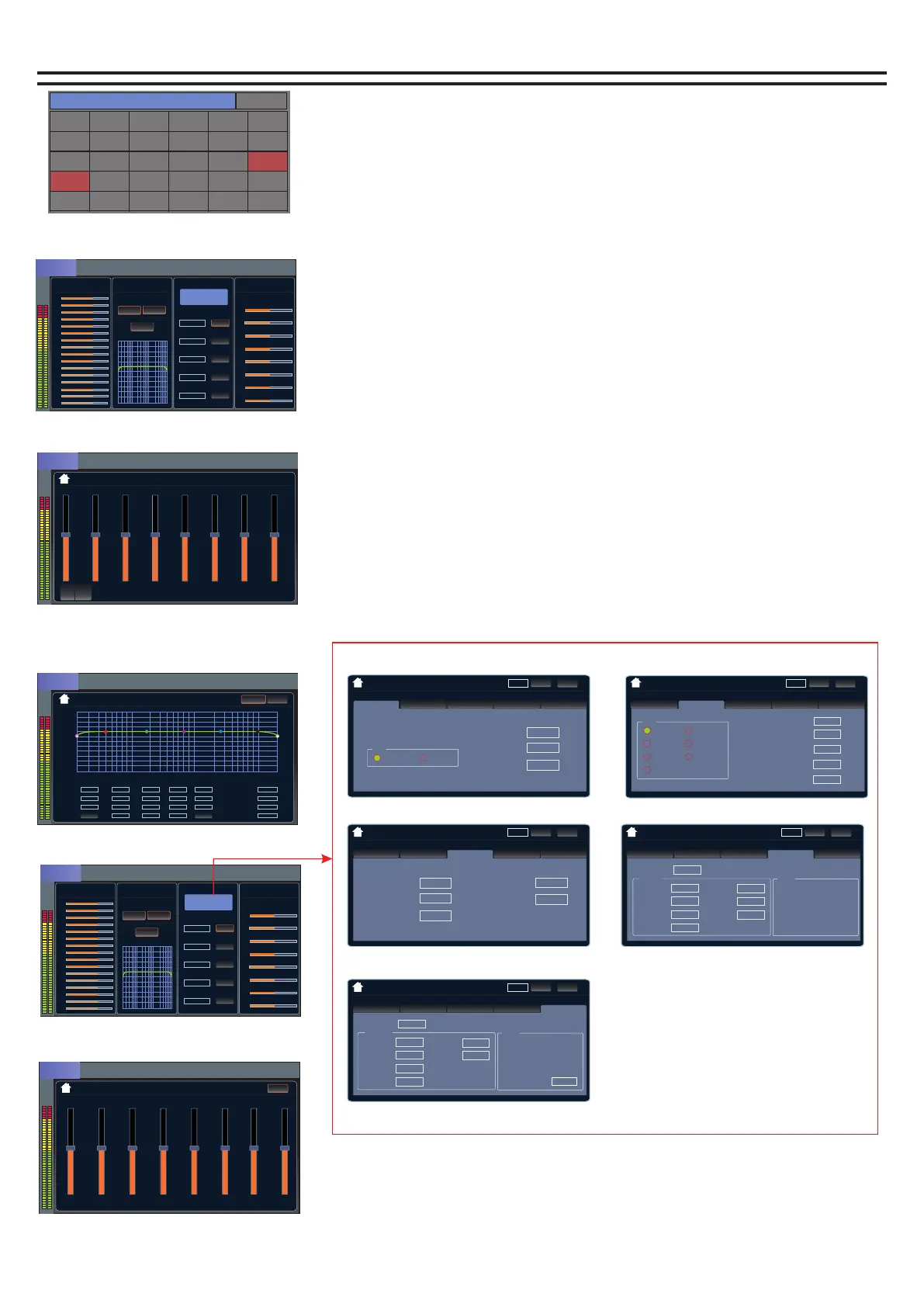
Main page of effect
Effect volume source page
Displays the status of the input
channel sent to the current effect
Effect equalizer page
Effects user effects parameter page
The effect is sent to the output channel page
1
2
通道选择
系统设置
输入1
输入7
输入13
效果2
输出5
输入2
输入8
输入14
反馈
输出6
输入3
输入9
输入15
输出1
输出7
输入4
输入10
输入16
输出2
输出8
输入5
输入11
数字
输出3
MP3
输入6
输入12
效果1
输出4
模式
Channel selection page
How do I get into the effect channel?
1. Find the Home button on the panel and click to open it. The
channel selection page will appear.
2. Find the "Effect 1/2" button and click into the effect
channel.
效果1
音量源
均衡器
派送
高通类型
低通类型
开
Bwo rth- 12d B
Bwo rth- 12d B
OUT 1
OUT 3
OUT 4
OUT 6
OUT 7
OUT 5
OUT 2
OUT 8
开
Wah-Wah
Auto Wah1
关
Distor tion
Distor ti on
关
Pitch-shift
Light Detlay
关
Reverb/Delay
Small Plate
关
Mod-FX
chorus
CH1
CH2
CH3
CH4
CH5
CH6
CH7
CH8
CH9
CH1 0
CH1 1
CH1 2
CH1 3
CH1 4
CH1 5
CH1 6
用 户- 1
音量:-12dB
效果1
音量源
均衡器
派送
高通类型
低通类型
开
Bwo rth- 12d B
Bwo rth- 12d B
OUT 1
OUT 3
OUT 4
OUT 6
OUT 7
OUT 5
OUT 2
OUT 8
开
Wah-Wah
Auto Wah1
关
Distor tion
Distor ti on
关
Pitch-shift
Light Detlay
关
Reverb/Delay
Small Plate
关
Mod-FX
chorus
CH1
CH2
CH3
CH4
CH5
CH6
CH7
CH8
CH9
CH1 0
CH1 1
CH1 2
CH1 3
CH1 4
CH1 5
CH1 6
用 户- 1
音量:-12dB
音量:-12dB
音量:-12dB
音量:-12dB
重置
EQ ON
The effect channel page has volume source, equalizer, user
parameters, and dispatch.
1. Touch the corresponding function area to enter the function
page.
2. Click Select or use the Up, Down, Left and Right buttons to select
the adjusted parameters and then pass
Multi-function knob to adjust.
3. Click the back button on the upper left corner of the function
page to return to the main page of the channel.
Reverb/Delay
加载
保存
用户-1
用户-1
Wah- Wah Distortio Picth-shift Mod-FX
Type
LPF
HPF
Fllter:
2000Hz
70.00%
0.00%
Auto Wah:
Resonance:
Reverb/Delay
加载
保存
用户-1
用户-1
Wah- Wah Distortio Picth-shift Mod-FX
Fllter:
1 / 2 Tone:
2000Hz
0
7
0.00%
50.00%
Fine one:
Resonance:
Dry/Wet-Mix:
加载
保存
用户-1
用户-1
Wah- Wah Reverb/DelayDistortio Picth-shift Mod-FX
Type
Tub e1
Tub e2
Tub e3
Raw
Hype rboli c
Parb olic1
Parb olic2
PreGain:
50.00%
2000Hz
8000Hz
0.00%
50.00%
Fllter:
RC-LPF:
Resonanc e:
PostGain :
加载
保存
用户-1
用户-1
Wah- Wah Distortio Picth-shift
Reverb/Delay
Mod-FX
Reve rb
Reve rb
Reverb/D ela y:
Small Hall
50.00%
50.00%
8000Hz
80
0.00Hz
3. 40dB
102%
LevelRev:
HDamp:
LevelDel:
50. 00%
0. 00%
1500Hz
100ms
PreLP:
TimeDel:
TimeDel:
PreDelay :
ToneFreq:
PreHP:
Tone:
TimeRev:
加载
保存
用户-1
用户-1
Wah- Wah Distortio Picth-shift Reverb/Delay Mod -FX
Paea metes
Reve rb
Mod-F X
chorus
6. 90ms
5. 0Hz
8000Hz
0%
14. 00%
50. 00%
10. 00%
DelTlme:
Rate:
Level:
50. 00%
PreHP:
TremShape:
Feedback :
Depth:
HDamp:
User Parameters Page
Set the parameters and click the user area, rotate the multi-function
knob to save to the user (1-20), select it and click "Save" to complete
the save.
Click the user area, rotate the multi-function knob and click the
loading area to call up the parameters of the user (1-20).
11


 To Next Page
 Loading...