A-2
Software Selectable Sound
Input
D Microphone input (mono)
D Linc input (mono
or
stereo)
D CD-audio (mono
or
stereo)
CD-ROM Interface
D Built-in CD-ROM interface that supports Sony CDU 3 I A
or
CDU
33A CD-ROM drive
Joystick
Port
D Built-in standard Game
110
port for PC analog joystick.
MID I Interface
D
D
Built-in MIDI interface for connection to MIDI instruments or
keyboards (MIDI Kit required).
64-byte FIFO buffer for high speed transfer.
Sound Blaster Pro (Sony Interface) Gettinx Started
B
Changing Hardware
Settings
This appendix shows you how to change the configuration
of
the
jumpers
on the card and run DIAGNOSE, a program that allows you to update the
various system files after you change the settings
of
your card.
~
Because many applications are designed to work with these default
~
settings, you should not change the settings unless it is absolutely
---
necessary (for example, resolving hardware conflicts).
A
Closer
Look
at
Your
Hardware
Settings
If
you intend
to
change the hardware settings
of
your audio card, you
should first hecome more familiar with the
jumpers
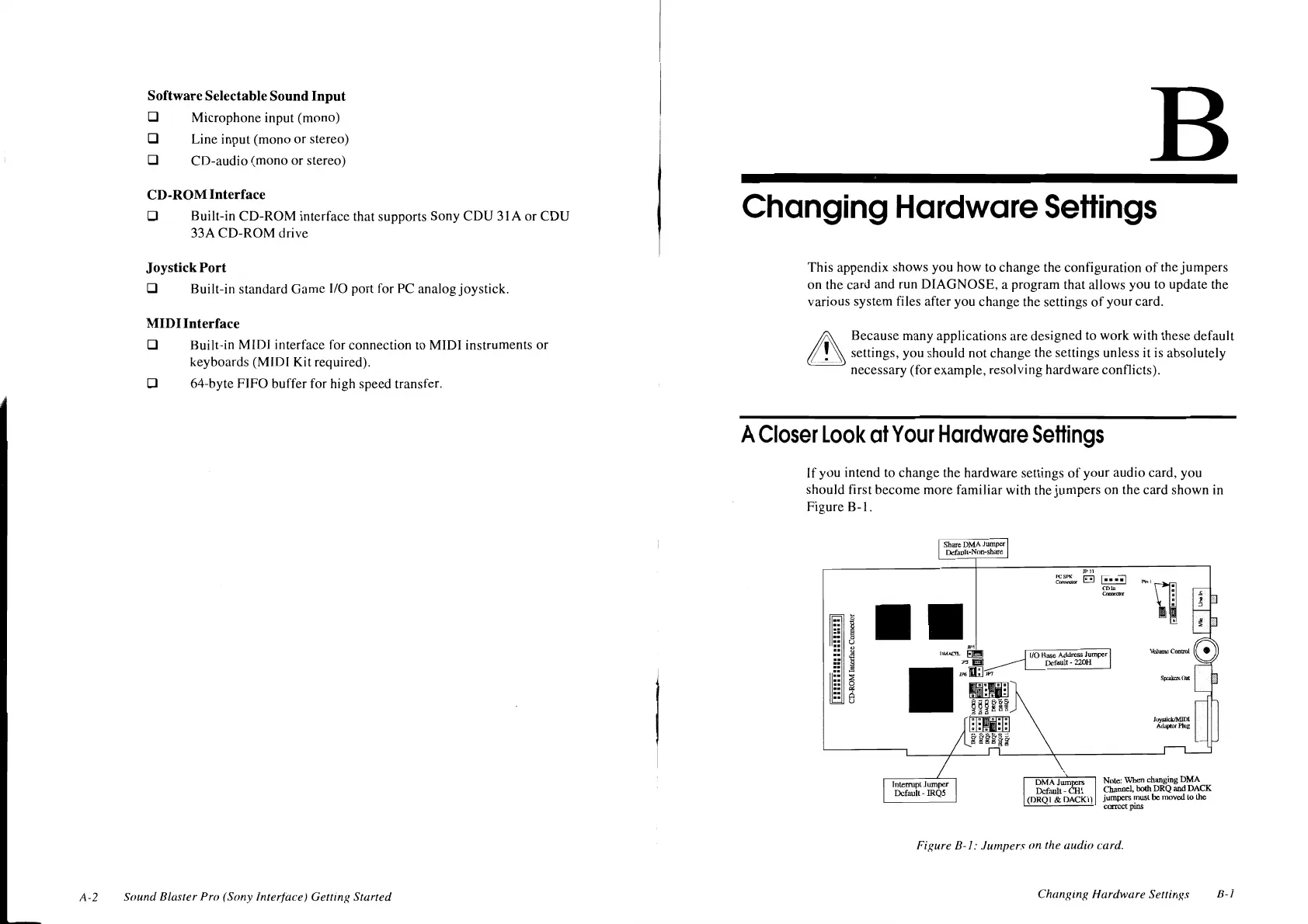
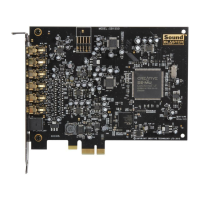
on the card shown in
Figure B-1.
'"
Ji'11
~~
E!l
F··"!l
'°"'
"""'~
TIM..c!L~
~
JI'$
Ell------~
JJ'6
m:;J
lf'I
DMAJumpcB
Default - CHI
(DRQI
&
DACK!)
Nore:
When changing
OMA
Channel,
both
DRQ
and
DACK
jumpers must be moved
Lo
lhe
correct
pins
Fixure B-1: Jumpers
on
the audio card.
Chan1:inx Hardware Settinxs
8-l




 To Next Page