Enabling/Disabling
OMA
Sharing
This audio card can share the OMA channel with another peripheral
device. Sharing
is
controlled by the DMACTL pins specified by jumper
JP4. The factory default setting prevents the sharing
of
OMA channel
with another peripheral device and
is
shown in Figure B-8.
L_·~l
....
•
............
•""!JI
I
JP4
DMACTL
Figure B-8: Disable DMA sharing setting.
To
enable OMA sharing, enable pins 2 and 3
of
jumper JP! 1
as
shown
in
Figure B-9.
I
1•
•I • Jl'4
DMACTI,
Figure B-9: Enable DMA sharing setting.
Enabling/Disabling
Joystick
Port
B-6
The Joystick Port on the audio card can be enabled/disabled using
jumper
JP4.
The
factory default setting
of
the Joystick Port is enabled.
If
you have a Joystick Port
in
your system, you should disable the one on
your audio card.
To change the Joystick Port setting, enable
or
disable
jumper
JP4
as
shown below.
Disabled
Disabled
Enabled
(default)
Enabled
Sound Blaster Pro (Sony Interface) Getting Slarted
Running
the
Configuration
Utility
When you change the hardware settings on the card, you need
to
update
the system
files-AUTOEXEC.BAT,
CONFIG.SYS, and
SYSTEM.INI-
with the new settings. You can also use SBConfiguration or DIAGNOSE
to
change and update the settings
in
Windows or DOS. DIAGNOSE also
allows you
to
test the audio output (see Chapter 2).
To
run
SBConfiguration:
1.
Double-click the
SR
Configuration icon in the audio card group
window.
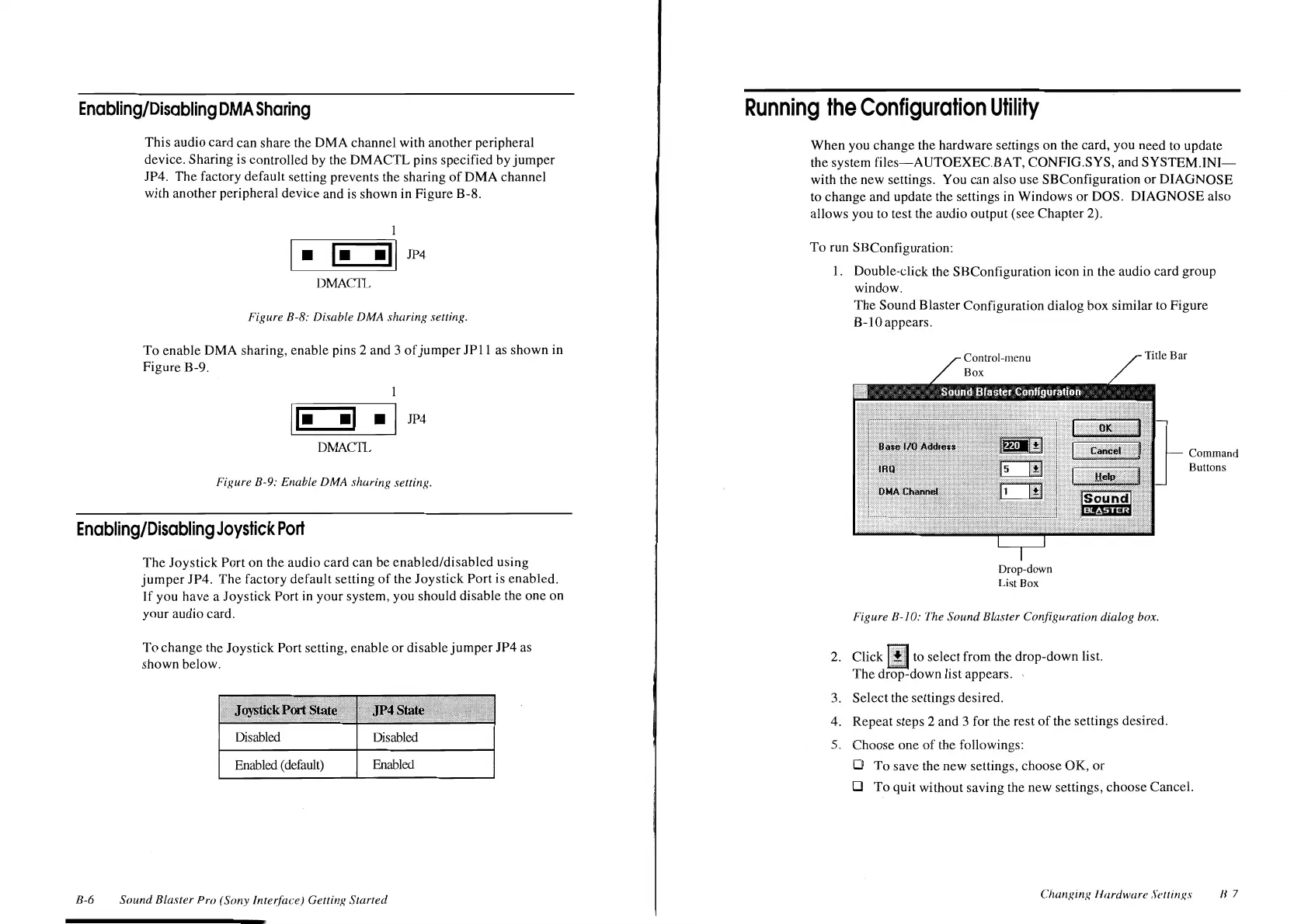
The Sound Blaster Configuration dialog box similar
to
Figure
B-10 appears.
Drop-down
List
Box
Figure B-10: The
Sound
Blaster Configuration dialog box.
2.
Click W to select from the drop-down list.
The drop-down list appears
..
3. Select the settings desired.
4. Repeat steps 2 and 3 for the rest
of
the settings desired.
5. Choose one
of
the followings:
0
To
save the new settings, choose OK, or
D
To
quit without saving the new settings, choose Cancel.
Changuzg Hardware Sctt111gs
II
7




 To Next Page