10
Switching to USB Audio
You can play digital audio from your PC/Mac with the
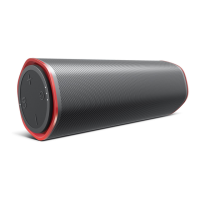
Sound Blaster Roar.
Enhance music playback from your PC/Mac with the powerful
Sound Blaster Roar by connecting it with the USB cable supplied.
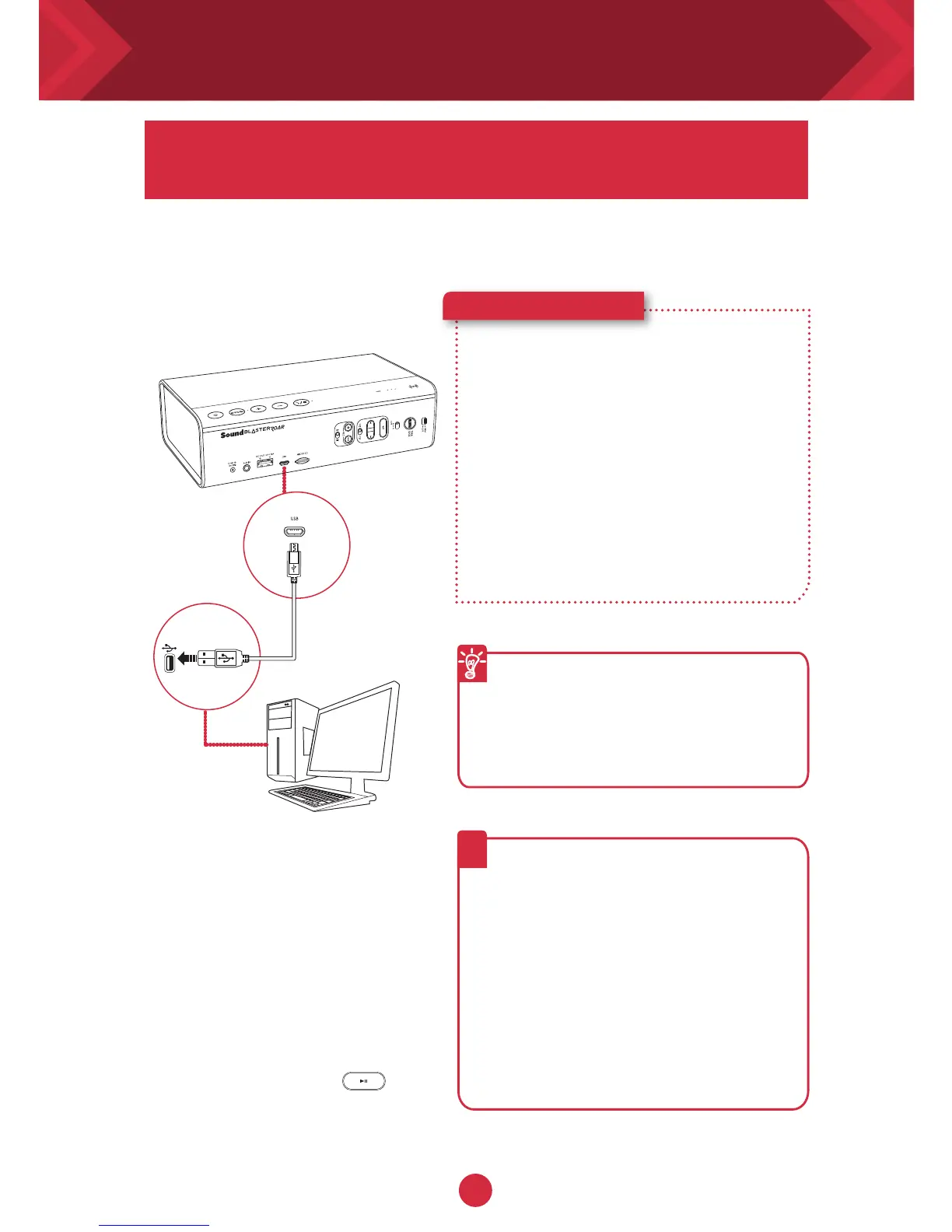
1 Connect the Sound Blaster
Roar to a PC/Mac.
A tone is heard indicating USB
audio is connected. *
2 Play your music on the PC/
Mac.
Here’s how you do it!
If no audio is heard
For Windows:
Click Volume Control and select
Sound Blaster Roar as your output
device.
For Mac:
1. Go to System Preferences and click
Sound.
2. Click the Output tab and select
Sound Blaster Roar.
?
Enhance your audio
To enhance your digital music further,
you can use the Sound Blaster Control
Panel software. See next page.
* If no tone is heard, disconnect the
cable from the computer, and start
from Step 1 again.
Note: If the Sound Blaster Roar is not detected
by the computer after your computer recovers
from sleep / hibernate / restart, please
Power OFF and ON the Sound Blaster Roar
to re-establish the USB audio connection.
You may also need to restart your computer’s
media player.
l
USB audio will disconnect if button
is pressed during USB audio mode.
1
2
LS




 To Next Page