Installing WebCam Go Plus 1-7
ii. In the Insert Disk dialog box, click the OK button.
iii. Follow the instructions on the screen.
5. Restart your computer.
6. Connect Webcam Go Plus to available USB port.
Verifying the installation
in Windows 98 and
Windows Millennium
1. Right-click the My Computer icon on your desktop.
2. On the menu that appears, click Properties.
3. In the System Properties dialog box, click the Device Manager tab.
4. Click the plus (+) sign next to the Imaging Device icon.
The entry “Video Blaster WebCam Go Plus (WDM)” should appear.
If the entry does not appear, repeat the installation procedure in “In Windows 98 and
Windows Millennium” on page 1-5.
In Windows 2000 1. Do not connect WebCam Go Plus to your
computer before installing the drivers.
If you accidentally begin installation with
WebCam Go Plus connected, the Found
New Hardware Wizard dialog box
appears. Click the Cancel button and
disconnect WebCam Go Plus from your
system.
2. Insert the WebCam Go Plus installation CD
into your CD-ROM drive. Choose your
language and proceed to install drivers and
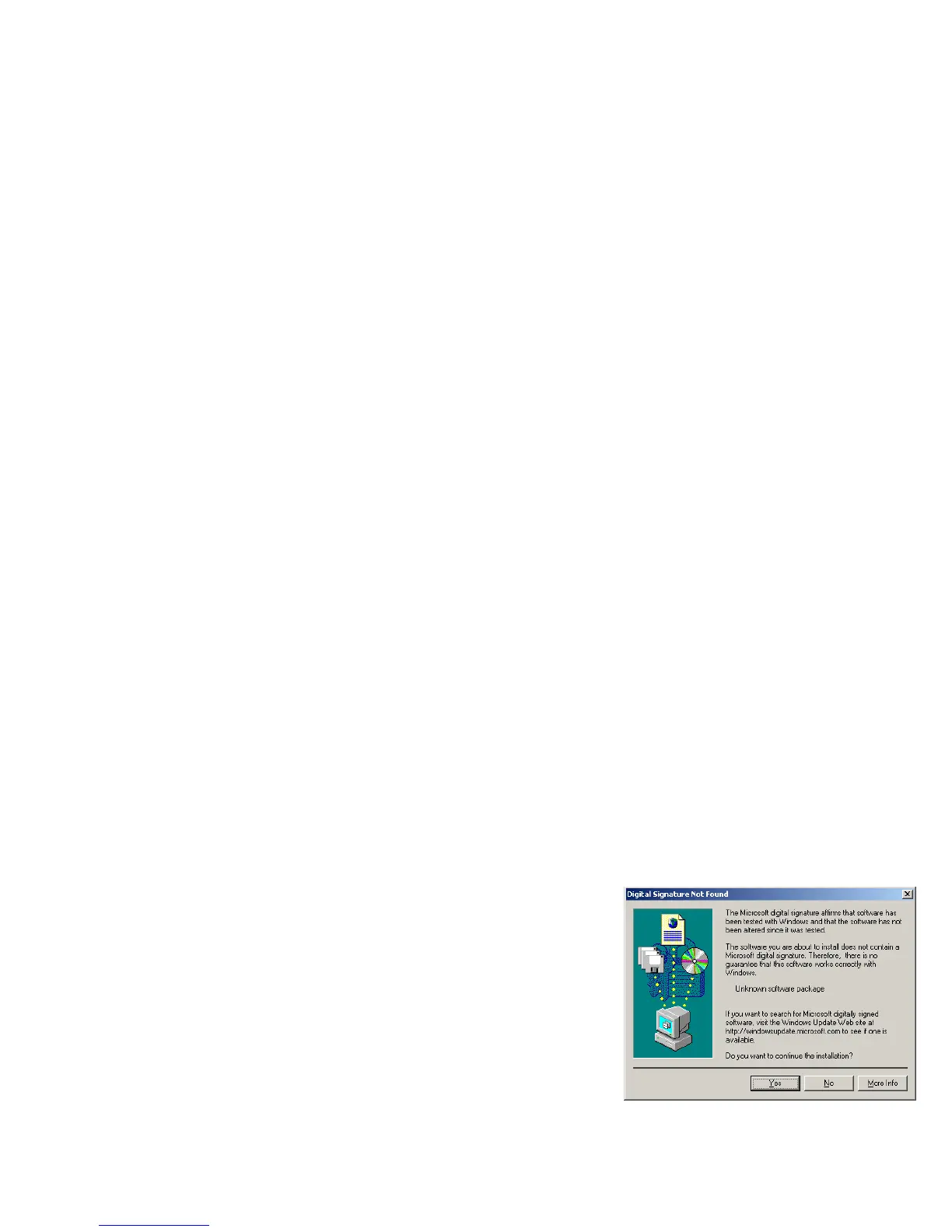
applications. When the Digital Signature
Not Found dialogue box appears, click the
Yes button. You may be asked after an
application is installed if you want to restart
your computer. Click the No button until all drivers and applications are installed.
Figure 1-6: Digital Signature Not Found
dialog box.



 To Next Page