Using WebCam Go Plus as a Digital Camera 3-3
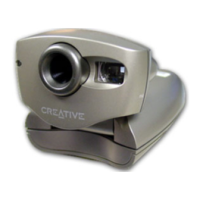
4. Aim the camera at the desired object, using the camera’s viewfinder to verify that the object
is in the camera’s view.
Note: The object should be at least 2 feet (61 cm) from the camera.
5. Hold the camera still and press the Snapshot button.
6. Continue holding the camera until the Camera busy LED (red light) goes off.
The picture taken is stored in the camera’s memory, and the image counter value also
decreases.
7. To take another picture, repeat steps 4 through 6.
8. To switch off the camera, press and hold the On/Off button for two seconds.
Recording audio
To start recording voice or sounds, position the camera near the sound source, and then press
and release the Rec (Audio Recording) button on the camera. The counter on the LCD display
shows the remaining recording time (in seconds). A blinking dot also appears on the LCD.
To stop the audio recording, press and release the Rec button again.
Note: If you do an audio recording after taking a picture, the audio file will be linked to that
image.
Downloading
pictures and audio
from the camera
After taking pictures, connect the camera to the computer and then use WebCam Go Control to
download the pictures and audio recordings.
To do so
1. In the WebCam Go Control window, click the Cam Memory button.
A thumbnail view of the pictures and audio files stored in the camera’s memory is displayed.
2. If the album is not displayed yet, click the Album button to display it.
3. From the Album list, select the album that you want to store the pictures and audio files in.
4. Select the desired files and click the Download selected image(s) button.



 To Next Page