2-2 Using WebCam Go Plus as a Web Camera
Starting WebCam
Go Control
WebCam Go Control is an easy-to-use application that enables you to take pictures and record
short videos with the WebCam Go Plus camera. You can also view the pictures and videos,
create and manage albums, and download image files from the camera.
To start WebCam Go Control, do one of the following:
❑ Click Start -> Programs -> Creative -> Video Blaster WebCam ->
WebCam Go Control.
❑ Press the Snapshot button on the camera.
❑ If, during installation, you opted for WebCam Control to launch automatically at Windows
startup, you will have an icon on your taskbar. Click this icon.
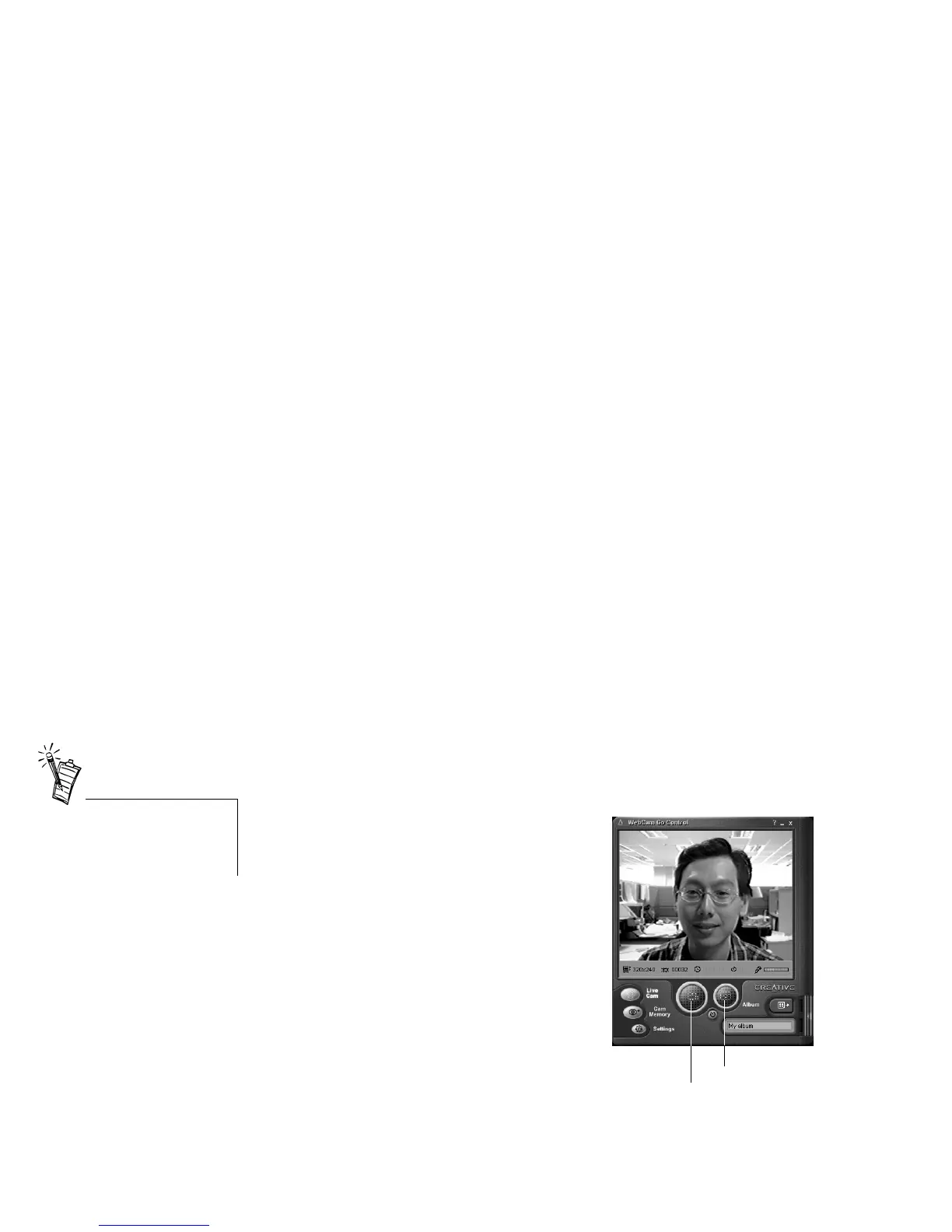
After WebCam Go Control is started, the
WebCam Go Control screen similar to Figure
2-1 appears, displaying the view that the
camera is capturing currently.
The following sections describe the more
commonly used operations. For more details
on how to use WebCam Go Control, see the
section “Starting WebCam Go Control Help”
on page 2-4.
If WebCam Go Control does not
recognize the camera correctly,
see Appendix B,
“Troubleshooting”.
Figure 2-1: WebCam Go Control screen.
Record a video
button
Snap an image
button



 To Next Page