13 • AirMedia® Series 3 Receivers Product Manual — Doc. 9020C
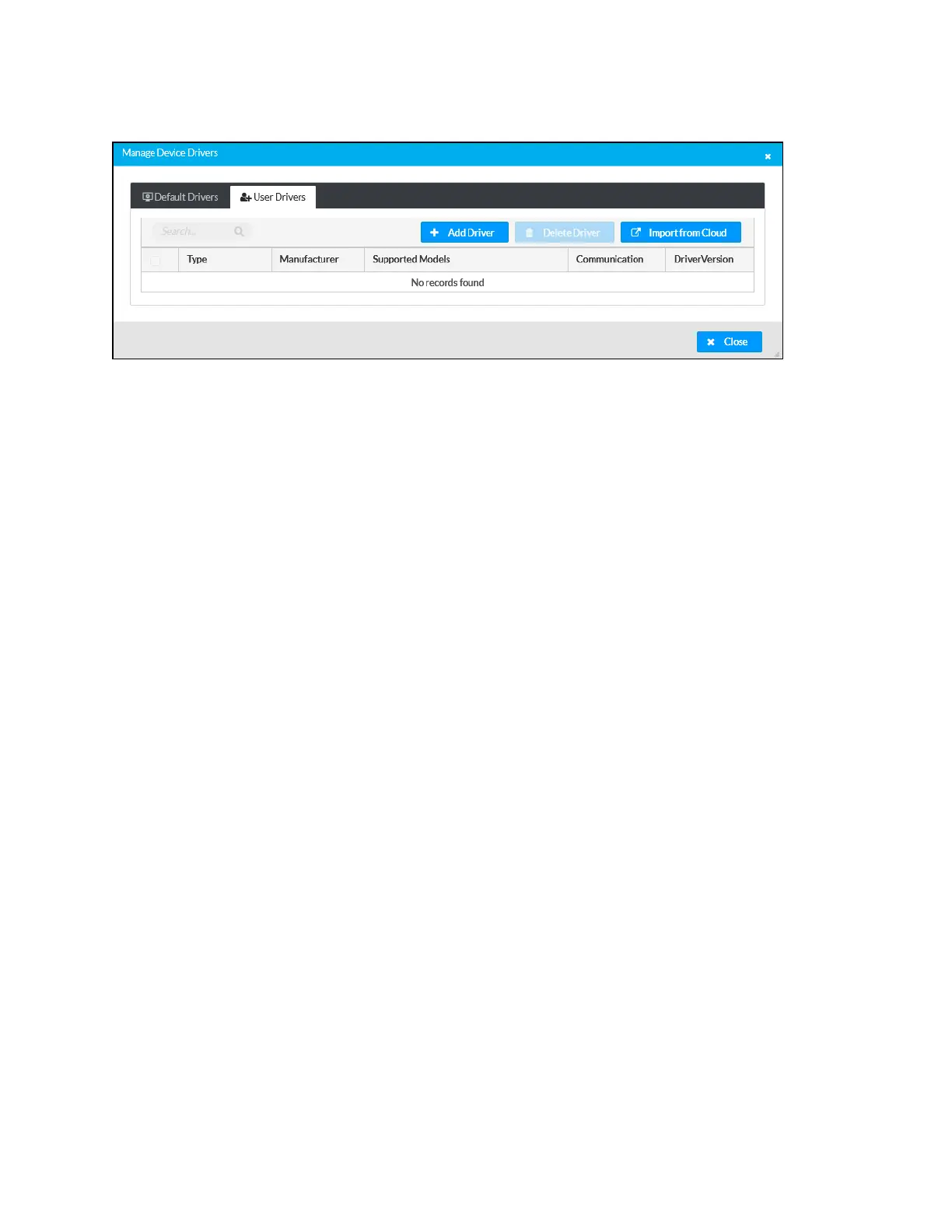
Manage Device Drivers - User Drivers Tab
Drivers are listed in table format. The following information is displayed for each driver:
l
Type: The supported display type (flat panel display, projector, etc.)
l
Manufacturer: The driver manufacturer
l
Supported Models: The display model name
l
Communication: The driver communication type (Serial/RS-232, IR, IP, CEC)
l
DriverVersion: The version of the installed driver
Select Close to close the Manage Device Drivers window.
Add Driver
To upload a driver:
1. Select Add Driver.
2. Select Browse.
3. Navigate to the driver file on the host computer.
4. Select the driver file, and then select Open.
5. Select Load to load the driver file to the receiver. The upload progress is shown in the
dialog box.
6. Once the receiver has completed the upload, select OK.
Delete Driver
To delete a driver from the receiver:
1. Locate the driver that you wish to delete in the driver table, and then select the
corresponding checkbox.
2. Select Delete Driver.
3. Select Yes to delete the driver.
Import from Cloud
Crestron maintains a cloud-based driver database. To load drivers to the receiver from the cloud:
1. Select Import from Cloud.
2. Enter text in the Search... field to find and display drivers that match the search term(s).







 To Next Page