Product Manual — Doc. 9020C AirMedia® Series 3 Receivers • 60
Miracast
Miracast technology allows users to wirelessly share content from a Microsoft® Windows® 10
device to the receiver. Miracast technology is built into the Microsoft Windows 10 operating
system, so no additional software installation is required.
NOTE: Refer to the AirMedia Presentation Gateway Security Reference Guide (Doc 7693) for
best practices for configuring the system for Miracast.
A Miracast connection consists of two phases: the discovery phase and the connection phase.
During the discovery phase, the Windows 10 device uses Wi-Fi based discovery to find
compatible receivers. Once the receiver is discovered by the Windows 10 device, it is presented in
a list on the device. The user can then select the receiver for connection to the Windows 10
device.
During the connection phase, the Windows 10 device will first attempt to connect to the receiver
through the existing network infrastructure. If the connection over infrastructure fails, the
Windows 10 device will connect to the receiver.
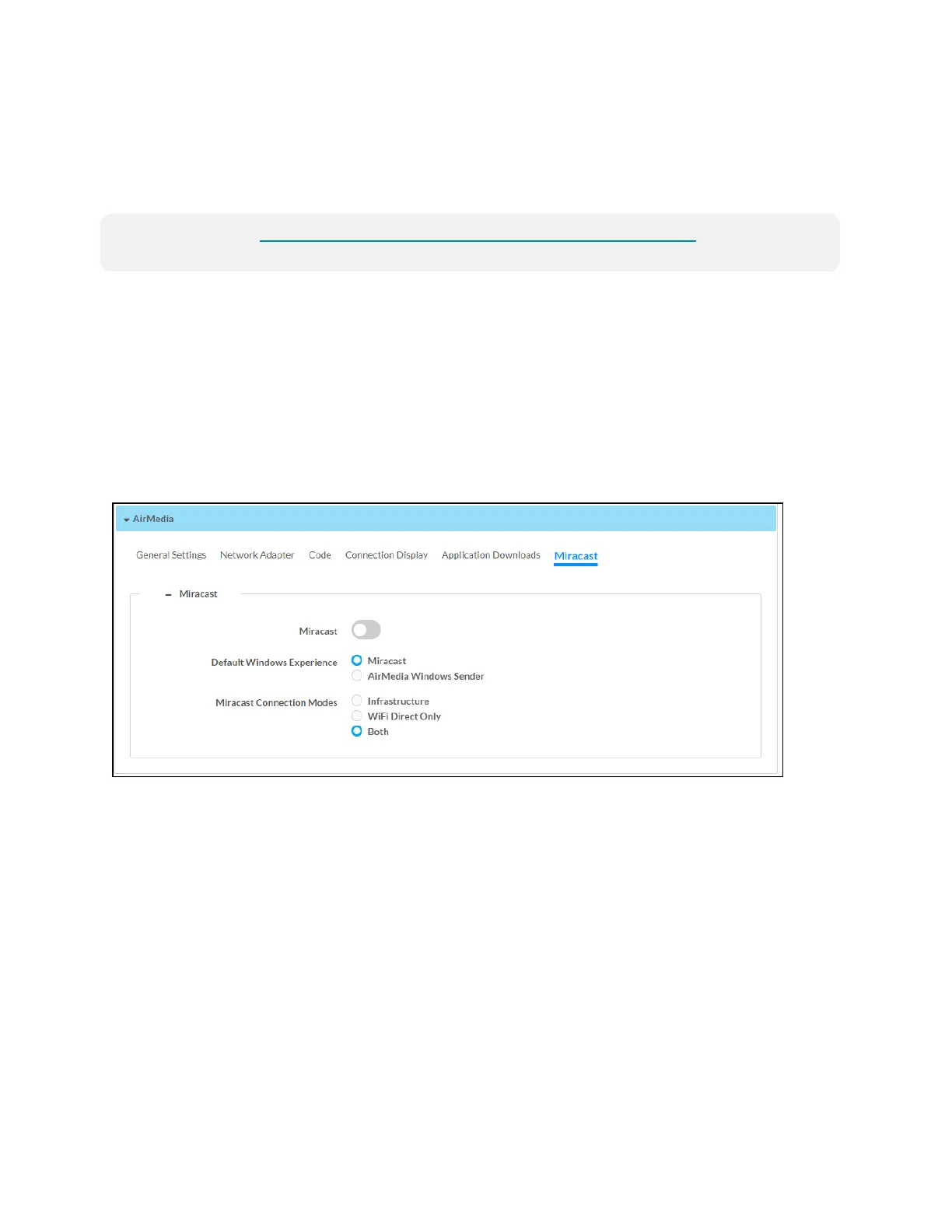
AirMedia Screen - Miracast
l
Miracast: Turn the toggle on to enable Miracast on the receiver.
l
Default Windows Experience: Select one of the radio buttons (Miracast or AirMedia
Windows Sender) to select the default connection experience for Windows 10 users when
they connect to the receiver via a web browser.
o
Select Miracast to display instructions for connecting to the receiver via Miracast.
o
Select AirMedia Windows Sender to prompt the user to download the AirMedia
sender application.







 To Next Page