61 • AirMedia® Series 3 Receivers Product Manual — Doc. 9020C
l
Miracast Connection Modes: Select one of the radio buttons (Infrastructure, WiFi Direct
Only, or Both) to configure how a Mircast capable device connects to the receiver.
o
Select Infrastructure to connect via the local area network. When selected, Wi-Fi is
used for discovery only.
o
Select WiFi Direct Only to connect via a Wi-Fi point-to-point connection (Wi-Fi
Direct® connection). When selected, Wi-Fi is used for discovery and for streaming.
o
Select Both to connect via a local area network or Wi-Fi point-to-point connection
(Wi-Fi Direct® connection). When selected, a Wi-Fi point-to-point connection only
occurs if the local area connection fails.
NOTE: When WiFi Direct Only or Both is selected, Login Code Mode must be set to
Random or Fixed as described in Code (on page56).
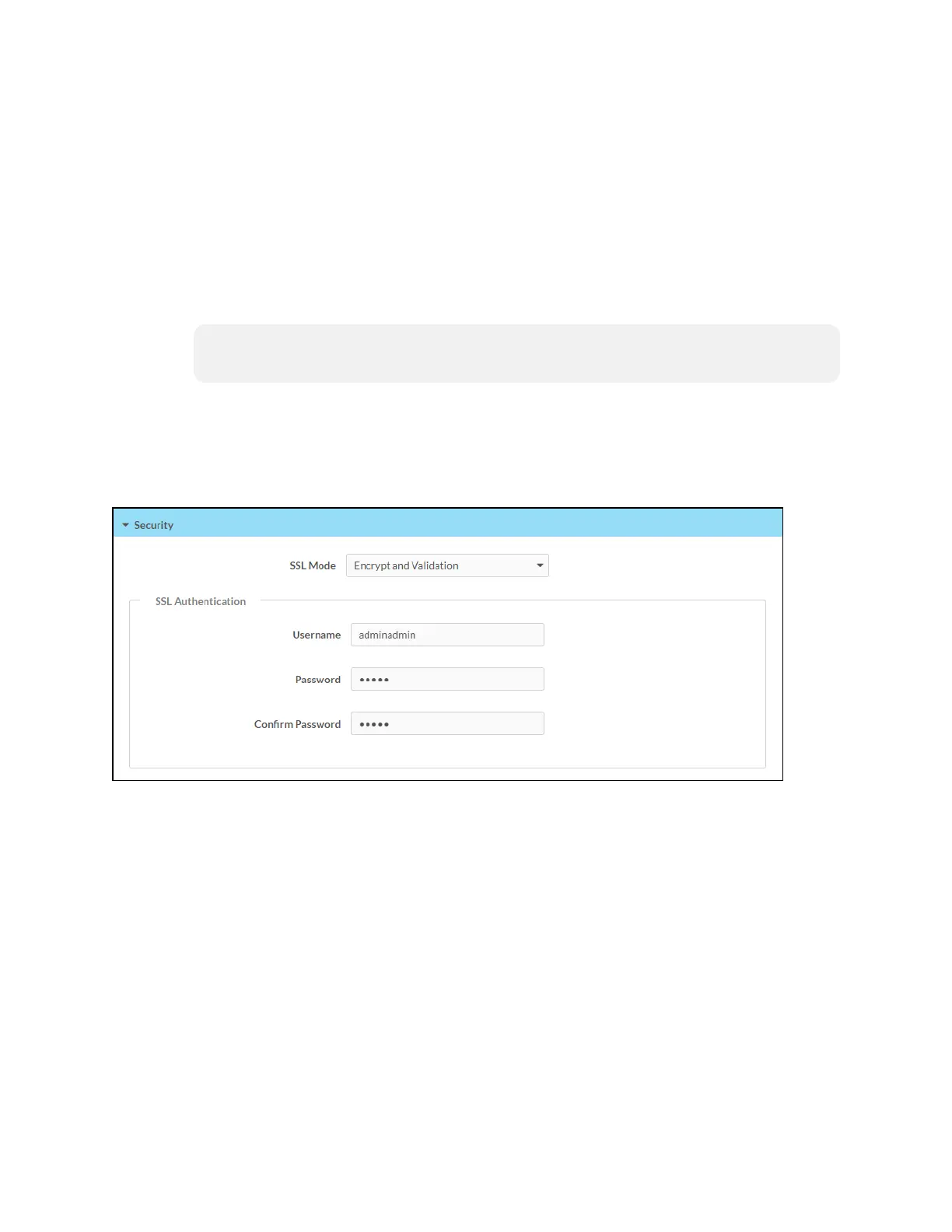
Security
Select Security to configure device security and authentication settings.
Security – Authentication Management
l
SSL Mode: Select an SSL (Secure Sockets Layer) mode to use for establishing a secure
connection between the receiver and the control system:
o
Encrypt and Validation: The receiver will require a username and password to
validate an encrypted SSL connection. Enter a username and password in the
respective fields.
o
Encrypt: The receiver will use an encrypted SSL connection.
o
OFF: The receiver will not use an SSL connection
Authentication
By default, authentication is required to access the web configuration interface or to connect to
an AirMedia Series 3 receiver through Crestron Toolbox™ software. When a user attempts to
sign into the device for the first time, the web configuration interface prompts the user to enter
a new administrator username and password as described in Connect to the Receiver (on







 To Next Page