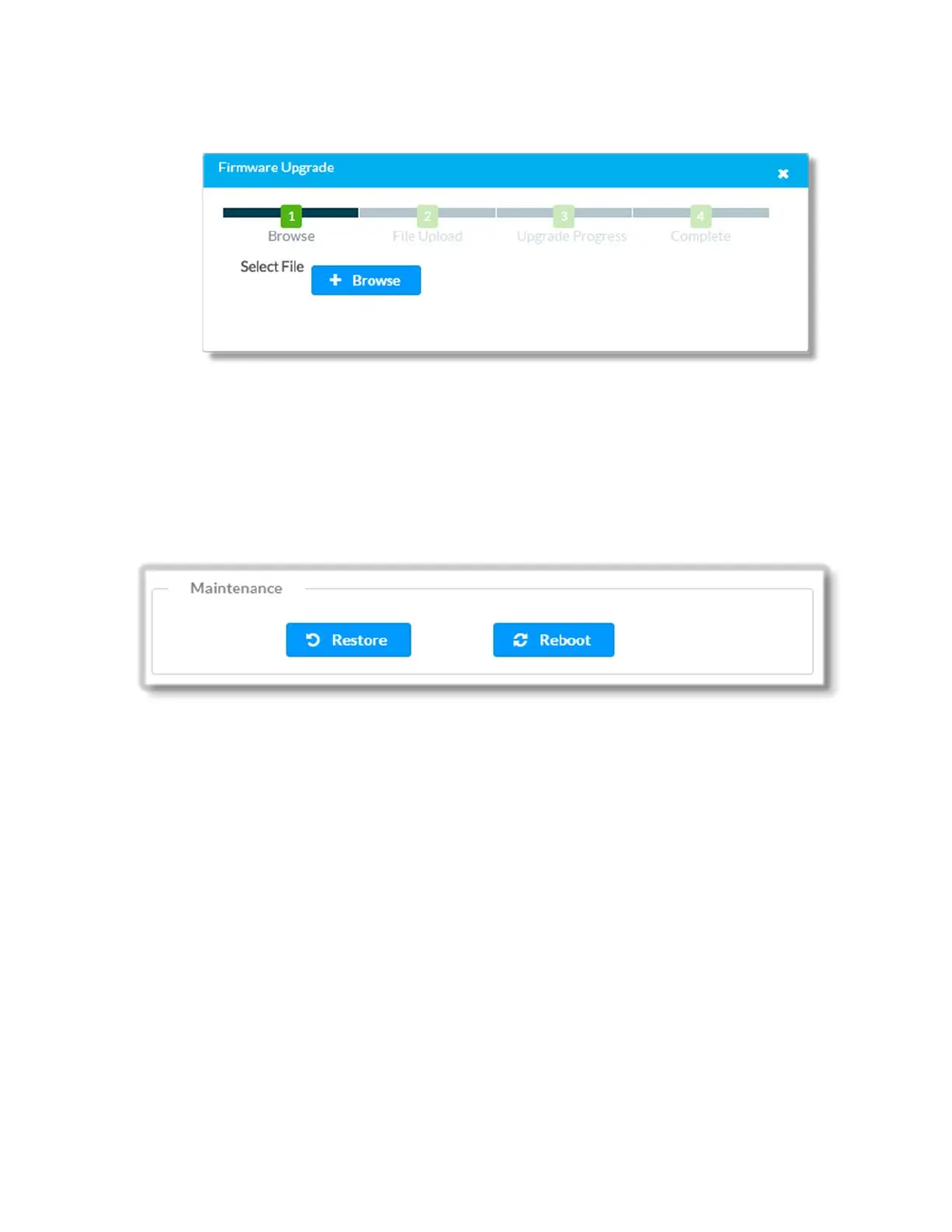
3. In the Firmware Upgrade dialog, click the Browse button.
4. Locate and select the desired firmware file, and then click the Open button. The
Upload firmware file text field displays the selected firmware filename.
5. Click the Load button and wait for the progress bar to complete and for the OK
button in the message to become clickable.
6. Click OK. The device with new firmware can now be accessed.
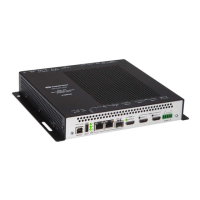
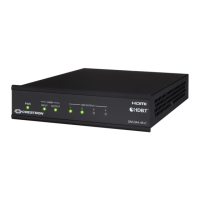
The Maintenance section of the Device page allows rebooting or restoring the DM-NVX-
E30(C) to factory default settings.
Restoring Factory Default Settings
1. Click the Restore button to restore the settings of the DM-NVX-E30(C) to factory
defaults.
NOTE: When settings are restored, all settings, including the network settings, will
revert to the factory default settings. If a static IP address is set, restoring the
device to factory default settings will revert the IP address to DHCP mode, which is
the factory default setting.
2. Click Yes in the Restore dialog to restore the DM-NVX-E30(C) to factory settings.
The Restore dialog is displayed again, indicating that the Restore process was
successful and that the device rebooted.
Alternatively click No to cancel the restoring operation and return to the Device
page.
31 • DM-NVX-E30(C)



 To Next Page