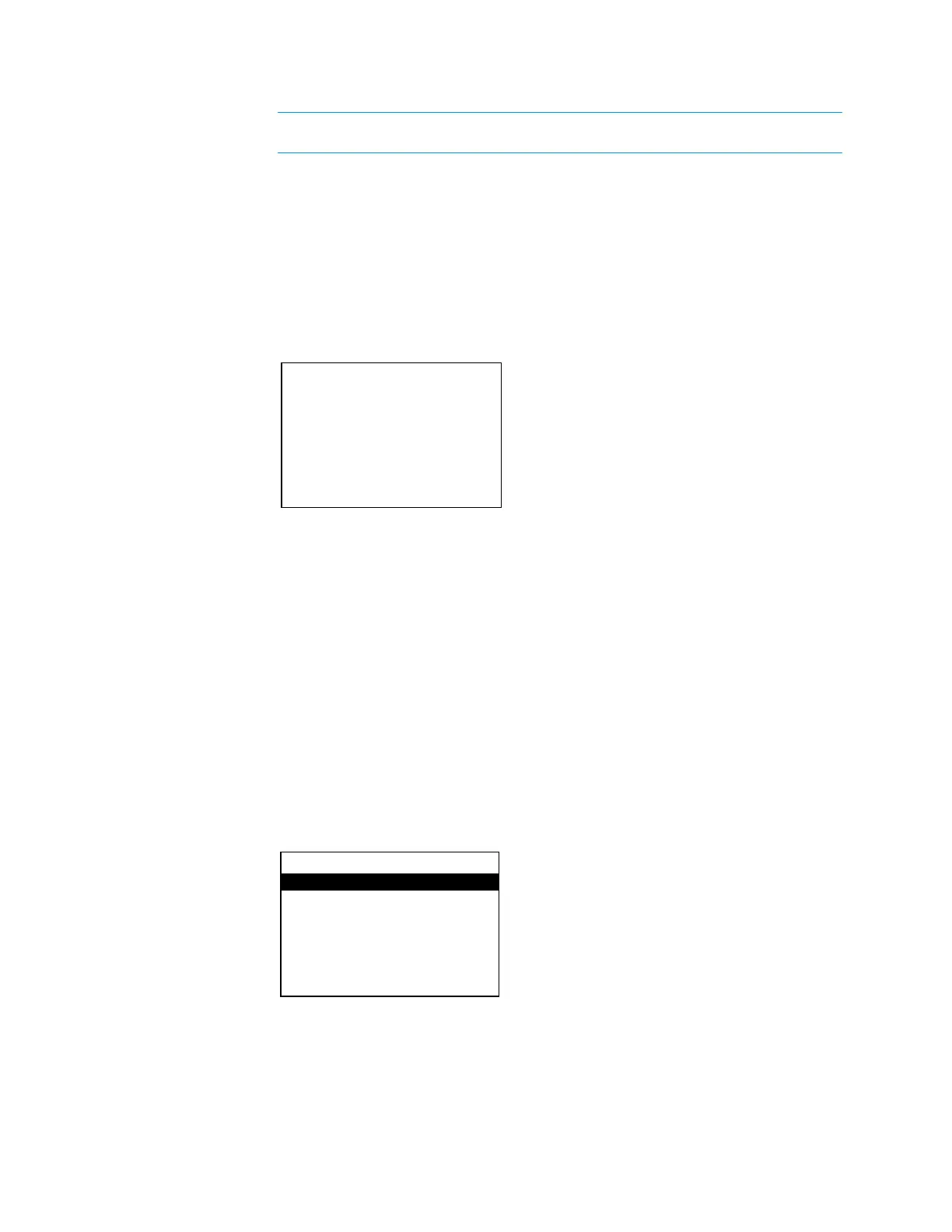
When locked, only the
button can be used to access the
menu.
The password for opening the
menu can be changed. Perform the following to
change the password:
1. Open the
menu as described in “Configure the Front Panel” on page 15.
2. Press up or down on the Nav Pad to highlight
, and then press the
center button of the Nav Pad. The
screen is displayed.
3. Use the up, down, left, right, and
buttons to enter the password.
o To select a number, press up or down on the Nav Pad.
o To move the cursor left or right, press left or right on the Nav Pad.
Once the password is displayed, move the cursor to the rightmost digit, and then
press the center button of the Nav Pad
to save the password. The
menu is
displayed.
Perform the following to restore the HD-XSPA to the factory default settings:
1. Open the
menu as described in “Configure the Front Panel” on page 15.
2. Press up or down on the Nav Pad to highlight
, and then press
the center button of the Nav Pad. The
menu is displayed.
3. Press up or down on the Nav Pad to highlight
, and then press the center
button of the Nav Pad. The
menu is displayed.
4. Press up or down on the Nav Pad to highlight
, and then press the center
button of the Nav Pad. The factory default settings are restored.
16 • HD(I)-XSPA: 4K UHD Surround Sound AV Receiver Supplemental Guide – DOC. 7448E


 To Next Page