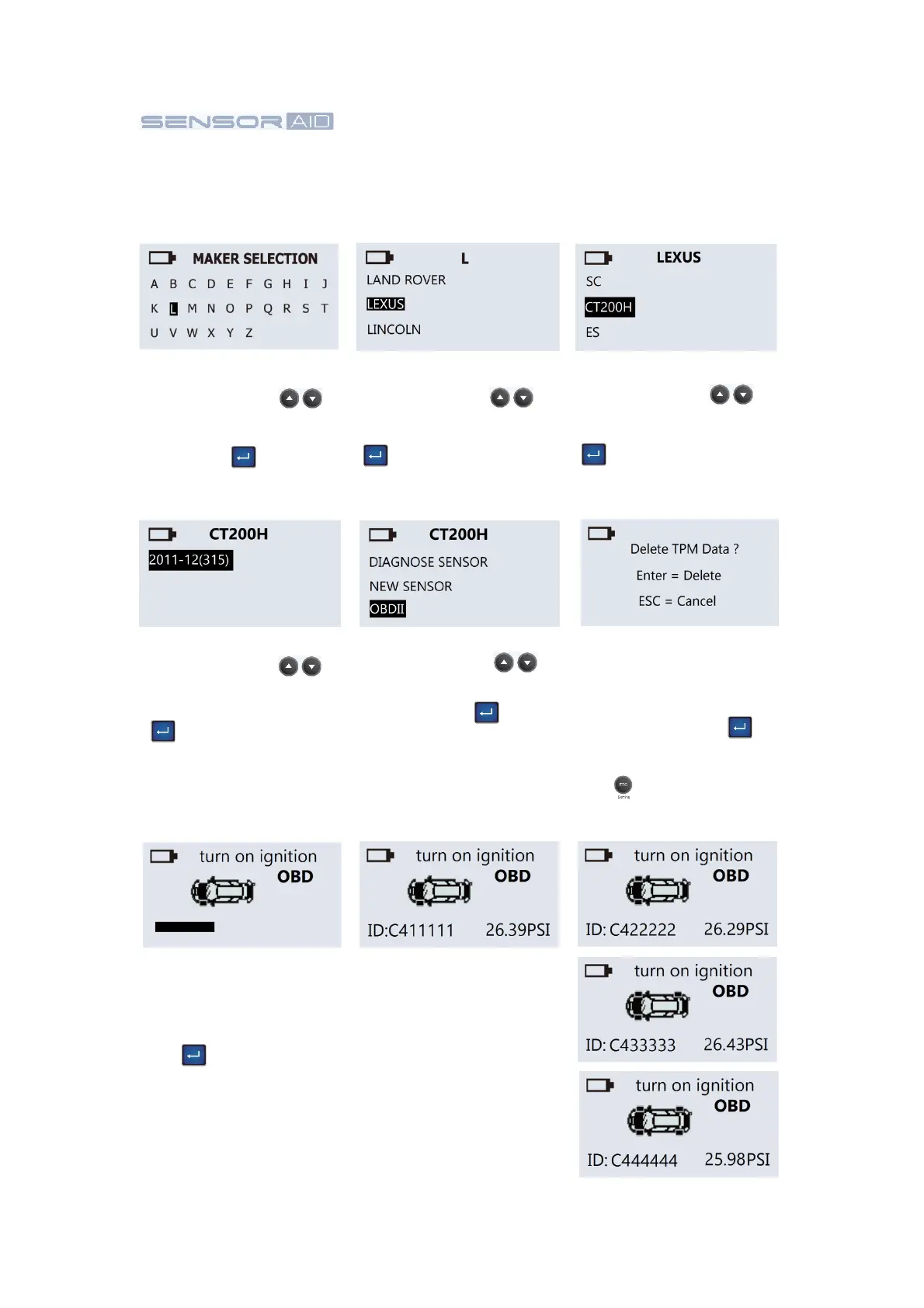
Maker selection :
Use the arrow key
to browse alphabets of
carmakers, press the
“Enter” key to select.
Maker selection:
Use the arrow key
to browse automaker,
press the “Enter” key
to select.
Model selection:
Use the arrow key
to browse models, press
the “Enter” key
to select.
Year selection:
Use the arrow key
to select year, and press
the “Enter” key
to select.
Function selection:
Use the arrow key
to select OBDII, and press
the “Enter” key to
select.
Data selection:
This screen will pop up
only if tool has stored
previous TPMS data.
Press the Enter key to
delete previous stored
TPMS data. Press the ESC
key to keep previous
stored TPMS data.
Scan sensor ID:
Start diagnose sensor,
starting from LF, RF, RR
and LR. Press the “Enter”
* The flashing tire indicator
is the tire position.
Obtain 4 sensor ID:
Now you will obtain 4 to 5
sensor IDs (FL, FR, RR,
RL and/or spare tires)
from the process of
scanning.
6.
OBDII –
Wheels ID Read/Write by OBDII
module
This function
is
designed
for you to write or read 4 wheels ID by OBDII module.
12


 To Next Page