8. Bluetooth functions and application (App)
Please download the Microlife Connected Health App (referred to as App in this
document) from Apple’s App
Store
®
or Google Play
®
before pairing your devices. The
App
can be executed on a number of mobile platforms with the following specifications:
Compatibility:
• Apple
®
devices running iOS 8.4 or higher on iPhone
®
, iPad
®
, and iPod touch
®
.
• Android
®
phones running Android
®
4.4.2 or higher.
Connecting your Blood Pressure Monitor to your mobile device:
Turn on the Bluetooth
®
function on your mobile device:
• In the settings menu on the iOS
®
or Android
®
phone, turn Bluetooth
®
“ON”
Confirm the correct user is selected on your blood pressure monitor:
• Confirm the user icon on the top left hand side of the monitor screen is set to user 1
or 2. See section 4.6 to change users.
To Pair the blood pressure monitor and your moblie device:
• Open the App and select “Settings.” Choose your settings (erase measurements,
multi-user mode).
• Slide the Bluetooth
®
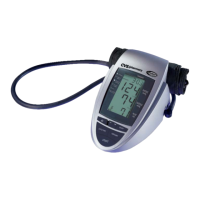
switch on the side of the blood pressure monitor to “ON.”
• Press the “START/STOP” button on the blood pressure monitor for 8 seconds until
the Bluetooth
®
icon flashes.
• Select “Pair Device” in the App. The message “Paired Successfully” will appear
when paired.
The Bluetooth
®
icon will flash for 60 seconds during which time the user can pair the
devices. If paring does not occur within 60 seconds, the Bluetooth
®
function will
automatically turn off.
Data transmission
Once paired, return to the main menu of the App:
• Select “Download all data” or “Download newest data.” The app will show a data
transmission screen.
• After the readings have been transfered, the screen will show a summary of all your
readings.
• To save and return to the main menu, select the check mark in the upper right hand corner.



 To Next Page