Adjust settings manually — 9 of 15
ADJUST SETTINGS MANUALLY
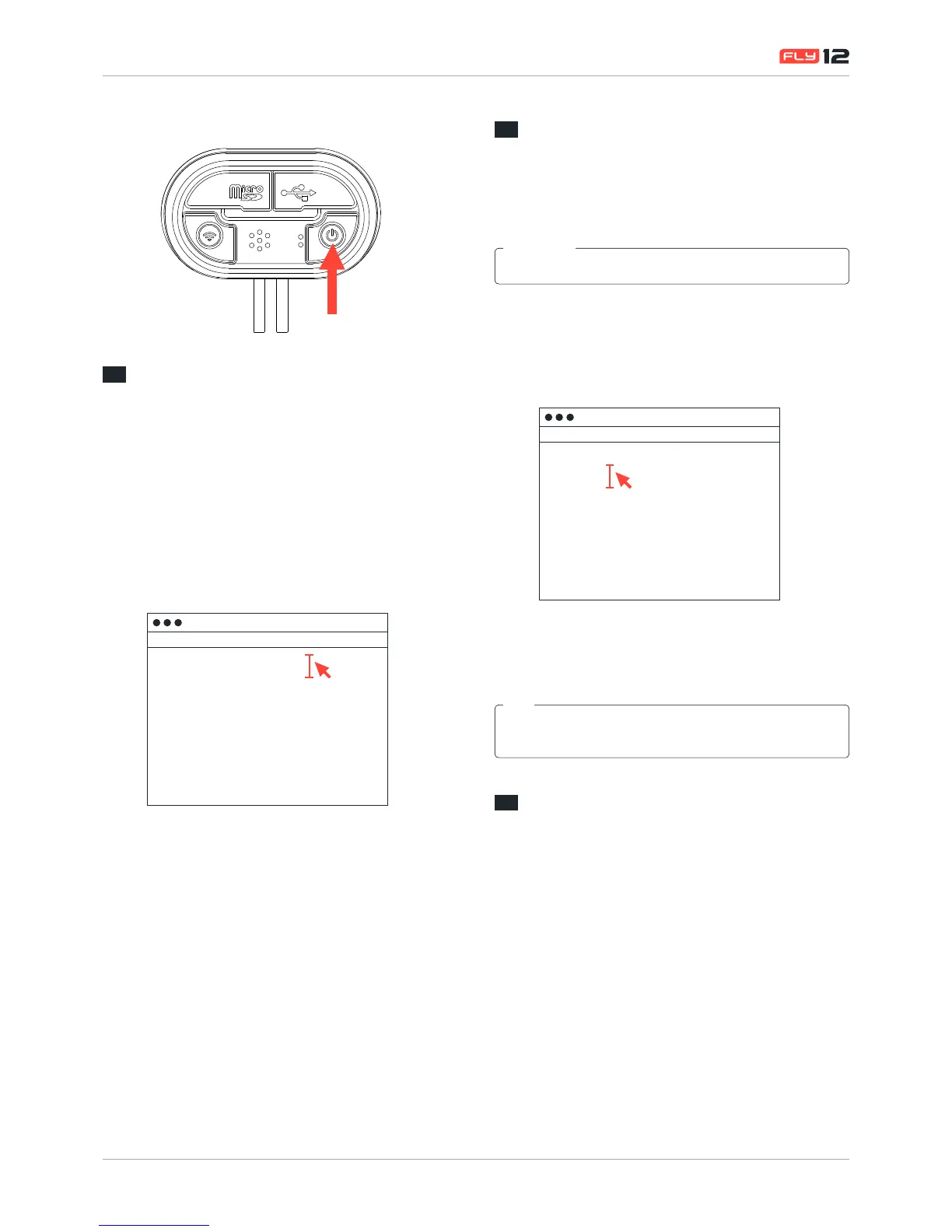
7. Power on your Fly12 briey, for this change to take effect
2.2
Time and date stamp setting
(via cong.txt le)
If you have a smart phone, this process occurs automatically
when you connect the CycliqPlus app via Bluetooth or WiFi. If
you don’t have a smart phone, you can set it manually.
Set the Time and Date stamp:
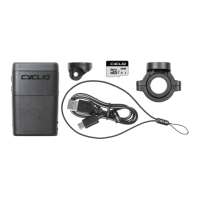
1. Open the cong.txt le (using Notepad for Windows,
TextEdit for Mac) found in your Fly12 main folder
2. Change “TIME=0” to “TIME=1”
Fly12
File
TIME=0:SEP-24-2015 12:56:00
FORMAT=0
CLRWIFIPWD=0
RACEMODE=0
IDLEOFF=1
IDT=1
VOLUME=2
OPBEEP=0
Edit Format View Help
3. Modify the date and time as per the example (in cong.
txt) exactly as it appears, with the time in 24 Hr format.
4. Save the cong.txt le and safely eject your memory card/
Fly12
5. Power on your Fly12 briey, for this change to take effect
2.3
Formatting the MicroSD card
(via cong.txt le)
You can format the memory card via the cong.txt le.
This will delete all footage from your memory card.
CAUTION
Format the memory card:
1. Open the cong.txt le (using Notepad for Windows,
TextEdit for Mac) found in your Fly12 main folder
2. Change “FORMAT=0” to “FORMAT=1”
Fly12
File
TIME=0:SEP-24-2015 12:56:00
FORMAT=0
CLRWIFIPWD=0
RACEMODE=0
IDLEOFF=1
IDT=1
VOLUME=2
OPBEEP=0
Edit Format View Help
3. Save the cong.txt le and safely eject your memory card/
Fly12
4. Power on your Fly12 briey, for this change to take effect
Using CycliqPlus on your smartphone, you can quickly format your
memory card. See “CycliqPlus manual” for more details.
TIP
2.4
Reset the WiFi password (via cong.txt le)
If you forget your WiFi password, follow the procedure below
to clear the password and set a new one.
To clear your WiFi password:
1. Open the cong.txt le (using Notepad for Windows,
TextEdit for Mac) found in your Fly12 main folder
2. Change “CLRWIFIPWD=0” to “CLRWIFIPWD=1”
Continued on next page...


 To Next Page