FLASHSOFTWARE
©CyrusAudioLtdJun2014 11 CDtServiceManualIssue1
FlashSoftwareOverview
TheCDplayersfeatureupgradeablesoftwareforthecontrolsystem.ThemainPCBincludesa
microcontrollerwithinternalmemorythatincludesthesoftware.
The microcontroller is labelled during the manufacturing process to show which software
version is installed. If the software version is revised at some point this indication should be
clearlydeletedwithacrossmarkedonthedevicelabel.Themostreliablemethodtocheckthe
softwareversion(withoutdismantlingtheplayer)istoreaditfromthedisplayasfollows‐
1. ConnectpowertotheunitandsettoStandby(powerlightred).
2. PressandholdtheStandbykey.
3. Thesoftwareversionwillbeshownonthedisplay.
Re‐programming
NOTE:Productsoftwaremustneverbereplacedwithanearlierversionthanalreadyinstalled.
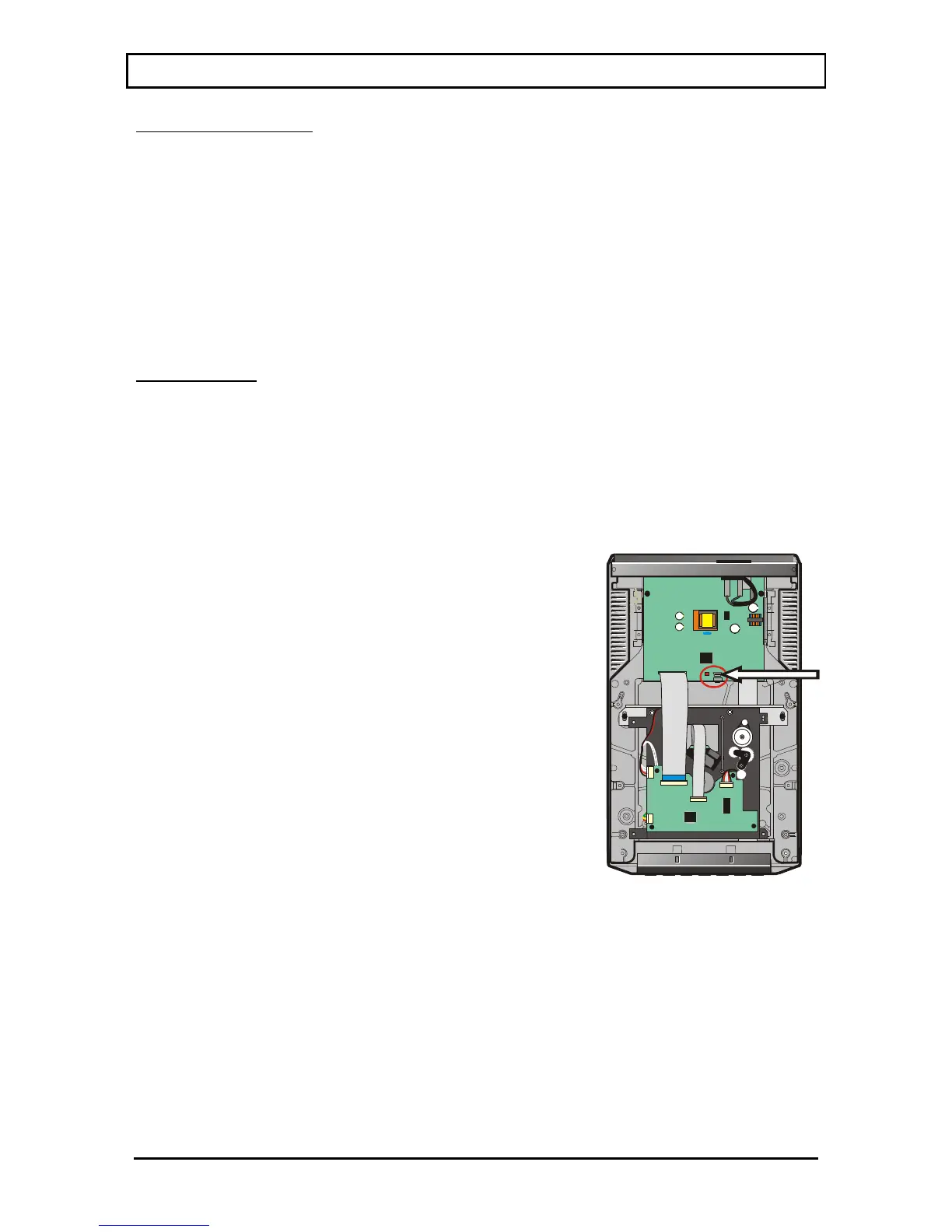
The CD players are programmed by connecting a USB cable directly from the main PCB to a
computer. The location of the programming connector on the control PCB is arrowed in the
pictureontheright.
CAUTION: Ensure you have a new firmware file to hand before starting the process. Never
disconnectthecableuntilthenewsoftwareisinstalled.
1. Disconnectthemainsfromtheproduct.
2. Locate SW702, a microswitch next to the USB connector
showninthedrawing.
3. PressandholdSW702.
4. Connectamini‐USBcabletoafreeUSBportonacomputer.
5. Connectthemini‐USBcabletothesocketonthemainPCB.
6. TheRedLEDonthemainPCBwilllighttoindicatethatUSB
powerisavailable.
7. ReleaseSW702.
8. A new window
will pop up on the PC which will show the
currentfirmware.binfile.
9. Deletetheexistingfirmware.binfile.
10. Copy the new firmware.bin file supplied by Cyrus to this
folder.
11. Oncethe filehasbeencopiedremovetheUSBcable.
12. Powerupandcheckthenewsoftwareversion
asdescribed
above.


 To Next Page