16D-Link DAP-1365 User Manual
Section 3 - Conguration
QRS Mobile App Setup
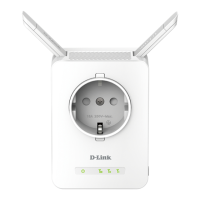
The DAP-1365 can be set up from your iPhone, iPod touch, iPad, or Android smartphone or tablet device using the QRS Mobile app.
Step 2
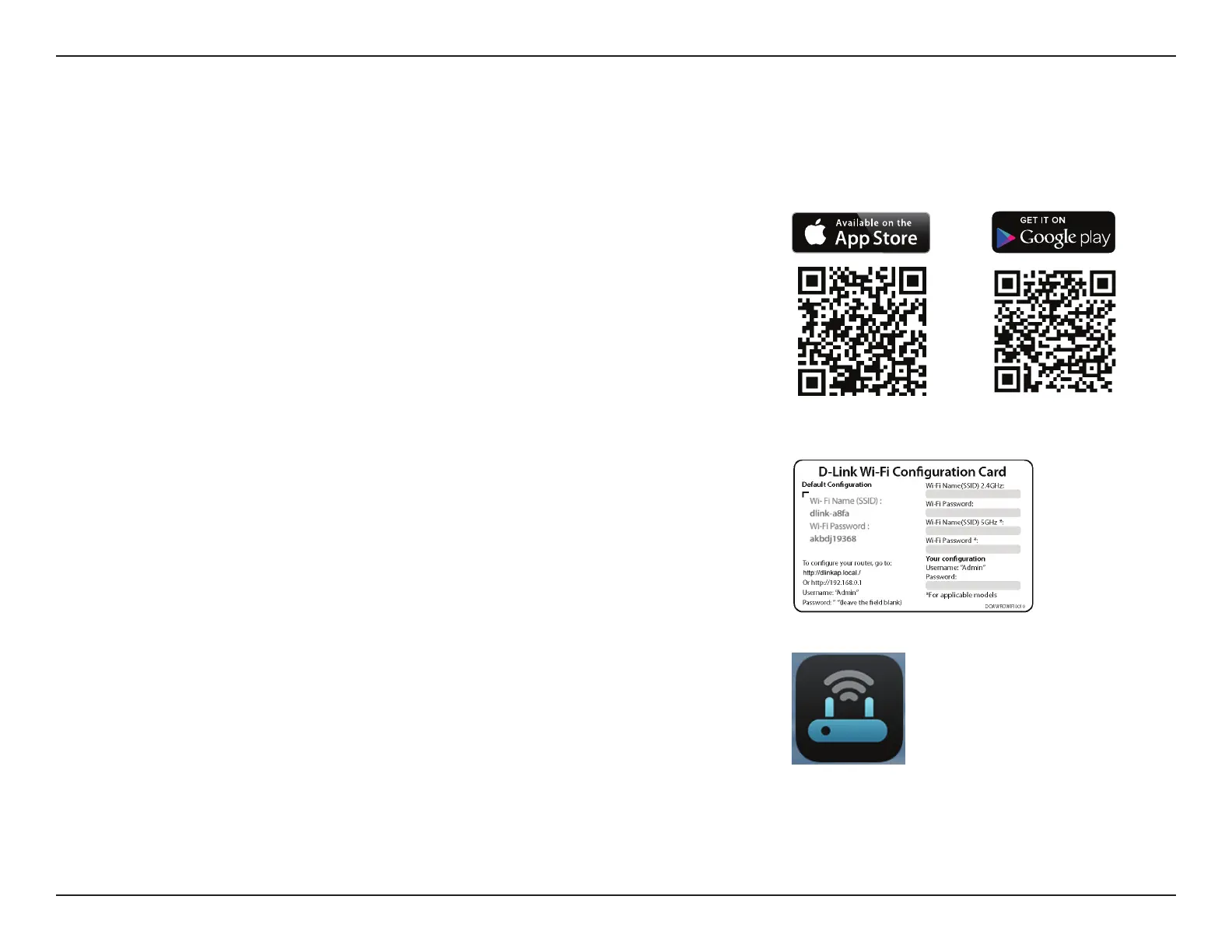
Once your app is installed, you may now congure your extender. Connect to the
router wirelessly by going to your wireless utility on your device. Scan for the Wi-
Fi name (SSID) as listed on the supplied conguration card. Select and then enter
your Wi-Fi password.
Step 3
Once wirelessly connected to the extender, launch the QRS Mobile app from the
Home screen of your device.
Note: The following steps show the iOS interface of the QRS Mobile app. If you are
using an Android device, the appearance may be dierent to that of the screenshots,
but the process is the same.
Step 1
Search for the free QRS Mobile App on the Apple App Store or Google Play.
Note: The screenshots may be dierent depending on your mobile device’s OS version.




 To Next Page