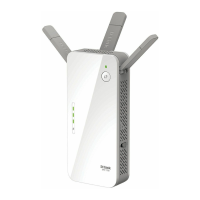
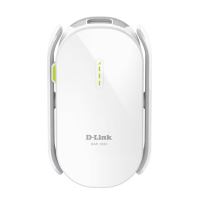
DAP-1650 Install Guide 11
Troubleshooting
Why can’t I connect to my wireless router or my wireless connection drops?
1. Verify that the DAP-1650 is within range of your wireless router. Try plugging it into
a location closer to the router and verify the Internet LED is solid green.
2. Note that when repeating a wireless signal from a router or access point, devices
connected to the repeater will not get the same speed/throughput as when
connected directly to the router.
How do I change the wireless settings on the DAP-1650?
1. Open a web browser (e.g., Internet Explorer, Firefox, Safari, or Chrome) and go to
http://dlinkap.local./ (or http://dlinkap on Windows XP).
2. At the login screen, ener your password and click or press the Log in.
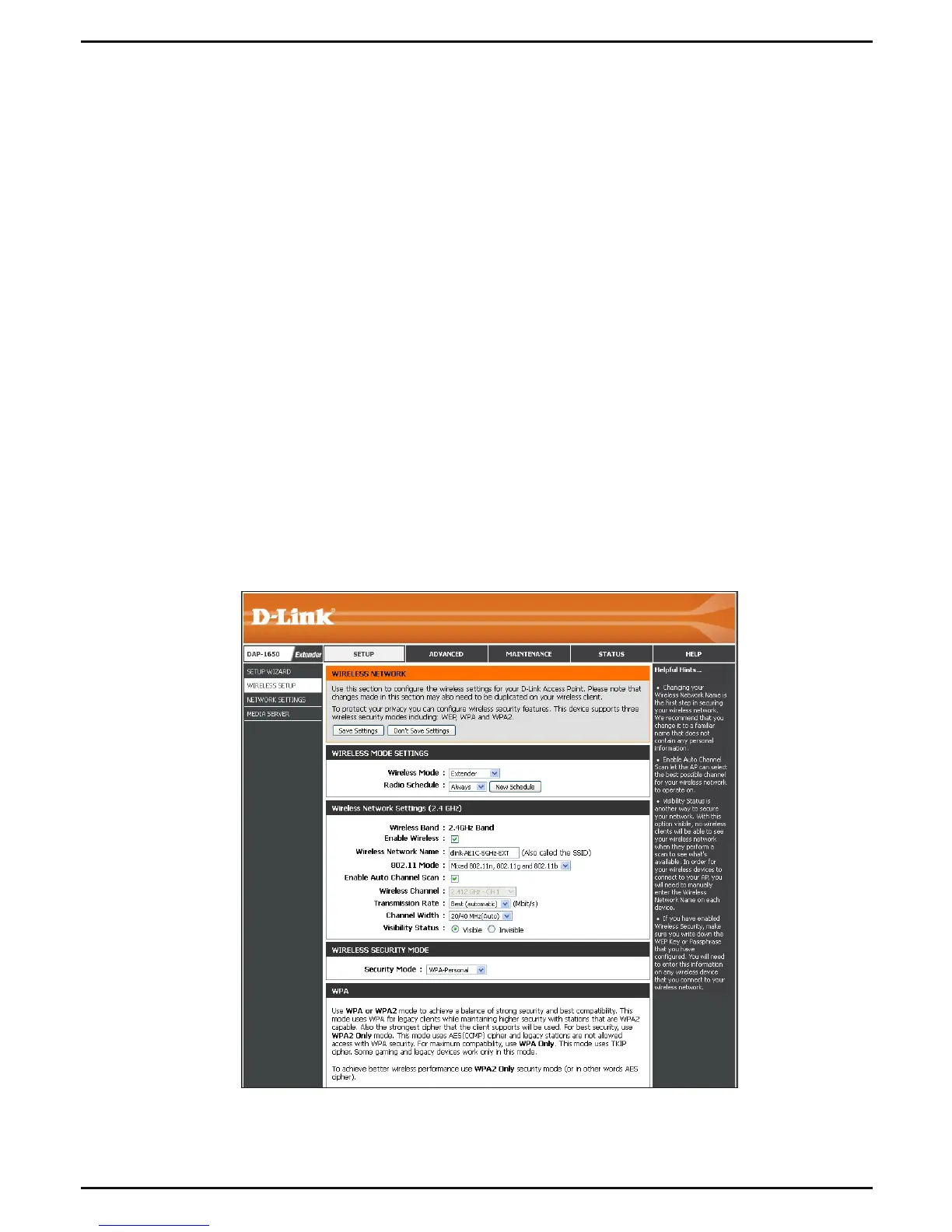
3. Go to Setup > Wireless Setup.
4. Enter a new Wireless Network Name (SSID) and modify settings as needed.
5. Click Save Settings.
Note: If you have changed the Wi-Fi Network name, the device you are currently using to connect to the
DAP-1650 will drop. You will need to open your wireless utility and connect to the DAP-1650 using the
new network name and password.


 To Next Page
 Loading...