13D-Link DHP-300 User Manual
Section 3 - Configuration
Configuration
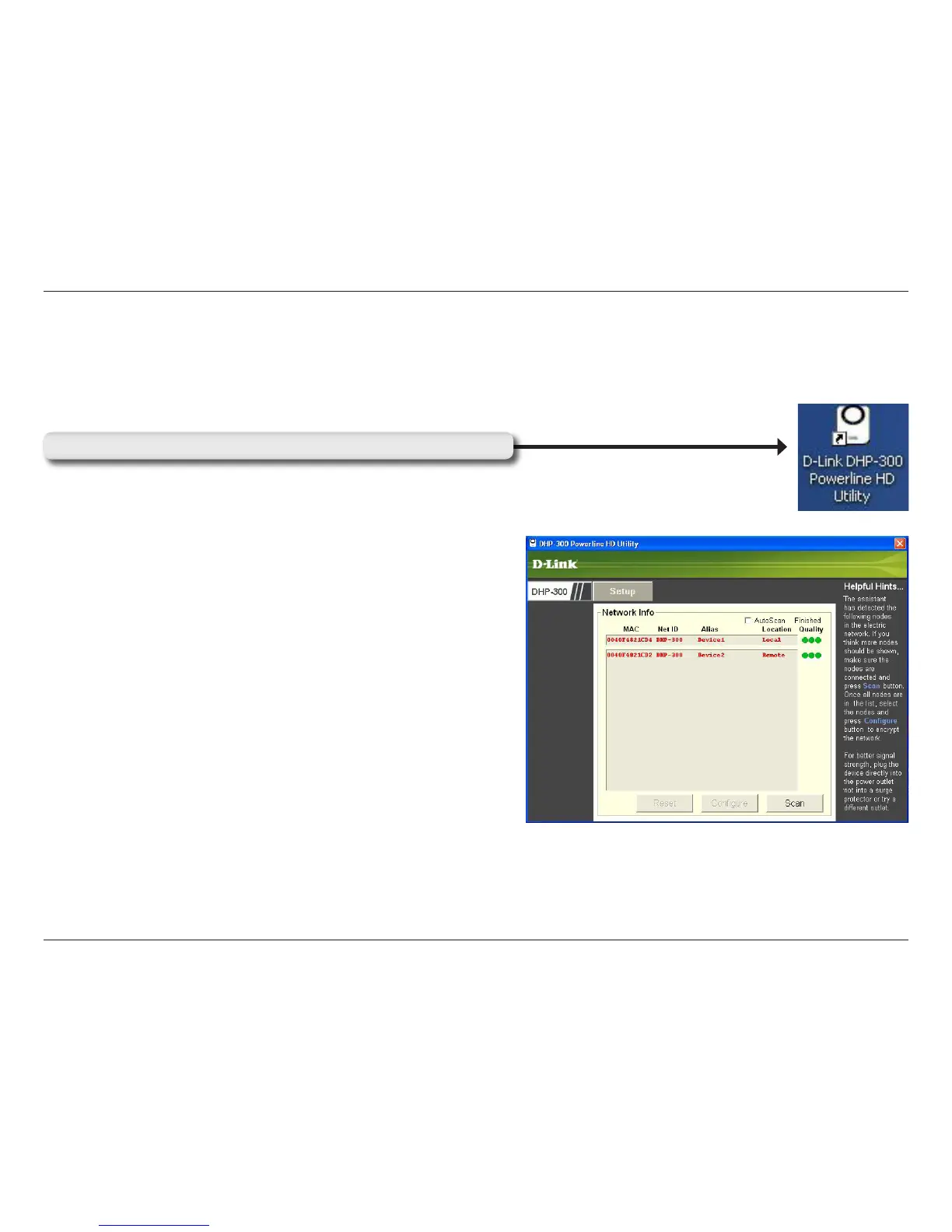
After you have completed the D-Link DHP-300 Utility installation wizard, double-click the D-Link DHP-300 Powerline
HD Utility icon on your desktop to start the configuration of the DHP-300.
Double-click the D-Link DHP-300 Powerline HD Utility icon
The utility provides you with the option of setting your own unique
Network ID and the ability to prioritize traffic passing through the
network. The color of text on the MAC, Net ID, Alias, and Location
columns represent the status of powerline network.
• Green text - Powerline network is encrypted with a non-
default encryption key
• Red text - Powerline network is encrypted with the default
encryption key (DHP-300).
• Grey text - Powerline network is not connected due to
different Net ID, Encryption key or Password.




 To Next Page