DSL-G2452GR AC1200 MU-MIMO Wireless Dual Band
VDSL2 Router with ADSL2+/3G/LTE/Gigabit Ethernet WAN
Support, 2 FXS Ports and USB Port
User Manual
Configuring via Web-based Interface
To remove the value of an option, select the checkbox located to the left of the relevant line in the
table and click the DELETE button ( ). Then click the APPLY button.
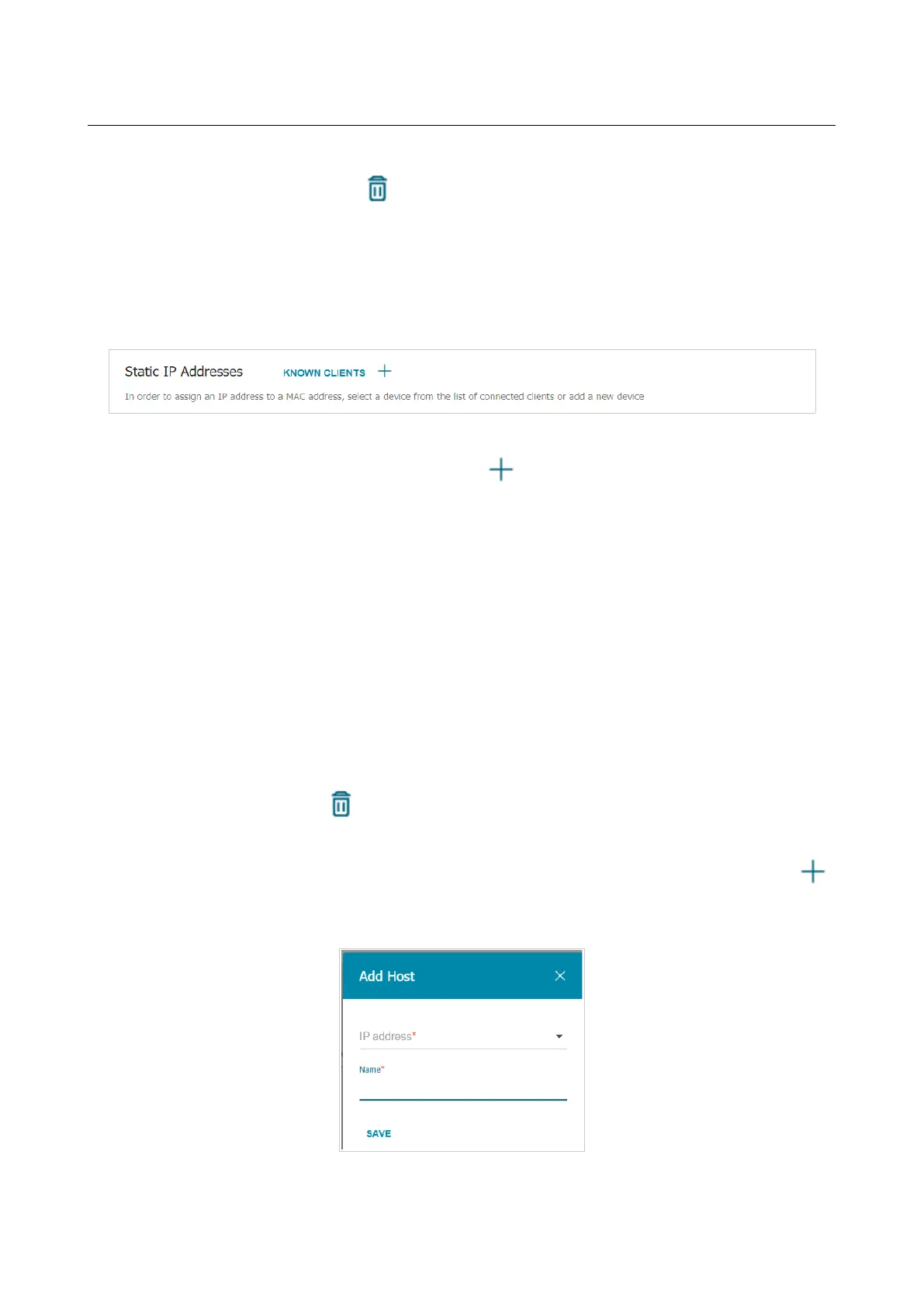
In the Static IP Addresses section, you can specify MAC address and IPv4 address pairs (set a
fixed IPv4 address in the local area network for a device with a certain MAC address). The router
assigns IPv4 addresses in accordance with the specified pairs only when the DHCP server is
enabled (in the Dynamic IP Addresses section, the Server value is selected from the Mode of
dynamic IP address assignment drop-down list).
Figure 114. Configuring the local interface. The IPv4 tab. The section for creating MAC-IPv4 pairs.
To create a MAC-IPv4 pair, click the ADD button ( ). In the opened window, fill in the MAC
address field. You can choose a device connected to the router's LAN at the moment. To do this,
select the relevant MAC address from the drop-down list (the field will be filled in automatically).
Then in the IP address field, enter an IPv4 address which will be assigned to the device with the
specified MAC address. In the Hostname field, specify a network name of the device for easier
identification (optional). Click the APPLY button.
To create MAC-IPv4 pairs for the devices connected to the router at the moment, click the
KNOWN CLIENTS button. In the opened window, select the needed device and click the OK
button. To view the latest list of the connected devices, click the REFRESH button.
To edit the settings for an existing MAC-IPv4 pair, left-click the relevant line in the table. In the
opened window, change the needed parameters and click the APPLY button.
To remove a MAC-IPv4 pair, select the checkbox located to the left of the relevant line in the table
and click the DELETE button ( ). Then click the APPLY button. Also you can remove a pair in
the editing window.
If needed, you can add your own address resource records. To do this, click the ADD button ( )
in the Hosts section (available if the Router, WISP Repeater, or Mobile Internet mode was
selected in the Initial Configuration Wizard).
Figure 115. Configuring the local interface. The IPv4 tab. The window for adding a DNS record.
Page 141 of 358


 To Next Page