EasyManua.ls Logo

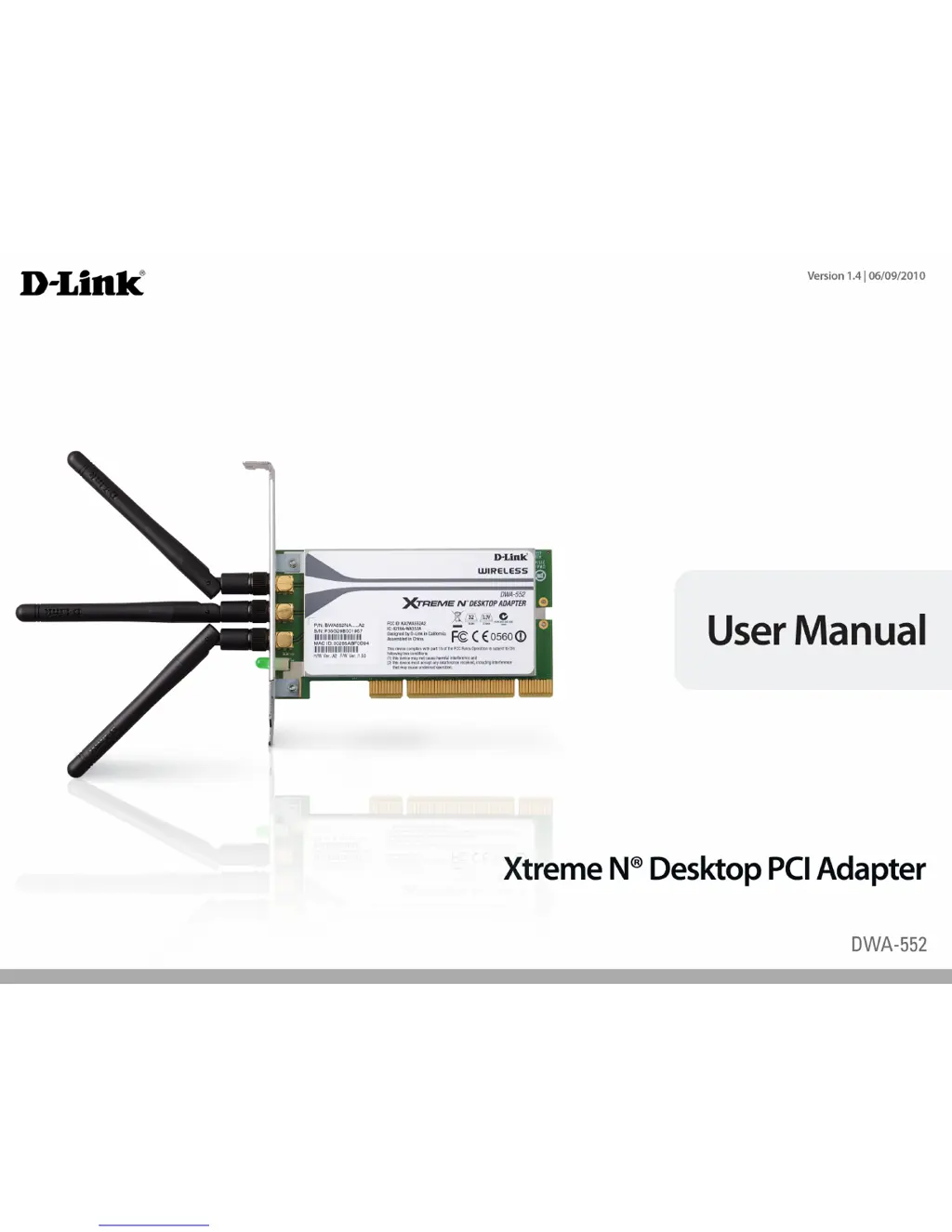
D-Link DWA-552 - User Manual

D-Link DWA-552
59 pages
Print Icon
To Next Page IconTo Next Page
Loading...

Other manuals for D-Link DWA-552

Questions and Answers

  • E
    Elijah SmithAug 16, 2025
    What to do if my D-Link DWA-552 cannot connect to the wireless network and/or the Internet?
    • J
      Joshua JosephAug 16, 2025
      If your D-Link DWA-552 adapter can't connect to the wireless network or the Internet, verify that the broadband modem and wireless router LED indicators show normal activity. Ensure the IP Address, subnet mask, gateway, and DNS settings are correctly entered for the network. In Infrastructure mode, confirm that the Service Set Identifier (SSID) is the same on both the wireless clients and access points. In Ad-Hoc mode, both wireless clients need to have the same SSID. Check that the Network Connection for the wireless client is properly configured. If security is enabled, ensure the correct encryption keys are entered on both the DWA-552 and the access point.
  • B
    Brianna MullenAug 18, 2025
    What to do if my computer does not recognize the D-Link Wireless Adapter?
    • J
      Jean MartinAug 19, 2025
      If your computer doesn't recognize the D-Link DWA-552 Wireless Adapter, first ensure it's properly seated in the computer’s PCI slot. If Windows still doesn't detect the hardware after insertion, completely remove any previously loaded drivers. To do this, go to Tools > Folder Options… > View > under Hidden files and folders > select Show hidden files and folders. Then, uncheck Hide extension for known file types and click Apply. Search for and remove any previously loaded driver files from the INF and SYSTEM (DRIVERS) folders in the Windows directory.
  • M
    Mrs. Amanda DixonAug 22, 2025
    What to do if I cannot connect to the D-Link Adapter access point or the wireless router?
    • L
      Linda ThomasAug 22, 2025
      If you're unable to connect your D-Link DWA-552 Desktop PCI Adapter to the access point or wireless router, ensure the SSID on the adapter is exactly the same as the SSID on the access point or wireless router. Try moving the adapter and access point or wireless router into the same room to test the wireless connection. Disable all security settings, such as WEP, MAC Address Control, and AES. Make sure the radio is not locked down to a different frequency. Turn off your access point and the computer with the adapter, then turn on the access point, and then turn on the computer. Refresh the adapter utility.
  • A
    Amy WeberAug 25, 2025
    What to do if D-Link Adapter cannot connect to the wireless network and/or the Internet?
    • W
      Walter McdowellAug 25, 2025
      If your computer with the D-Link Adapter DWA-552 can't connect to the wireless network or the Internet, first check the LED indicators on your broadband modem and wireless router to ensure they're showing normal activity. Then, verify that the IP Address, subnet mask, gateway, and DNS settings are correctly entered for your network. In Infrastructure mode, ensure the Service Set Identifier (SSID) is the same on both the wireless client and access point. For Ad-Hoc mode, both wireless clients need to have the same SSID. Check that the Network Connection for the wireless client is properly configured. Finally, if security is enabled, confirm the correct encryption keys are entered on both the DWA-552 and the access point.
  • K
    Kenneth GreenAug 27, 2025
    What to do if I cannot connect to the access point or the wireless router with D-Link Adapter?
    • J
      Joshua GarciaAug 28, 2025
      If you can't connect to the access point or wireless router using your D-Link Adapter DWA-552, ensure the SSID on the adapter is exactly the same as the SSID on the Access Point or wireless router. Move the DWA-552 and the Access Point or wireless router into the same room to test the wireless connection. Try disabling all security settings (WEP, MAC Address Control, AES). Make sure the Radio is not locked down to a different frequency. Turn off your Access Point and the computer with the DWA-552, then turn them back on. Refresh the DWA-552 Utility.
  • M
    Molly BaileyAug 30, 2025
    How to troubleshoot distance issues using the D-Link DWA-552 Adapter?
    • M
      Maureen BenitezAug 31, 2025
      To troubleshoot distance issues with your D-Link DWA-552, try these steps: 1. Move the DWA-552 and the Access Point or Wireless router into the same room to test the wireless connection. 2. Change the channel of the Access Point. 3. Move devices within the line of sight.
  • M
    Marco ClarkSep 2, 2025
    What to do if I forgot my D-Link Adapter encryption key?
    • L
      lisamcculloughSep 2, 2025
      If you forgot your encryption key, reset the Access Point to its factory default settings and restore the D-Link DWA-552 Xtreme N® Desktop PCI Adapter to the factory default settings.
  • R
    Ronald DuffySep 5, 2025
    How to troubleshoot distance issues using the D-Link Adapter?
    • B
      Benjamin FlynnSep 6, 2025
      To troubleshoot distance issues with your D-Link Adapter DWA-552, try these steps: * Move the DWA-552 and the Access Point or Wireless router into the same room to test the wireless connection. * Change the channel of the Access Point. * Move devices within the line of sight to reduce obstructions.
  • M
    morganwoodSep 9, 2025
    What to do if computer does not recognize the D-Link Wireless Adapter?
    • B
      Bruce BrownSep 9, 2025
      If the computer does not recognize the D-Link DWA-552 Wireless Adapter, first ensure that the adapter is properly seated in the computer’s PCI slot. If Windows still doesn't detect the hardware, completely remove any previously loaded drivers before reinstalling.
  • L
    Leroy KellySep 12, 2025
    How to reset encryption key on D-Link Adapter?
    • C
      Christina WalkerSep 12, 2025
      To reset your encryption key on the D-Link Adapter DWA-552, reset the Access Point to its factory default settings and restore the DWA-552 Wireless Desktop Adapter to the factory default settings.

Summary

Product Overview

Installation

Adapter Installation

Step-by-step instructions for physically installing the PCI adapter.

Configuration

Wireless Networks

Details how to scan for and connect to available wireless networks.

Connect to Wireless Network Using Windows 7

Guide for connecting using the Windows 7 built-in wireless utility.

Connect to Wireless Network Using Windows Vista

Guide for connecting using the Windows Vista built-in wireless utility.

Connect to Wireless Network Using Windows XP

Guide for connecting using the Windows XP built-in wireless utility.

Wireless Security

Configure WPA;WPA2-Personal via D-Link Utility

Steps to set up WPA/WPA2 personal security using the D-Link utility.

Configure WPA;WPA2-Personal in Windows 7

How to configure WPA/WPA2 personal security within Windows 7.

Configure WPA;WPA2-Personal in Windows Vista

How to configure WPA/WPA2 personal security within Windows Vista.

Configure WPA;WPA2-Personal in Windows XP

How to configure WPA/WPA2 personal security within Windows XP.

Troubleshooting

Check Adapter Installation Status

Verify if the wireless adapter is correctly installed and recognized.

Cannot Connect to Access Point or Router

Solutions for common issues preventing wireless connection.

Adapter Not Recognized by Computer

Steps to resolve issues where the computer doesn't detect the adapter.

Unable to Connect to Network or Internet

Troubleshooting steps for connectivity problems after installation.

D-Link DWA-552 Specifications

General IconGeneral
Device TypeWireless Adapter
Form FactorPlug-in card
Data RateUp to 300 Mbps
SecurityWEP, WPA, WPA2
Compliant StandardsIEEE 802.11a, IEEE 802.11b, IEEE 802.11g
Operating Systems SupportedWindows XP, Windows Vista, Windows 7
Wireless StandardIEEE 802.11a, IEEE 802.11b, IEEE 802.11g
Data Link ProtocolEthernet
Frequency Band2.4 GHz, 5 GHz
Antenna TypeExternal detachable

Related product manuals