EasyManua.ls Logo

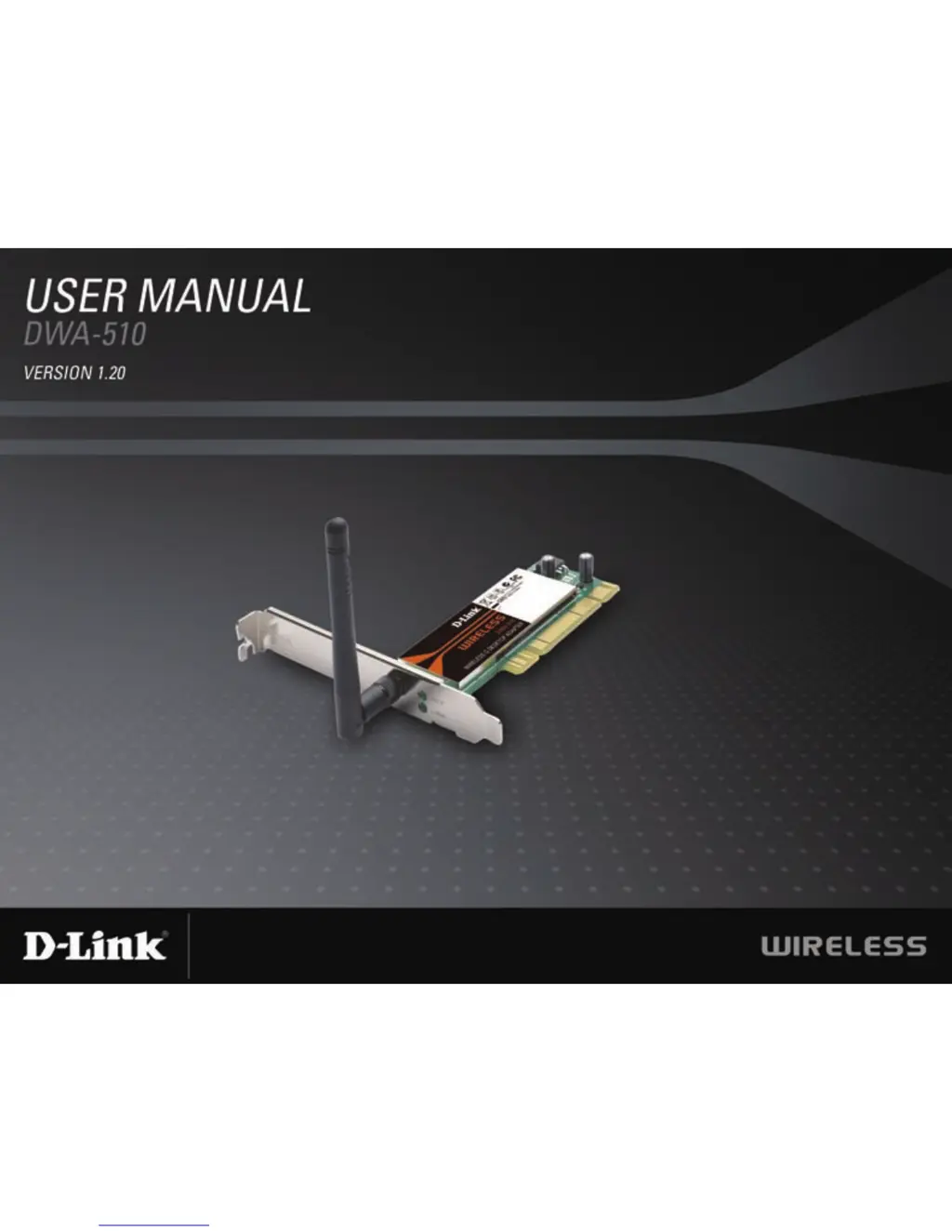
D-Link DWA-510 - User Manual

D-Link DWA-510
63 pages
Print Icon
To Next Page IconTo Next Page
Loading...

Other manuals for D-Link DWA-510

Questions and Answers

  • A
    Allen WadeJul 31, 2025
    Why can't I connect to the access point or the wireless router with my D-Link Adapter?
    • R
      Rhonda BurnsJul 31, 2025
      If you are experiencing issues connecting to the access point or wireless router with your D-Link Adapter DWA-510, here are some steps you can take: * Ensure the SSID on the DWA-510 Wireless Desktop Adapter exactly matches the SSID on the access point or wireless router. * Move the DWA-510 and the access point or wireless router into the same room to test the wireless connection. * Disable all security settings, including WEP, MAC address control, and AES. * Verify that the access point/router is not set to a different frequency. * Turn off both the access point and the computer with the DWA-510. Then, turn on the access point first, followed by the DWA-510. * Refresh the DWA-510 Utility.
  • L
    Lorraine WilliamsAug 4, 2025
    How to troubleshoot distance issues using the D-Link Adapter DWA-510?
    • A
      aaron21Aug 5, 2025
      To troubleshoot distance issues with your D-Link Adapter DWA-510, consider the following: 1. Move the DWA-510 and the access point or wireless router into the same room to test the wireless connection. 2. Change the channel of the access point. 3. Move devices within the line of sight.
  • D
    Dr. Evan HansonAug 10, 2025
    What to do if D-Link PCI Card DWA-510 can't connect to the wireless network or internet?
    • H
      heathjuliaAug 10, 2025
      If your computer with the D-Link DWA-510 PCI Card can’t connect to the wireless network or internet, verify that the broadband modem LED indicators show normal activity. Also, check the wireless router's LED indicators to ensure they are working correctly. Ensure the IP address, subnet mask, gateway, and DNS settings are correctly entered for your network. In Infrastructure mode, confirm that the Service Set Identifier (SSID) is the same on both the wireless clients and access points. In Ad-Hoc mode, ensure both wireless clients use the same SSID. Check that the Network Connection for the wireless client is properly configured. If security is enabled, verify that the correct encryption keys are entered on both the DWA-510 and the access point.
  • J
    James JacobsAug 15, 2025
    How to fix D-Link PCI Card DWA-510 when it can’t connect to the access point or the wireless router?
    • J
      Justin GarciaAug 15, 2025
      If you can’t connect to the access point or wireless router using your D-Link DWA-510 Wireless Desktop Adapter, first ensure that the SSID on the adapter is exactly the same as the SSID on the access point or wireless router. Try moving the adapter and the access point or wireless router into the same room to test the wireless connection. Disable all security settings like WEP, MAC address control, and AES. Make sure the access point/router is not set to a different frequency. Turn off your access point and the computer with the DWA-510, then turn them back on, starting with the access point. Refresh the DWA-510 Utility.
  • T
    Timothy LeeAug 20, 2025
    How to troubleshoot distance issues using D-Link PCI Card DWA-510?
    • S
      Shawn WestAug 20, 2025
      To troubleshoot distance issues with your D-Link DWA-510, try moving the DWA-510 and the access point or wireless router into the same room to test the wireless connection. You can also try changing the channel of the access point. Moving devices within the line of sight can also help.
  • S
    sara59Oct 25, 2025
    What to do if D-Link Adapter is unable to connect to the wireless network and/or the internet?
    • D
      Deanna OwensOct 25, 2025
      If your computer with the D-Link Adapter DWA-510 installed can't connect to the wireless network or the internet, verify the following: * Check the broadband modem's LED indicators for normal activity. A lack of activity may indicate an issue with the broadband connection. * Confirm that the wireless router's LED indicators are working correctly. If not, ensure the AC power and Ethernet cables are securely connected. * Ensure the IP address, subnet mask, gateway, and DNS settings are correctly entered for the network. * In Infrastructure mode, the Service Set Identifier (SSID) must be the same on the wireless clients and access points. The default SSID for most D-Link products is 'default'. * In Ad-Hoc mode, both wireless clients must use the same SSID. * The Network Connectio...

Summary

Installation Guide

Adapter Installation Process

Details the step-by-step process for installing the DWA-510 adapter using the driver CD.

Configuration and Connectivity

Connecting to Wireless Networks

Explains how to view and connect to available networks using the D-Link utility.

Connecting using Windows Utilities

Details connecting to a wireless network using Windows Vista and XP built-in utilities.

PSP X-link Connection Setup

Guides on configuring the DWA-510 for PSP X-link via Windows Zero Configuration.

Wireless Security

Configuring WEP Security

Details WEP setup using the D-Link utility, Windows Vista, and Windows XP.

Configuring WPA;WPA2 Passphrase

Details WPA/WPA2 passphrase setup using the D-Link utility, Windows Vista, and Windows XP.

Troubleshooting Common Issues

Verifying Adapter Installation

Explains how to check proper adapter installation using Device Manager.

Technical Specifications

D-Link DWA-510 Specifications

General IconGeneral
ModulationDBPSK
Security algorithms64-bit WEP, 128-bit WEP, WPA, WPA2-PSK
Maximum data transfer rate54 Mbit/s
Connectivity technologyWireless
RX power consumption260 mA
Gain2 dBi
Link/Act LEDYes
Dimensions (WxDxH)126 x 12 x 19 mm
Compliance industry standardsIEEE 802.11g/b
Compatible operating systemsWindows 98SE, ME, 2000, XP, Vista
Storage temperature (T-T)-20 - 65 °C
Operating temperature (T-T)0 - 40 °C
CertificationFCC Class B, CE, C-Tick, IC, Wi-Fi, WPS

Related product manuals