EasyManua.ls Logo

D-Link DWR-M930 - User Manual

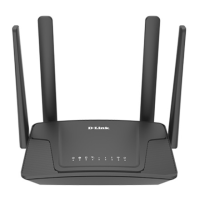
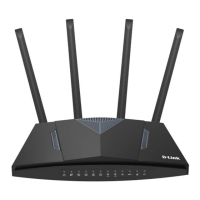
D-Link DWR-M930
3 pages
Print Icon
To Next Page IconTo Next Page
Loading...
Technical Support Setup Procedure
How do I install the D-Link DWR-M930 Wireless 4G LTE
Router?
Note: Before you begin, ensure you have your SIM Card and necessary network information
(such as APN settings) from your service provider. However, many 4G LTE Routers are
designed to be plug-and-play.
1 Insert the SIM card into the appropriate slot, and make sure it is inserted correctly.
DWR-M930 supports Nano-SIM
2 Connect the DWR-M930 to a power source using the included adapter. Press the power
button until the device turns on.
3 On your device (computer, smartphone, tablet) connect wirelessly to the dlink-xxxx (xxxx
is the last 4 digits of mac address) from the Wi-Fi list of the device you want to connect
from. When prompted for a password, use the WPA key printed at the bottom of the
router or by pushing the WPS button at the back of the Router.
4 Open a web browser (such as Chrome, Firefox, or Safari) on your connected device and
enter the router's IP address into the URL bar: http://192.168.0.1 then press enter.
5 The page will be prompted to enter a username and password. The default username
and the default password are:
Username: admin
Password: (as printed on the device label at the bottom of the router)
Sim Card Sizes

Other manuals for D-Link DWR-M930

Question and Answer IconNeed help?

Do you have a question about the D-Link DWR-M930 and is the answer not in the manual?

Summary

Install D-Link DWR-M930 Wireless 4 G LTE Router

Insert SIM Card

Insert the SIM card into the appropriate slot and ensure it is correctly inserted.

Connect Power and Boot Up

Connect the router to a power source using the adapter and press the power button.

Connect to Wi-Fi Network

Connect wirelessly to the router's SSID using your device's Wi-Fi settings.

Access Router Interface

Open a web browser and enter the router's IP address (http://192.168.0.1) to access the interface.

Login to Router

Enter the default username 'admin' and the password from the device label to log in.

Configure Wireless Settings

Modify Wi-Fi Name (SSID)

Navigate to Wireless > Basic Settings, find the SSID field, and enter a new Wi-Fi name.

Change Wi-Fi Password

Go to Wireless > Security, select encryption mode, and enter a new Pre-Shared Key.

Summary

Install D-Link DWR-M930 Wireless 4 G LTE Router

Insert SIM Card

Insert the SIM card into the appropriate slot and ensure it is correctly inserted.

Connect Power and Boot Up

Connect the router to a power source using the adapter and press the power button.

Connect to Wi-Fi Network

Connect wirelessly to the router's SSID using your device's Wi-Fi settings.

Access Router Interface

Open a web browser and enter the router's IP address (http://192.168.0.1) to access the interface.

Login to Router

Enter the default username 'admin' and the password from the device label to log in.

Configure Wireless Settings

Modify Wi-Fi Name (SSID)

Navigate to Wireless > Basic Settings, find the SSID field, and enter a new Wi-Fi name.

Change Wi-Fi Password

Go to Wireless > Security, select encryption mode, and enter a new Pre-Shared Key.

Overview

The D-Link DWR-M930 is a Wireless 4G LTE Router designed to provide internet connectivity through a SIM card. It functions as a central hub for wireless devices, allowing multiple users to connect to the internet via a 4G LTE network. The device is primarily plug-and-play, simplifying the initial setup process for users.

Function Description:

The primary function of the DWR-M930 is to convert a 4G LTE cellular signal into a Wi-Fi network. This allows devices such as computers, smartphones, and tablets to access the internet wirelessly, even in locations without traditional wired broadband connections. It supports various SIM card sizes, specifically Nano-SIM, ensuring compatibility with modern cellular plans. The router also features a web-based Graphical User Interface (GUI) for comprehensive configuration and management of network settings, including wireless parameters, security protocols, and advanced network configurations.

Important Technical Specifications:

  • SIM Card Support: Nano-SIM.
  • Network Type: 4G LTE.
  • Wireless Standards: Supports 2.4 GHz (B+G+N) for Wi-Fi connectivity.
  • Security Protocols: Offers multiple encryption options including WEP, WPA, WPA2, WPA3, and WPA2/WPA3-Mixed. WPA2/WPA3-Mixed is recommended for enhanced security.
  • Default IP Address: 192.168.0.1 for accessing the web-based management interface.
  • Default Login Credentials: Username: admin, Password: (printed on the device label).
  • Power Source: Connects to a power source using an included adapter.
  • Physical Buttons: Includes a power button and a WPS button for easy Wi-Fi connection.
  • Indicators: Features LED indicators for status, including power and network connectivity.
  • MAC Address: Used to identify the default Wi-Fi network name (dlink-xxxx, where xxxx are the last 4 digits of the MAC address).
  • Signal Information (as shown in GUI): Displays RSSI (Received Signal Strength Indicator), RSRP (Reference Signal Received Power), RSRQ (Reference Signal Received Quality), and SINR (Signal to Interference plus Noise Ratio) for detailed cellular signal strength and quality monitoring.
  • Cellular Network Information (as shown in GUI): Provides details such as IP Address, Default Gateway, Primary and Secondary DNS Servers, IMEI (International Mobile Equipment Identity), IMSI (International Mobile Subscriber Identity), Cell ID, PCI (Physical Cell Identifier), and Band information.

Usage Features:

  • Easy SIM Card Insertion: The router has a dedicated slot for Nano-SIM cards, designed for correct and secure insertion.
  • Simple Power-On Process: Connects to power via an adapter and is turned on by pressing the power button.
  • Wireless Connectivity: Creates a Wi-Fi network (SSID typically named "dlink-xxxx") that can be easily discovered and connected to by various devices.
  • WPS Button: Allows for quick and secure connection of WPS-compatible devices without manually entering the Wi-Fi password.
  • Web-Based Management: Accessible via a standard web browser (Chrome, Firefox, Safari) by entering the router's IP address (http://192.168.0.1). This interface provides comprehensive control over all router settings.
  • Customizable Wi-Fi Name (SSID): Users can change the default Wi-Fi network name to a personalized one for easier identification.
  • Adjustable Wi-Fi Password (WPA Key): The default Wi-Fi password can be modified to a more secure and memorable one, with support for various encryption types.
  • Multiple Security Modes: Offers a range of security options, including WEP, WPA, WPA2, WPA3, and WPA2/WPA3-Mixed, allowing users to choose the level of security appropriate for their needs. WPA2/WPA3-Mixed is recommended for optimal security.
  • Real-time Status Monitoring: The GUI provides a detailed overview of the router's status, including WAN status, VPN status, user traffic, and statistics, as well as detailed mobile network information such as signal strength and network provider.
  • Plug-and-Play Design: Many 4G LTE routers, including the DWR-M930, are designed to work immediately after SIM card insertion and power-on, minimizing the need for complex initial configurations.
  • Connected Clients Display: The management interface shows the number of connected clients, providing an overview of network usage.

Maintenance Features:

  • Factory Reset Option: If the admin password is forgotten or the router experiences issues, it can be reset to factory default settings. This typically involves a physical button on the device (though not explicitly detailed in the provided text, it's a standard feature for routers).
  • Firmware Updates: While not explicitly mentioned in the provided text, D-Link routers typically support firmware updates through the web interface to improve performance, add features, and address security vulnerabilities.
  • Password Management: The ability to change both the admin login password and the Wi-Fi password is a key maintenance feature for securing the network.
  • Troubleshooting Information: The GUI provides detailed status information that can be useful for diagnosing connectivity issues, such as signal strength indicators and network type.
  • Documentation: The device comes with a setup procedure guide (as provided) to assist users with installation and basic configuration.

D-Link DWR-M930 Specifications

General IconGeneral
BrandD-Link
ModelDWR-M930
CategoryNetwork Router
LanguageEnglish

Related product manuals