60
• Split Title may take several minutes.
• After editing is complete, a DVD-RW,DVD±R
disc will not be compatible with other DVD
players until you make the disc compatible; see
page 62.
Disc Playback and Editing
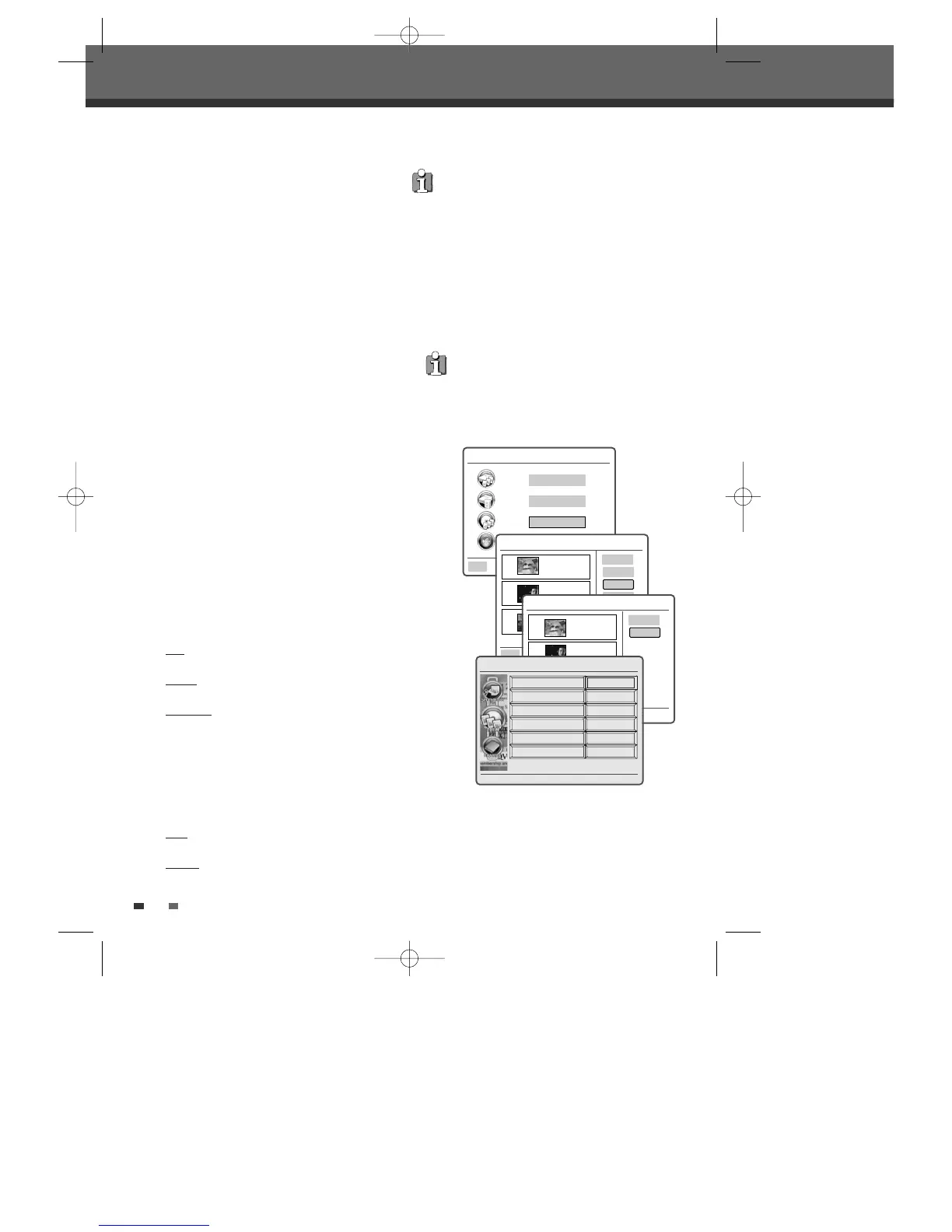
Editing a Title
When you insert a DVD±R or DVD±RW disc already
recorded by your HDD/DVD Recorder, you can edit
the titles and chapters in a variety of ways.
3
Select the title to be edited using [
… †
] and
press [OK].
4
Select ‘Edit’ using [
… †
] .
5
Press [OK] to go to submenu.
6
Select ‘Video Edit’ using [
… †
] .
7
Press [OK] to go to DVD Edit menu.
8
The DVD Edit Menu will be displayed.
• Title and Chapter:
When you insert a DVD±R or DVD±RW disc
already recorded by your HDD/DVD Recorder,
all recorded titles on the disc appear on your
screen. If a selected title has chapters, you can
skip to the next or previous chapter by pressing
[NEXT] or [PREV]. You can also see how many
chapters are in a title by pressing [INFO] during
playback.
- Use [
…/†
] to select ‘Title’ or ‘Chapter’.
- Use [
œ/√] to select the desired chapter
number.
• Edit Chapters :
Use to create, delete and edit chapter markers
in the title. Use the cursor button to choose one
of the following options :
Add
: creates a new chapter marker at the
point in the title where [OK] is pressed.
Delete
: when [OK] is pressed, deletes the
current chapter marker.
Delete all
: when [OK] is pressed, deletes all
chapter markers within the title.
• Hide Chapter :
Use to hide or unhide chapter markers in the
title. After hiding a chapter, the chapter is not
deleted but only hidden. Depending on whether
a chapter is currently hidden or unhidden, one
of the following options will be available :
Hide
: press [OK] to hide the current chapter
during playback.
Unhide
: press [OK] to unhide the current
chapter during playback.
Note :
You can use this feature to remove
commercials during playback by inserting chapter
markers at the start and end of a commercial
interruption and hiding the chapter created.
• Edit Thumbnail :
Creates a new Thumbnail at the point in the
title where [OK] is pressed.
• Split Title :
Use to divide the title into two separate titles.
Press [OK] at the point where you want to divide
the title into two separate titles.
Main Menu 00:00 Sun 07 Jan
HDD Playlist
HDD Media
DVD Playlist
Ok
DVD Playlist 00:00 Sun 07 Jan
Ok
Play
Delete
Edit
001
TITLE CH7
13 Sep 2006 13:44
SP OHr 2Min
002
TITLE CH5
003
DVD Playlist 00:00 Sun 07 Jan
Name
Video Edit
001
TITLE CH7
13 Sep 2006 13:44
SP OHr 2Min
003
Channel 4
13 Sep 2006 07:20
HQ OHr 15Min
Select Exit Return
Ok Menu Back
002
TITLE CH5
13 Sep 2006 11:10
HQ OHr 2Min
DVD Edit Navigator
1/8
Add
Title
Chapter
Edit Chapters
Hide Chapter
Edit Thumbnail
Split Title
Press < > To Change Title
œ 1/2 √
0202DRHT-630 2007.2.2 9:19 AM ˘ `60



 To Next Page