56
Disc Media Operation
Disc Media Operation
Usage of DISC OP button for Disc
Media Operation
+RW
16
41%
No
Yes
Num Recordings
Free Space
Locked
Compatible
Press < > To Choose Disc Operation.
Disc Operation
Disc Type
For recordable DVD media, such as DVD±R and
DVD±RW discs, you can manage the disc using the
Disc Operation.
The DVD±R DISC OP menu allows you to rename
your disc or finalise it so it will be compatible with
most other DVD players.
The DVD±RW DISC OP menu allows you to erase,
lock, or unlock your disc. You can also make it
compatible with most other DVD players.
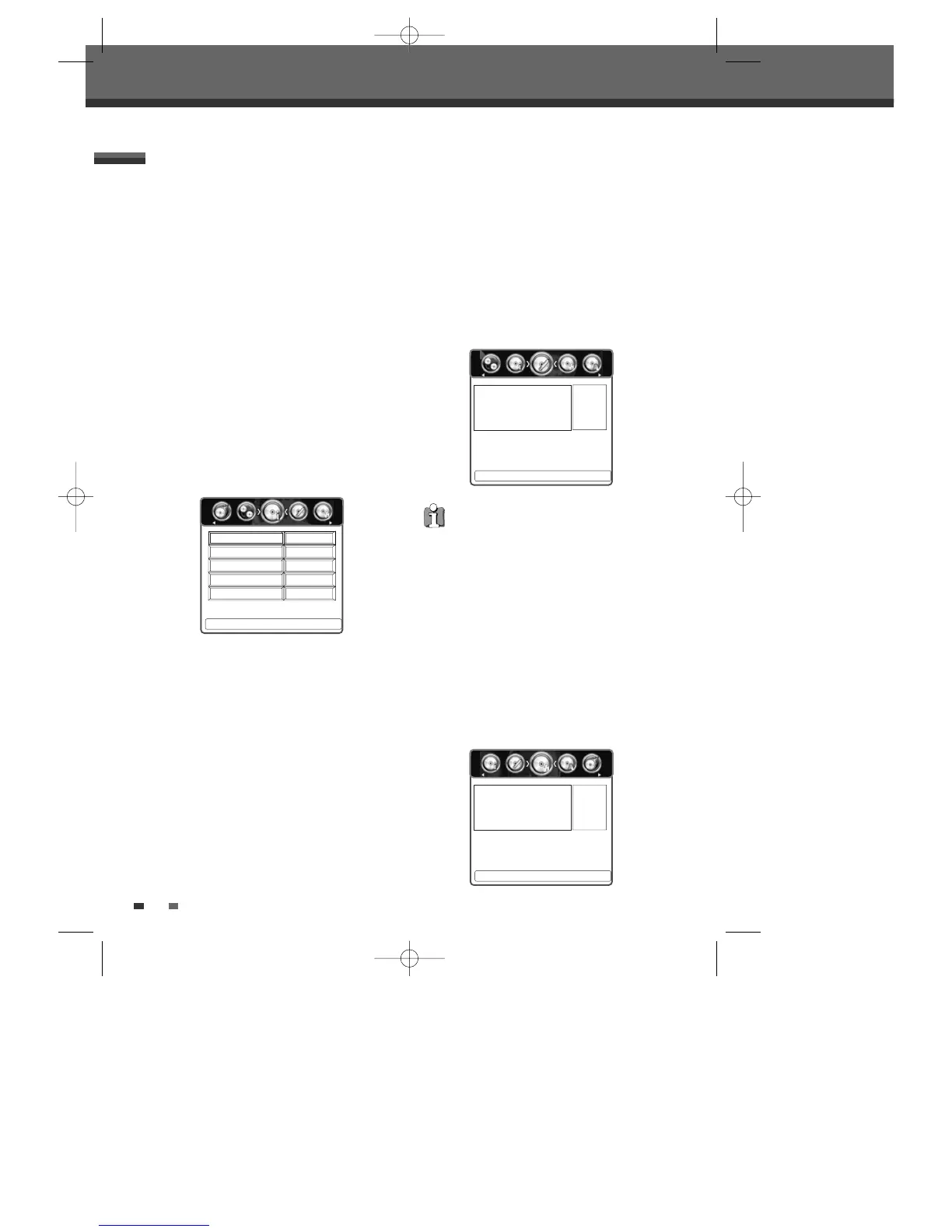
Disc Information
1
Press [DISC OP] to go to ‘Disc Operation’ mode.
2
The ‘Disc Information’ screen shows you disc
information, such as disc type, number of
recording, free space, locked and compatible.
Erase the disc (DVD±RW)
1
Press [DISC OP] to go to ‘Disc Operation’ mode.
2
Use [œ/√] to select ‘Erase Disc‘ menu. Then
press
[…] or [†].
3
If you want to erase the whole disc, select
‘Yes’ by using [
œ/√]. To confirm, select ‘Yes‘.
To cancel, select ‘No‘. If you select ‘Yes‘ and
press [OK], all the contents of the disc will be
lost.
Lock/Unlock the disc (DVD±RW)
If you want to protect a disc from accidental recording,
editing, or erasing, you can lock the disc. Later, if you
change your mind, you can unlock the disc
.
1
Press [DISC OP] to go to ‘Disc Operation’ mode.
2
Use [œ/√] to select ‘Lock/Unlock Disc‘ menu.
Then press
[…] or [†].
3
You can see the current disc status (Locked or
Unlocked).
œ No √
Press <OK> To Confirm.
Disc Operation
Are you sure you want to
erase this disc?
DVD±R discs cannot be locked (unlocked) or
erased.
œ No √
Press <OK> To Confirm.
Disc Operation
This disc is unlocked, do you
want to lock it?
DTBC-MNF(or D)1NP-AG 2007.9.11 4:18 PM ˘ `56


 To Next Page