5 | Operation
User reference guide
34
FTXTA30A2V1BW
Split system air conditioner
4P518786-4F – 2020.05
5.12.2 To install the Daikin Online Controller application
1 Open:
▪ Google Play for appliances using Android.
▪ App Store for appliances using iOS.
2 Search for Daikin Online Controller.
3 Follow the directions on the screen to install.
5.12.3 To set the wireless connection
There are two options to connect the wireless adapter with your smart device.
▪ Connect the wireless adapter to your smart device directly.
▪ Connect the wireless adapter to your home network. The wireless adapter will
communicate with your smart device in your home network using a modem,
router or a similar device.
For more information and FAQ refer to:
http://www.onlinecontroller.daikineurope.com/.
1 Stop the operation before setting the wireless connection.
2 Use the user interface to choose the wireless adapter setting menu.
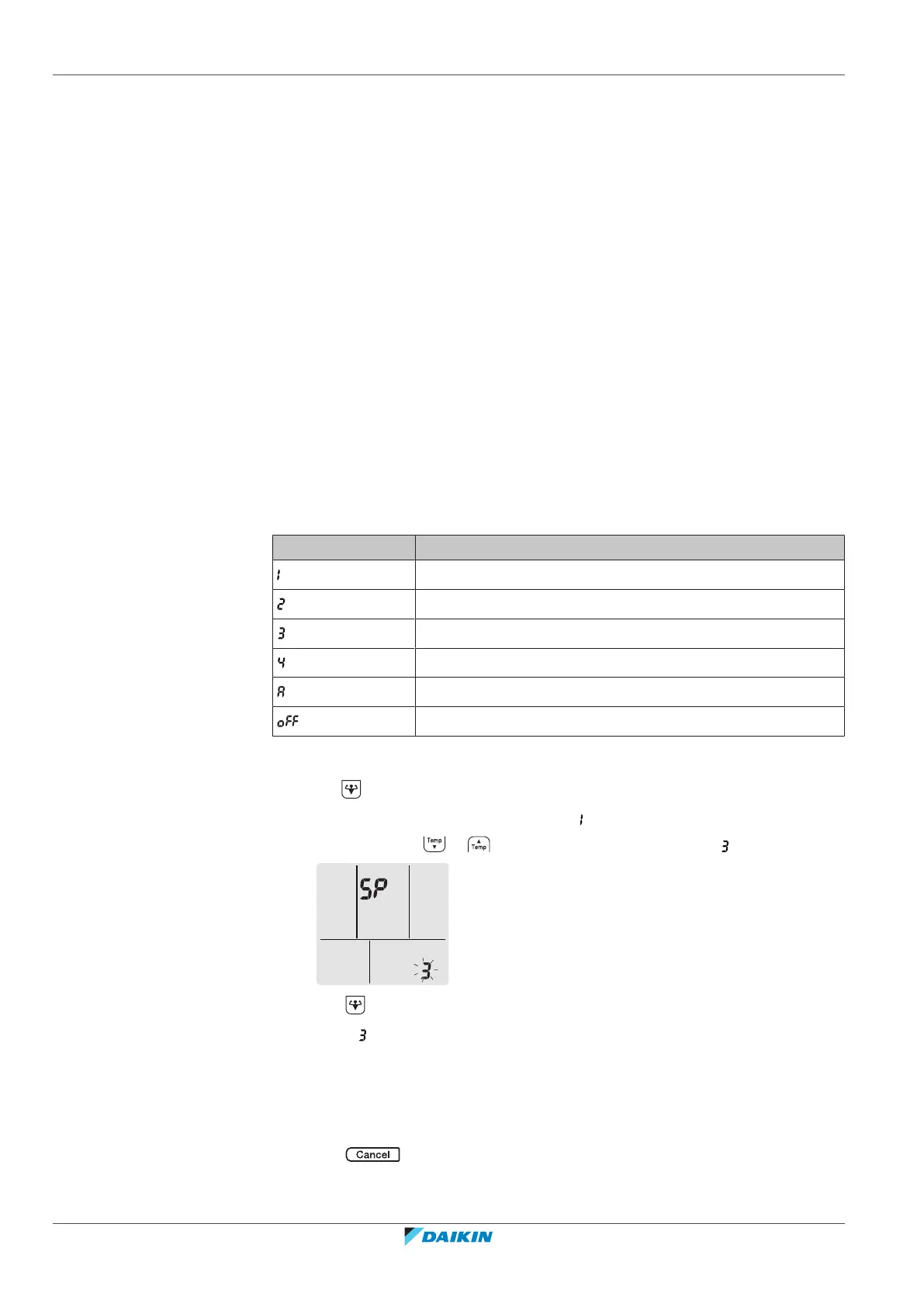
Menu Description
—
WPS setting
AP mode
RUN mode (SSID + KEY)
Reset to factory default
Wireless adapter OFF
To connect the wireless adapter to your device directly
1 Hold for at least 5seconds in the default screen.
Result: The confirmation display (menu ) appears.
2 Press repeatedly or until the AP mode display (menu ) appears.
3 Press to confirm the selection.
Result: is blinking. The operation and timer LEDs are blinking alternately.
4 Connect your smart device to the access point in the same way as to a
standard wireless network.
5 Enter the SSID number and password located on the unit or in the accessory
set.
6 Press to exit the menu.
Result: The display will return to the default screen.


 To Next Page