• If there is network map which used for operation data recording in the past, please select desired
network map and press [OK] button to proceed to [Network map] screen. Please proceed to [5-1-2:
Network map display]
• Even if in the site where you have recorded operation data before, if you are connecting to the
different D3-NET system please press [New] button. Please proceed to (5)
• To change the name of existing network map, please press [Edit map name] button. Please proceed
to (6)
• To delete existing network map, please press [Delete] button
• To return, please press [Back] button
(6) [Edit map name] screen
1) Enter network map name (mandatory)
2) After entering appropriate network map name, please press [OK] button to proceed
[Network map display] screen. Then proceed to [5-1-2 Network map display]. Please press [Back]
button to return.
(Note)
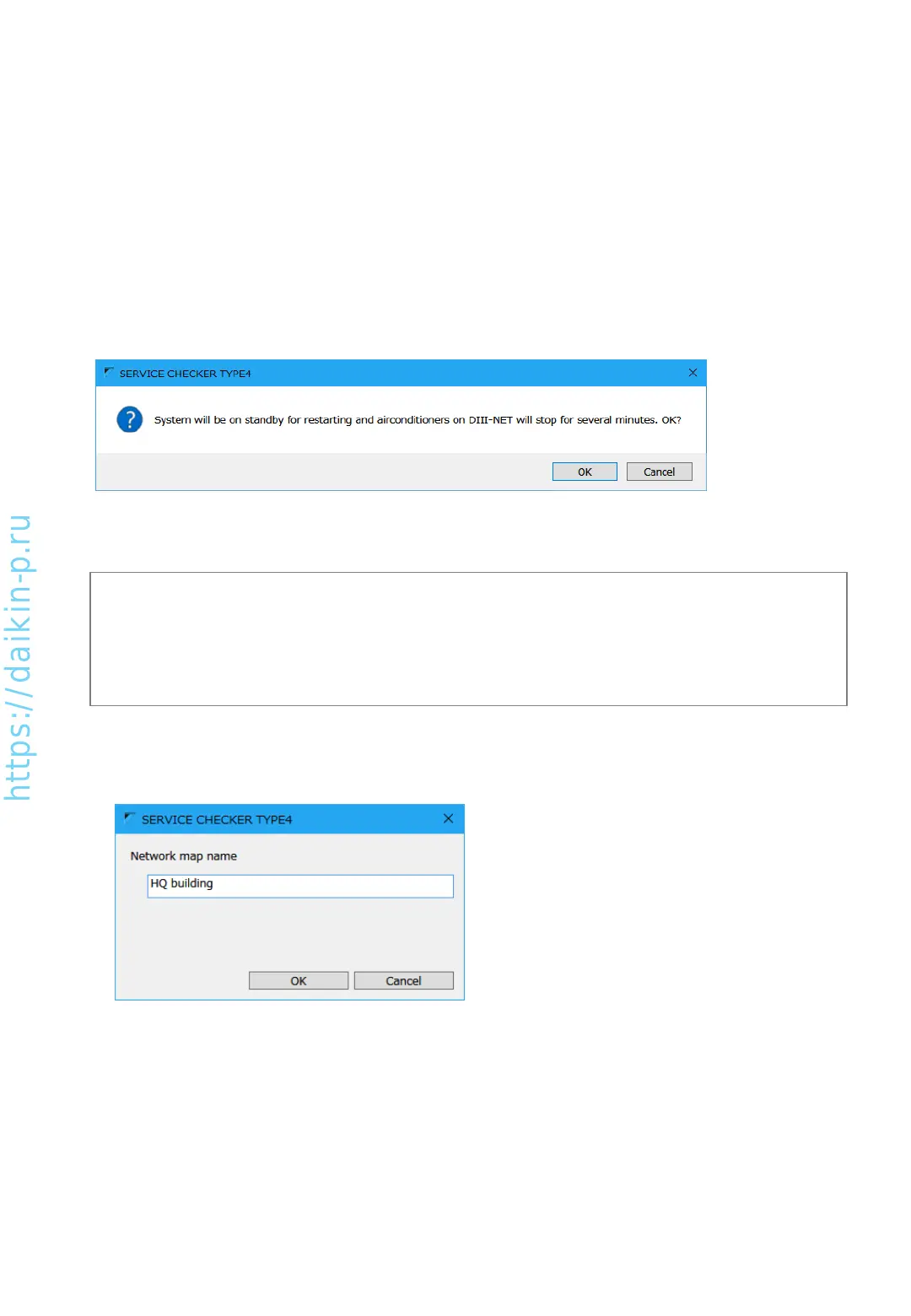
1. By pressing [OK] button of (6) [Edit map name screen], system will be in stand-by status and will be
thermostat-off for several minutes.
2. If you use existing network map which was created before, confirmation screen would not shown for
the 2
nd
time.
In case of first time connection to D3-NET, connected system will be in stand-by status to obtain line and
model (series) information from D3-Net with notification screen shown above. If the system can be
changed to stand-by status, please press [OK] button to proceed to (6)
(5) Confirmation screen for new connection
AS0112-P-DENV
21


 To Next Page