IOM 1281-2 • CENTRIFUGAL WATER CHILLERS 56 www.DaikinApplied.com
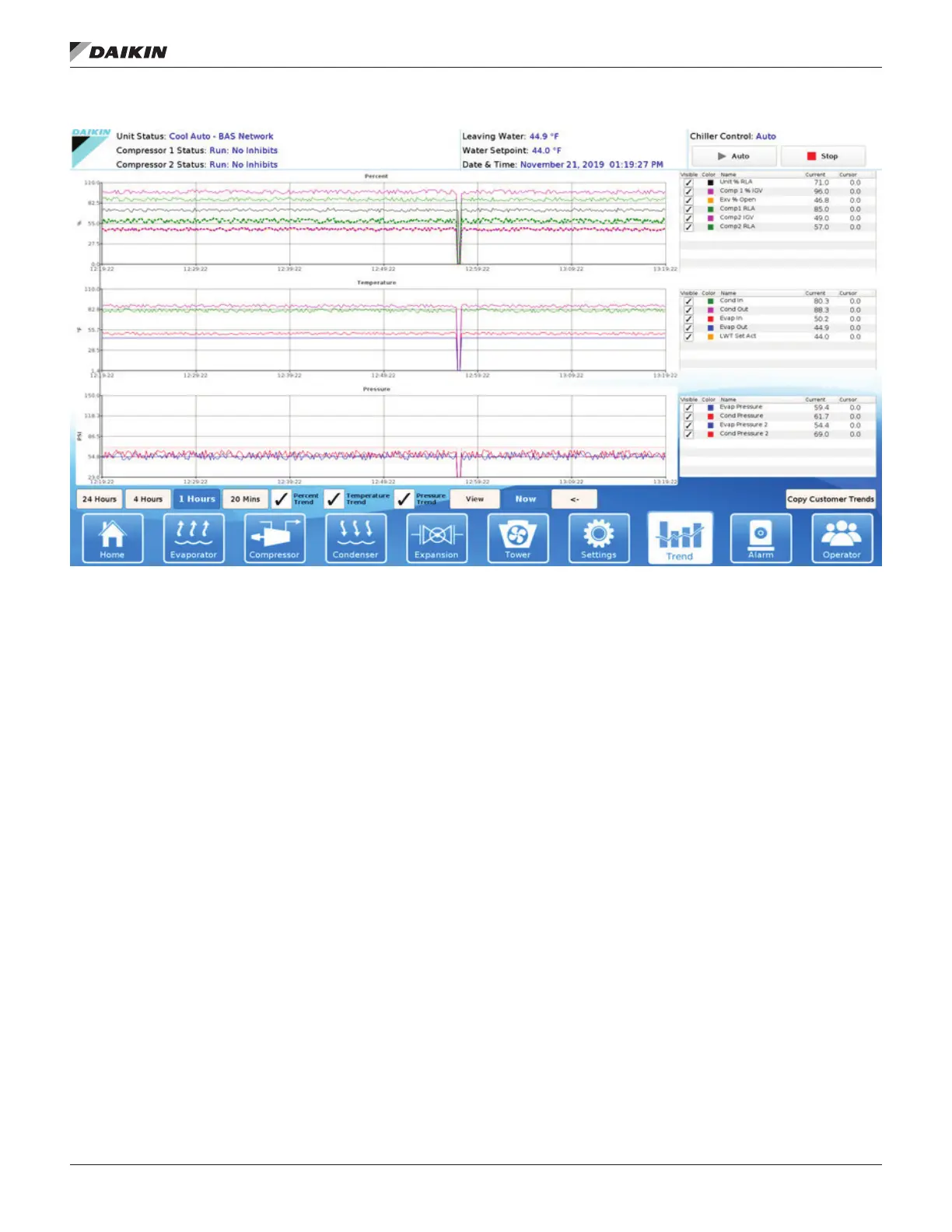
Figure 67: Trend History Screen
Trend History Screen
The Trend History Screen (Figure 67) is accessed by clicking
the TREND button at the bottom of any screen. The Trend
History Screen allows the user to view the various parameters
listed on the right side of the screen.
The Trend History Screen can display history for 24-
hour, 4-hour, 1-hour, or 15-minute periods by pressing the
appropriate button, respectively. For any time period, the trend
will display the current time beginning on the right of the screen
the Trend History Screen will only display the history starting
from the time the Unit Control Processor was powered on.
Previous trend history can be downloaded but there will be a
to download the trend history, reference the section
The Alarm information (Figure 68 and Figure 69) is accessed
by touching the ALARM icon at the bottom of the HMI and then
the Active or History tabs at the top of the screen. As noted on
page 37,
There are three types of entries in the table:
1. - This is an equipment
not corrected.
2. Warning (Yellow Text) - This alarm limits compressor
loading in response to an out-of-normal condition or
requires attention. This alarm may not cause a shutdown.
If the condition that caused a warning is corrected, the
alarm light will be cleared automatically.
3.
actions the unit may be taking while trying avoid a
warning or critical alarm.
The Alarm Active and History Screens display a maximum of
18 alarms for the current date with the most current alarms
listed on top. Each alarm displays the date stamp, action taken,
and the cause of the alarm. See the Alarm tables starting
on page 59
history data is held for 365 days as shown on the Interface tab
in Figure 66.


 To Next Page