DF3000A(-DN) / DF3000AS(-DN)
27Dallmeier electronic
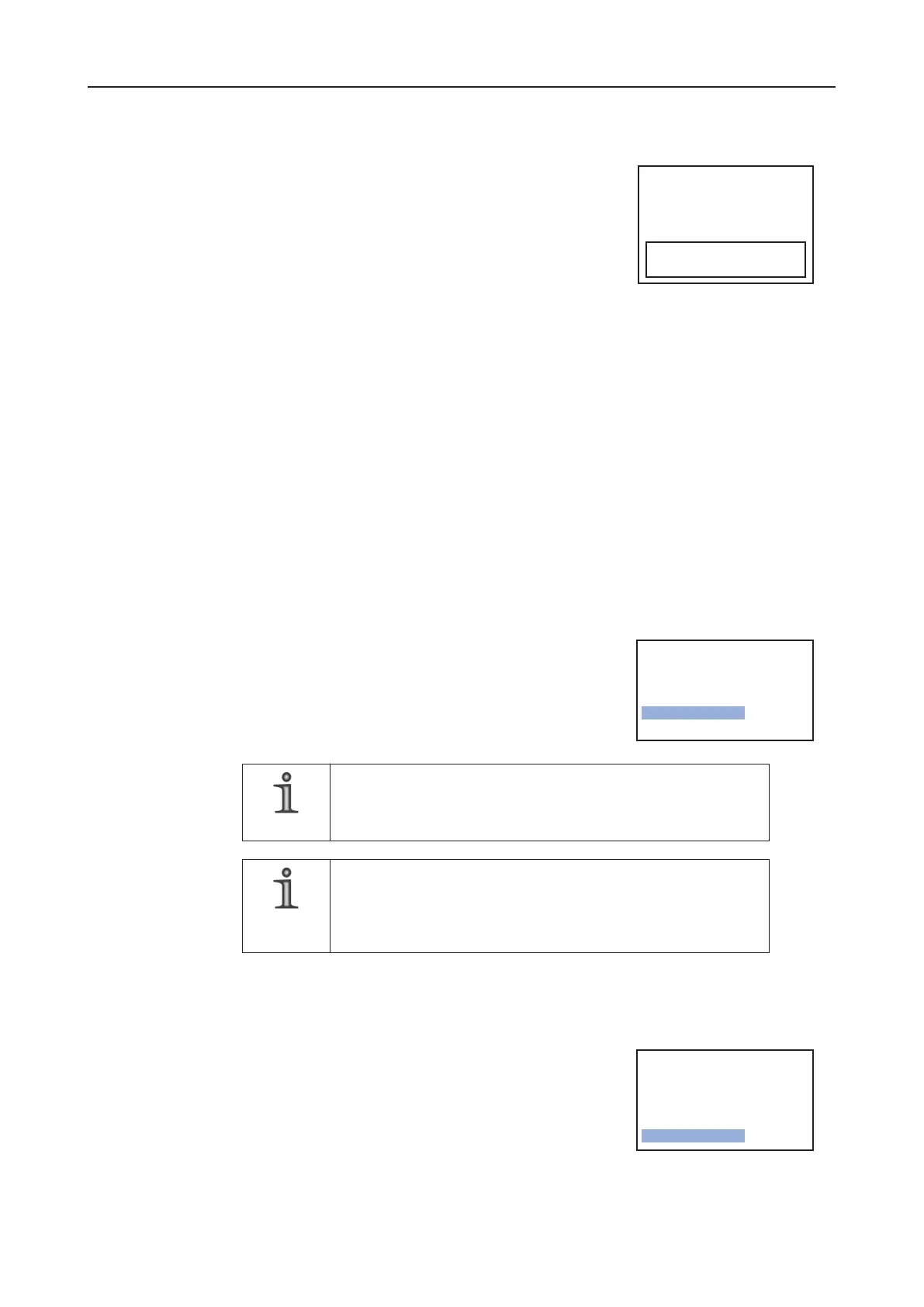
z Predefined fields of view
¾ Choose between Up and Down to define the position
of the field of view (in the example Down has been
chosen).
z Freely-defined field of view
¾ Select Set.. and press the Enter button.
The field of view is displayed in white. The position of the field of view can be changed
with the Selector.
¾ Press the Enter button.
The field of view is displayed in green. The field of view can be enlarged with the
selector.
¾ Press the Enter button.
The field of view is displayed in red. The field of view can be reduced with the Selector.
¾ Once you have set the size and position, press the Enter button for approx. 2
seconds to save the settings and to leave the configuration menu.
8.4.3 Digital Zoom
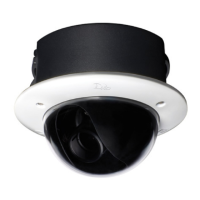
¾ Select Digital Zoom = On.. and press the Enter button.
¾ First set the zoom factor next to Zoom in the submenu.
¾ Then change the values next to Pan and Tilt to change
the position of the section enlargement.
NOTE
Digital panning (Pan) and tilting (Tilt) are only possible when
zoom factor > 1 has been selected.
NOTE
The Backlight and Digital Zoom functions are mutually
exclusive. If Backlight is activated, Digital Zoom is
automatically deactivated, and vice versa.
8.4.4 White Balance
White Balance allows you to influence the white balance of
the camera.
z AWB
With AWB.. automatic white balance is carried out for the
situation current at the time of measurement.
------------- Backlight --------------
-------- Image Functions ---------
Previous Page.
Progressive Scan Off
Backlight Off
> Digital Zoom < On.. >
White Balance ATW..
-------- Image Functions ---------
Previous Page.
Progressive Scan Off
Backlight Off
Digital Zoom On..
> White Balance < ATW.. >


 To Next Page