EasyManua.ls Logo

Dalsa G3-GM11-M2420 - User Manual

Default Icon
327 pages
Print Icon
To Next Page IconTo Next Page
Loading...
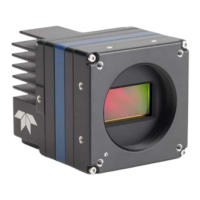
Genie Nano Series
Camera User’s Manual
1 Gb GigE Vision Monochrome & Color Area Scan
February 12, 2021
Rev: 0024
P/N: G3-G00M-USR00
www.teledynedalsa.com
sensors | cameras | frame grabbers | processors | software | vision solutions

Table of Contents

Questions and Answers

  • S
    Suzanne StewartAug 14, 2025
    What to do if my Dalsa G3-GM11-M2420 shows 'Device Not Available'?
    • T
      Troy CastroAug 14, 2025
      If your Dalsa Digital Camera displays a 'Device Not Available' error, it could be due to a major camera fault, disconnected power, or a network issue preventing communication. Review the section Using Nano to verify required installation steps. Also, in multiple NIC systems where the NIC for the Nano is using LLA mode, ensure that no other NIC is in or switches to LLA mode. Verify that your NIC is running the latest driver available from the manufacturer. Refer to the Teledyne DALSA Network Imaging manual to review networking details.
  • K
    Kristine MuellerAug 25, 2025
    What to do if my Dalsa G3-GM11-M2420 image is black?
    • B
      Brent SchwartzAug 25, 2025
      If your Dalsa Digital Camera's image is black despite the camera being functional, verify that the lens iris is open. Aim the Nano at a bright light source. Check that the programmed exposure duration is not too short or set it to maximum. Using CamExpert set the Nano to output its Internal Pattern Generator.
  • R
    Ralph LopezAug 27, 2025
    How to fix Multiple Camera Issues on Dalsa Digital Camera?
    • B
      Brent JonesAug 27, 2025
      To resolve multiple camera issues with your Dalsa Digital Camera, when using multiple cameras with a computer with multiple NIC ports, confirm each Nano has been assigned an IP address by checking the GigE server. To reduce network traffic in configured problem free systems, use the Network Configuration tool to stop camera discovery broadcasts. When using multiple cameras connected to an VLAN Ethernet switch, confirm that all cameras are on the same subnet setup on that switch. If a Nano camera installed with other GigE Vision cameras cannot connect properly with the NIC or has acquisition timeout errors, uninstall the third party driver and install the Nano package again. Verify that your NIC is running the latest driver available from the manufacturer.
  • K
    Kaitlin FranklinAug 31, 2025
    What causes Random Bad Data or Noise in Dalsa Digital Camera?
    • P
      peter14Aug 31, 2025
      Random bad data or noise in your Dalsa Digital Camera can be caused by network adapters that do not support jumbo frames but still report a false maximum packet frame size. Test for a good acquisition by reducing the camera packet size used. You may also try alternative NIC adapters.
  • N
    Natasha BarkerSep 3, 2025
    What to do if Power Failure occurs during a Firmware Update on Dalsa G3-GM11-M2420?
    • B
      bensonchristopherSep 3, 2025
      If a power failure occurs during a firmware update on your Dalsa Digital Camera, connect power to the Nano. The Nano processor knows that the firmware update failed, so perform the firmware update procedure again.
  • C
    Cameron WilliamsSep 6, 2025
    Why does my Dalsa G3-GM11-M2420 generate Random Invalid Trigger Events?
    • J
      Joseph TerrySep 6, 2025
      Random invalid trigger events on your Dalsa Digital Camera may be generated if you change the exposure time while grabbing. Avoid changing the exposure time during image capture.
  • J
    James SharpSep 10, 2025
    What causes 'Save User Configuration Failed' on Dalsa Digital Camera?
    • L
      Lisa GibsonSep 10, 2025
      If you encounter a 'Save User Configuration Failed' error on your Dalsa Digital Camera, it could be due to an unusual error that occurred with no other Nano control problem. Verify the minimum Sapera version used with the Nano Framework.
  • C
    Clarence EdwardsNov 16, 2025
    Why is my Dalsa Digital Camera frame rate lower than expected?
    • T
      Tiffany James MDNov 16, 2025
      If your Dalsa Digital Camera's frame rate is lower than expected, while running CamExpert and grabbing in free run mode, check the GigE Vision Transport Layer Control to verify and possibly increase the Interpacket Delay. While running CamExpert and grabbing in free-run mode at the maximum frame rate, start the Sapera Monitor tool from the Sapera Tools installed with Sapera. If any memory overflow events are counted, then the Nano internal buffer could not be transmitted on time and was discarded. Verify that the network parameters are optimal as described in the Teledyne DALSA Network Imaging Module manual. If using an external trigger, verify the trigger source rate and Nano parameters such as trigger to exposure delay. If the user wishes to try such an interface, limit this to just one ...
  • K
    kerrpaulNov 19, 2025
    What causes Cabling and Communication Issues in a Dalsa Digital Camera?
    • O
      obrienrachelNov 19, 2025
      Cabling and communication issues with your Dalsa Digital Camera can arise from several causes. Verify the power supply voltage, as the DC supply power may not be connected or faulty. Use a shielded cable where the connector shell electrically connects the Nano chassis to the power supply earth ground. Check that the Ethernet cable is clipped both to the Nano and the NIC or switch on the other end. Verify the Ethernet cabling, as poor quality cables will cause connections to auto-configure at lower speeds. Use a secured Ethernet cable when the Nano is in a high vibration environment. Check the Ethernet status LEDs on the NIC used with the camera. Verify that the Ethernet cable is CAT5e or CAT6, especially with long cable lengths. When using very long cables, different NIC hardware and EMI c...

Summary

Genie Nano Series Overview

GigE with TurboDrive

Explanation of Teledyne DALSA's TurboDrive technology for high-speed data transfers exceeding GigE limits.

Model Part Numbers

Software Requirements

Sapera LT Development Software

Details on Sapera LT software platform for Windows and Linux, including download links.

Genie Nano Specifications

Common Specifications

General specifications applicable to all Genie Nano cameras, covering camera controls and features.

Sony Sensor Models

Specifications: M700, C700

Detailed specifications for M700 and C700 models, including resolution, pixel size, and frame rates.

On-Semi Sensor Models

Specifications: M640, M640-NIR, C640

Detailed specifications for M640, M640-NIR, and C640 models, including sensor and pixel data.

Nano Quick Start

Connecting the Genie Nano Camera

Optimizing Camera;System Performance

Key camera features affecting network performance like Packet Size and Inter-packet Delay.

Troubleshooting

Device Not Available

Diagnosing issues when the Nano device is not found on the network, indicating network or fault problems.

Device IP Error

Troubleshooting network IP errors indicated by the GigE server tray icon.

Technical Specifications

Mechanical Specifications - C & CS Mount

Detailed dimensional variations (depths in mm) for Nano models with C and CS mounts.

Input Signals Electrical Specifications

Output Signals Electrical Specifications

Ethernet Switch Requirements

Additional Reference Information

Sensor Handling Instructions

Serial Port (RS-232) Specifications

Contact Information

Technical Support

Information on how to submit support questions and access technical resources.

Dalsa G3-GM11-M2420 Specifications

General IconGeneral
Sensor TypeCMOS
Resolution2448 x 2048
InterfaceCamera Link
Shutter TypeGlobal Shutter
Operating Temperature0°C to +50°C
Bit Depth8/10/12 bit
Optical Format1"

Related product manuals