User manual for DM700 ECDIS hardware
Copyright Danelec Marine A/S
MAN11804-10 Page 27/30
8.2 Diagnose errors/malfunctions
This section describes common solutions for some errors and malfunctions in the DM700 ECDIS.
No image on the display
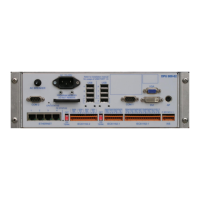
1. Verify that the DM700 ECDIS DPU is turned on. (CPU status LED must be GREEN)
2. Change monitor mode to DAY by pressing F6 on the keyboard up to three times.
3. Reset monitor settings at each monitor mode by pressing F8 in each monitor mode.
4. Check the DVI cable is connected to the DVI port of the DM700 ECDIS DPU, and the DVI
port of the monitor.
5. Check the RS232 cable is connected to COM1 port of the DM700 ECDIS DPU, and the
RS232 port of the monitor.
6. Verify power is connected to the monitor, and turned ON.
7. Repeat step 2 and 3
8. Turn off the DM700 ECDIS computer by pressing the “POWER” button on the monitor
HMI for 10 seconds. Release the button, and then briefly press the button again.
9. Contact a Danelec service partner for further assistance.
USB Disk is not recognized
1. Verify the USB Stick is correctly plugged into the USB port 1 on the front of the DM700
DPU.
2. Check the USB disk file system. Supported formats are: FAT, FAT32 or NTFS.
3. Contact a Danelec service partner for further assistance.
No data is received from any of the remote ECDIS nodes
1. Verify an Ethernet cable is connected to Ethernet port ‘LAN1’.
2. Verify the remote ECDIS node is turned on.
3. Contact a Danelec service partner for further assistance.
No sound from the buzzer
1. Verify the monitor is connected correctly to the DM700 ECDIS DPU by adjusting the
backlight of the monitor. The backlight should change.
2. Verify the monitor HMI is correctly connected to the monitor by pressing the POWER
button briefly. You should see a standby dialog popping up.
3. If you do not see a standby dialog, verify the cable from the monitor HMI is connected to
the monitor.
4. Adjust the buzzer in “Shortcuts”-menu (Main MenuShortcuts or Press F1) by pressing
the + and – buttons, and also verify sound is not turned off.
5. Contact a Danelec service partner for further assistance.
The backlight of the monitor cannot be controlled
1. Check the RS232 cable is connected to COM1 port of the DM/00 ECDIS DPU, and the
RS232 port of the monitor.
2. Contact a Danelec service partner for further assistance.
The ECDIS will not start
1. Verify AC power is connected to the monitor. The AC LED will be lit.
2. Verify DC is connected from the monitor to the DM700 ECDIS DPU.


 To Next Page