6
MICROTUBES INFINITY: USER GUIDE
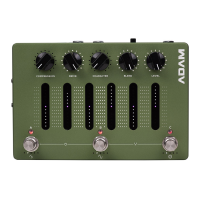
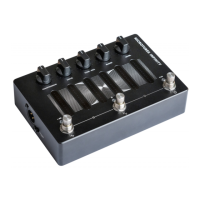
The DRIVE potentiometer adds distortion and drive
to our signal (modes 2-4) or blends in the tube
preamp emulation (mode 1). Crank this knob to
add more saturation or character to your distortion/
preamp part of the signal chain.
The TONE/ERA potentiometer allows you to go from
dull to crisp and anything in between. On the Vintage
Microtubes (modes 2 & 4) you get the coveted ERA
control which covers different decades of classic bass
tones.
The BLEND potentiometer mixes between the
distortion signal and the clean sidechain signal.
The LEVEL potentiometer controls the master
volume of the Microtubes Innity.
The smart potentiometers allow for their positions
to be stored in each preset, with the stored position
indicated by the ring of LEDs surrounding each
potentiometer.
With this, you can get a glance at your signal chain
settings when changing presets, regardless of the
physical potentiometer setting.
TOUCH SENSITIVE SLIDERS
At the center of the Microtubes Innity are the touch-
sensitive sliders that control the 6-band graphic EQ
at the end of the signal chain.
Each slider has a -12 dB to 12 dB range. From left to
right, the frequency bands for each slider correspond
to a low shelf, 250 Hz, 500 Hz, 1.5 kHz, 3 kHz, and a
high shelf. You can also change the frequency bands
to 100 Hz, 200 Hz, 400 Hz, 800 Hz, 1.6 kHz, 3.2 kHz in
the Darkglass Suite.
Controlling the touch sliders is easy - swipe upwards
to boost a frequency band or swipe downwards to
cut a frequency band.
When swiping, the position of the slider is also
reected on the potentiometer LEDs. Double-tap the
slider to reset the band back to 0 dB.
Hint: The sliders respond to the direction of your
swipe on any part of the slider, so you can make
small adjustments without your finger covering the
actual position of the slider.


 To Next Page